Image to Video AI
Upload a photo or illustration, describe the movement, and choose a model with the output settings you need.
Image to Video AI
Upload a photo or illustration, describe the movement, and choose a model with the output settings you need.

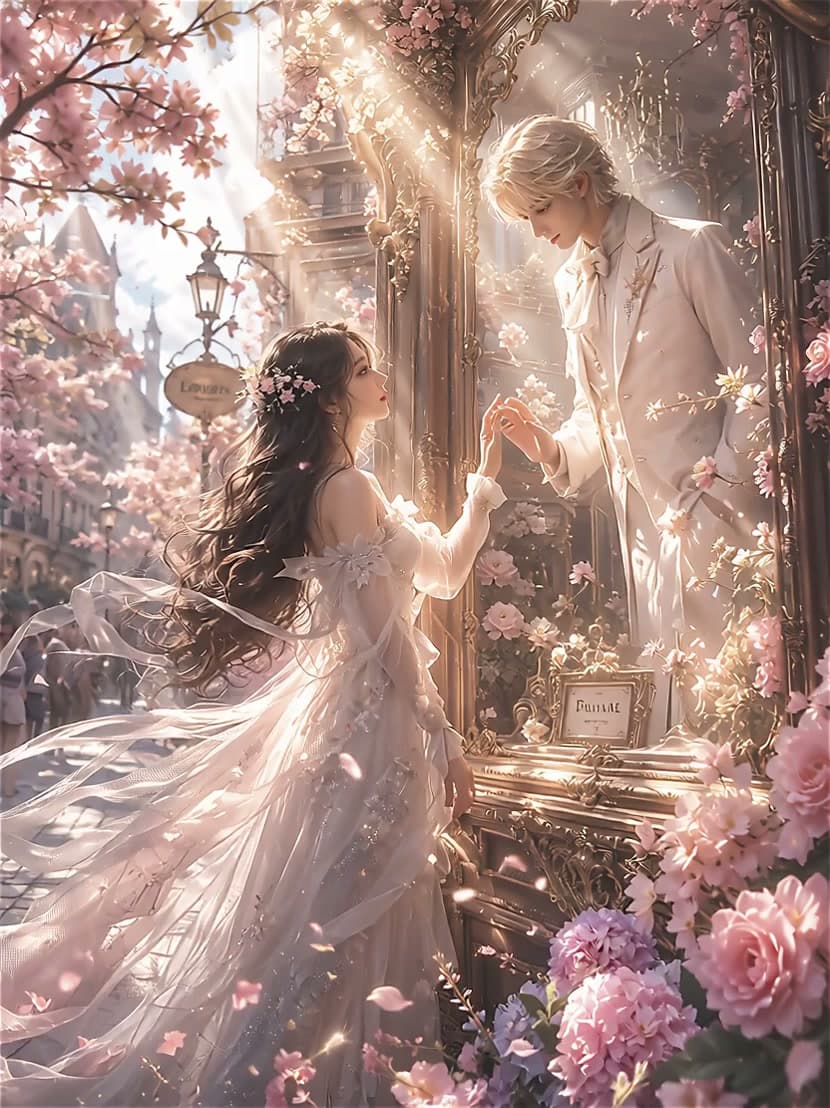


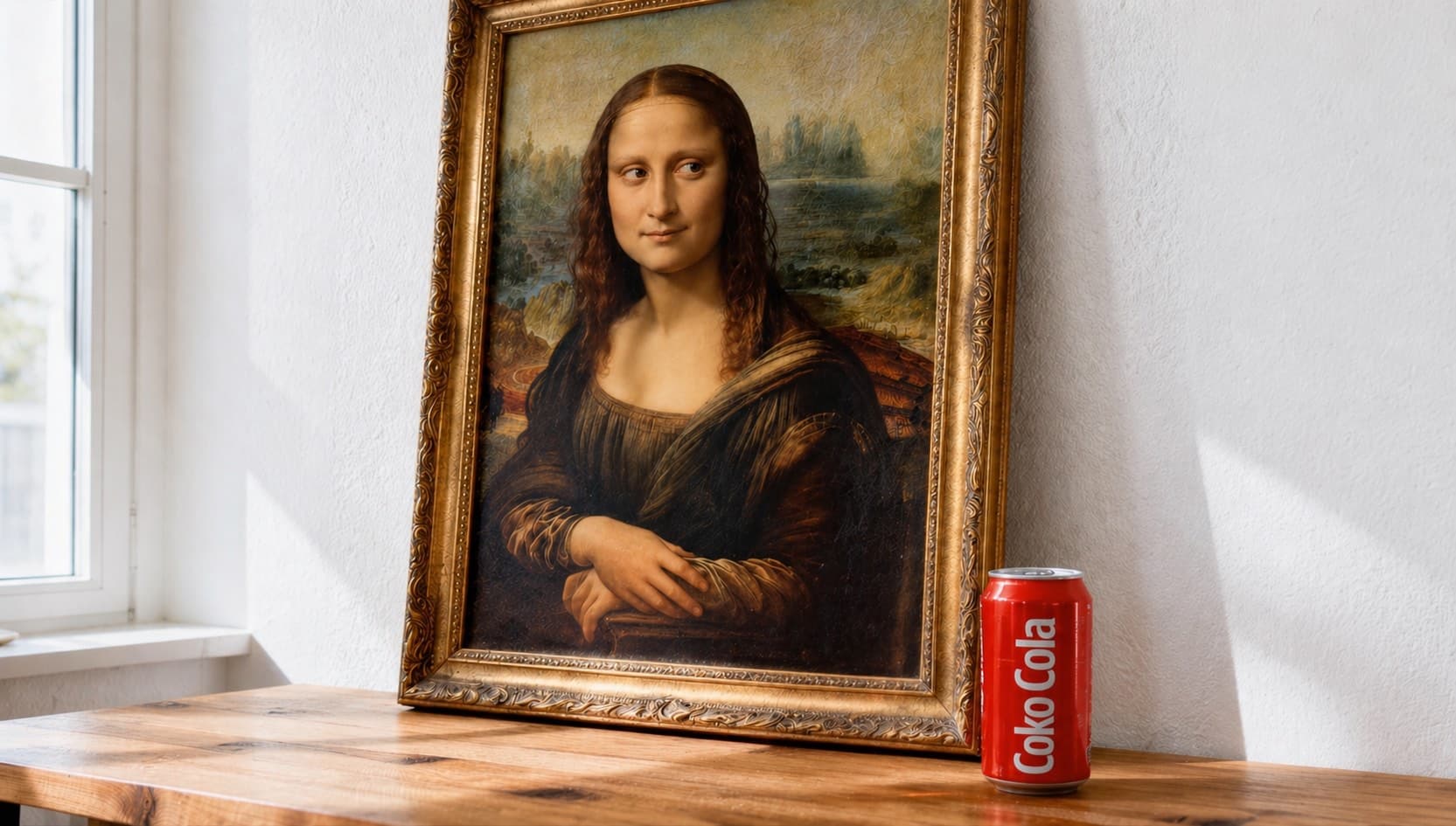

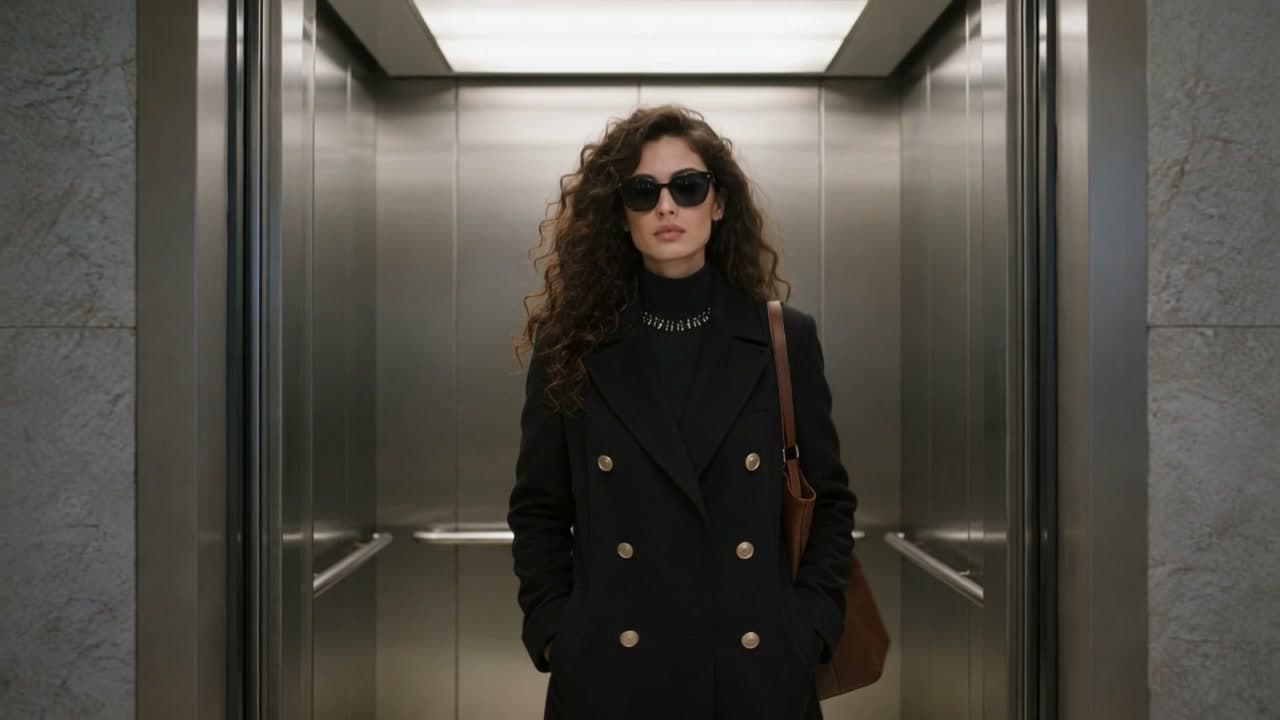
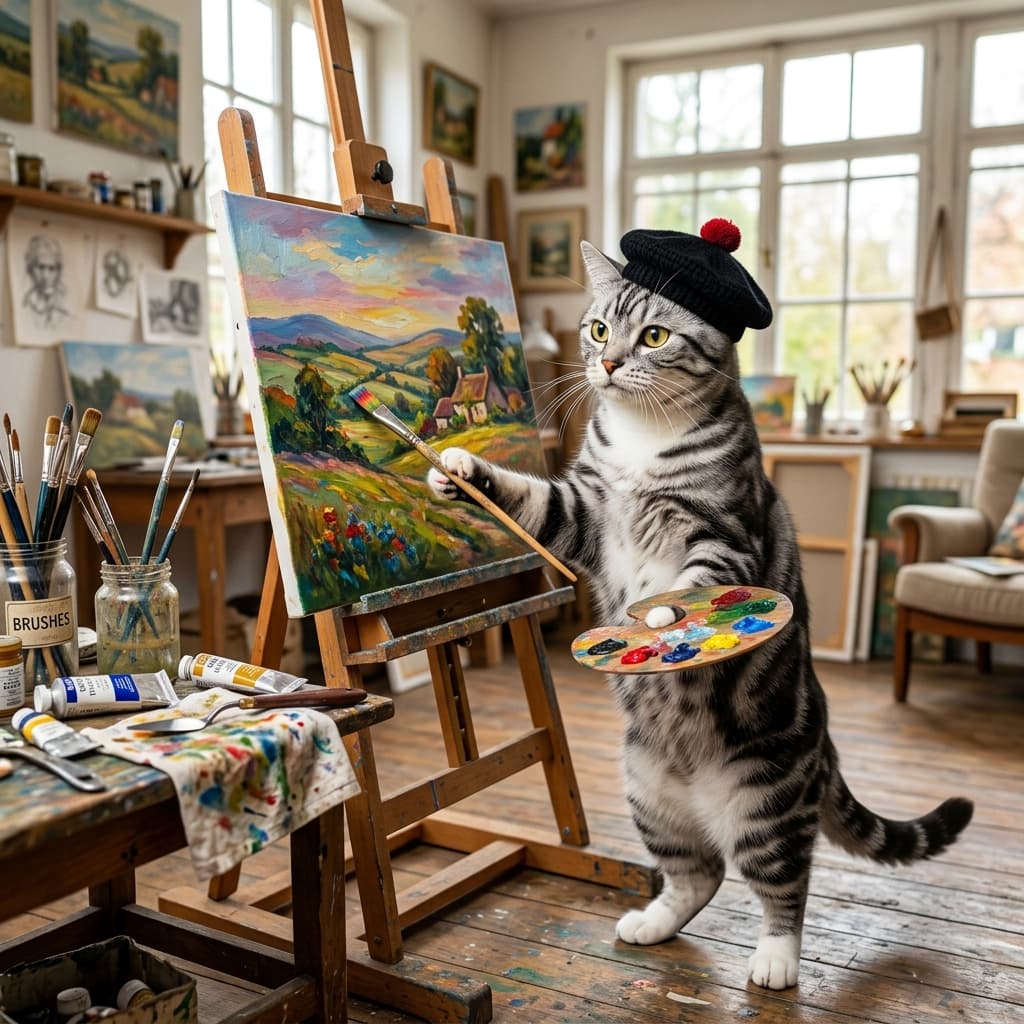
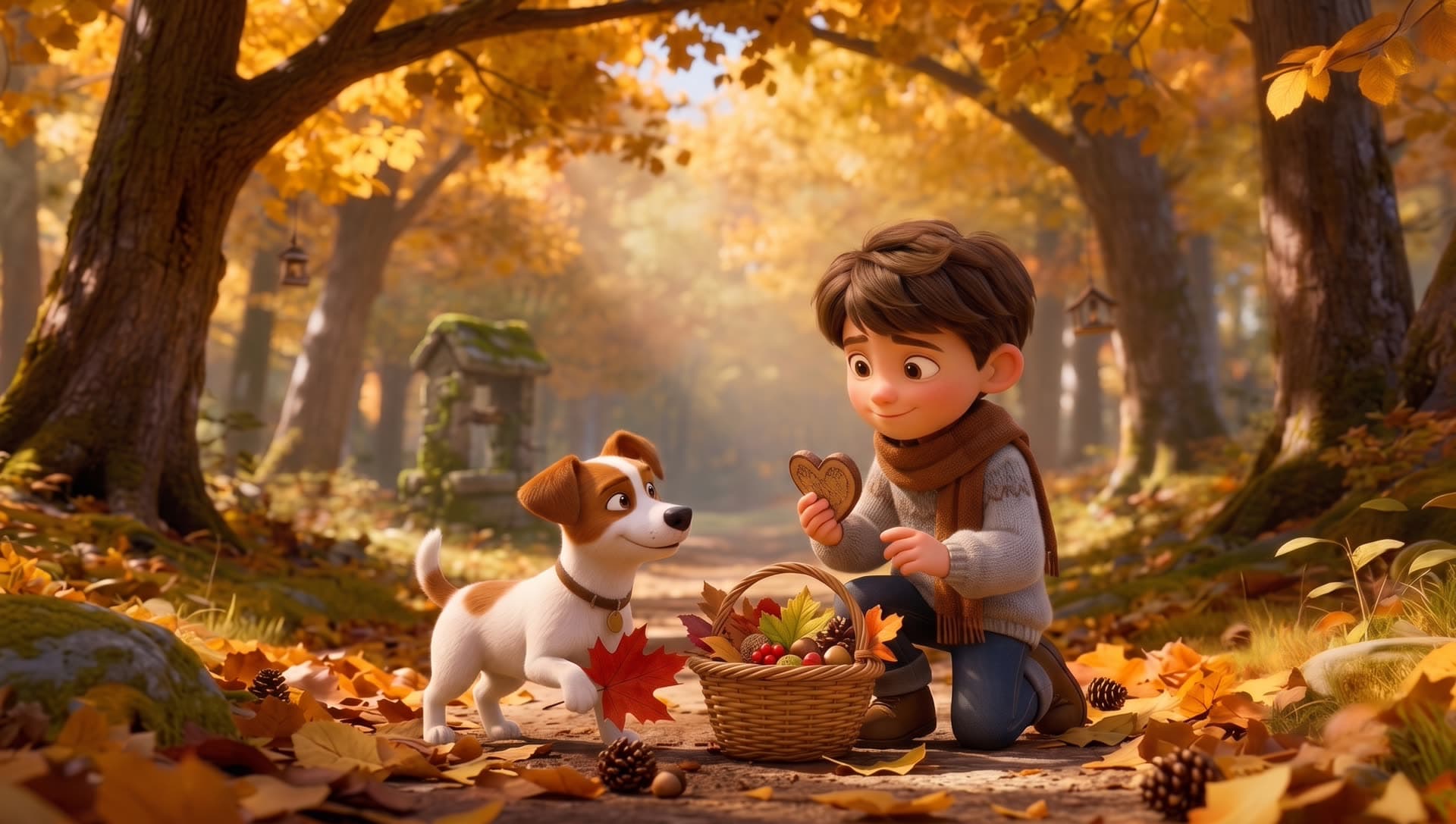
Choose an image to video model for your inputs
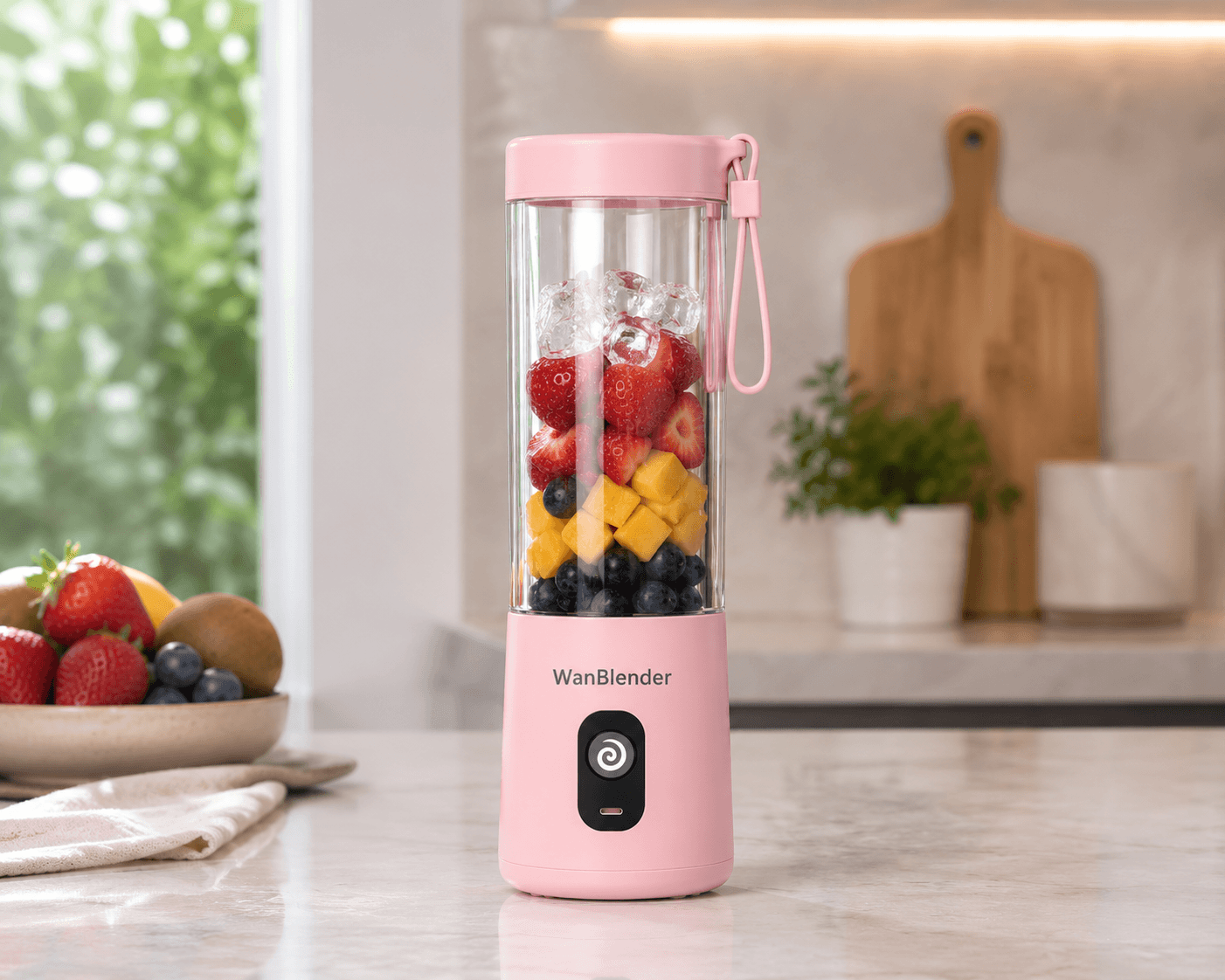
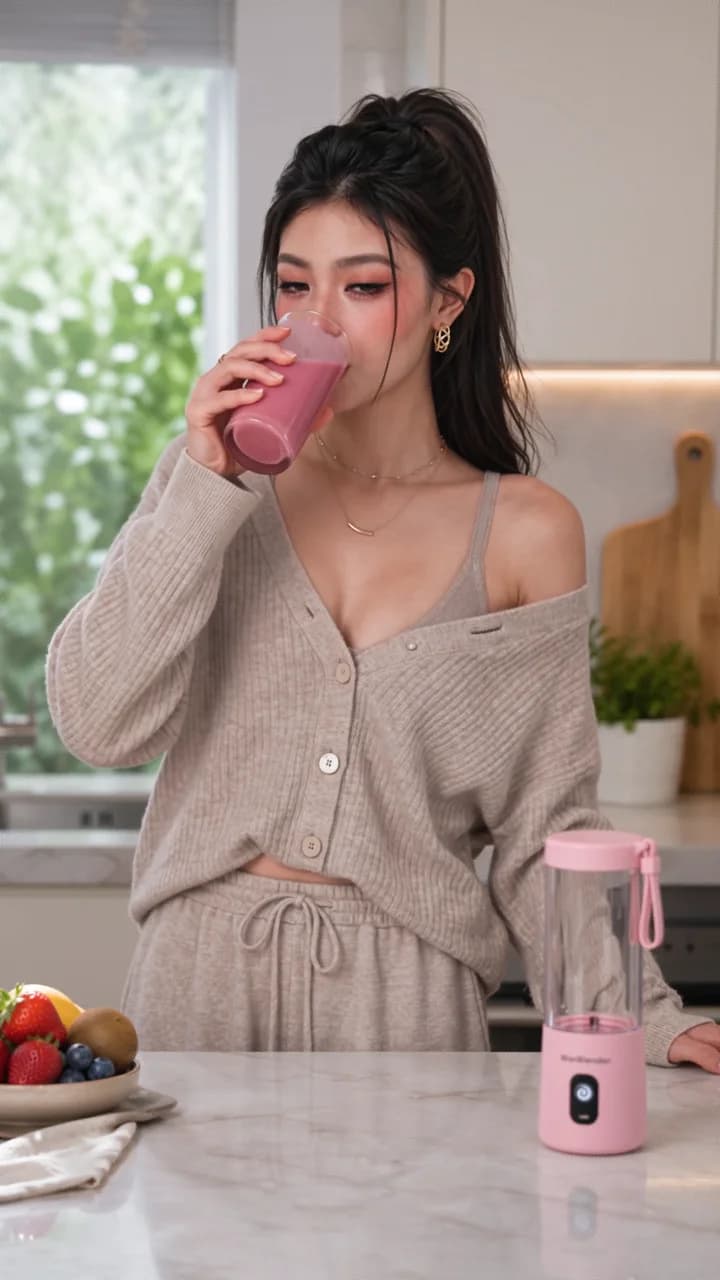
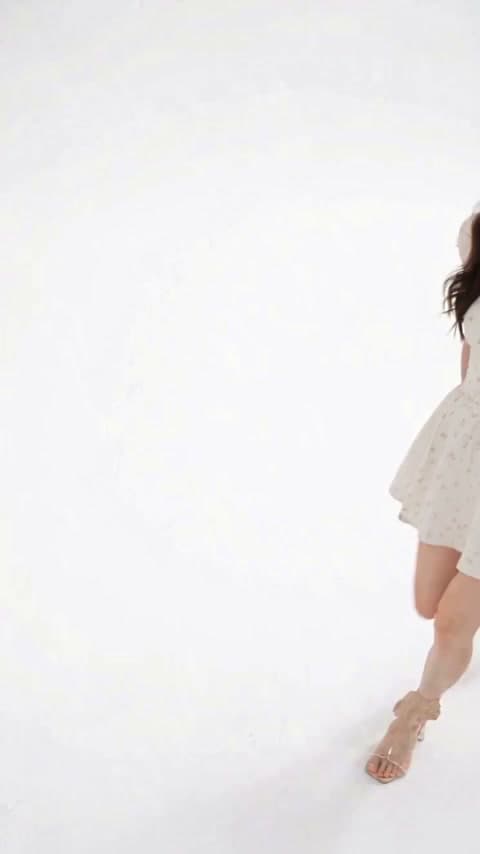
Use AI to animate photos, product images, or illustrations. Your image guides the appearance, while your prompt describes the motion. The model cards below link to each model's capabilities and limits; use the generator above to choose inputs and output settings.
From first and last frames to a singing clip
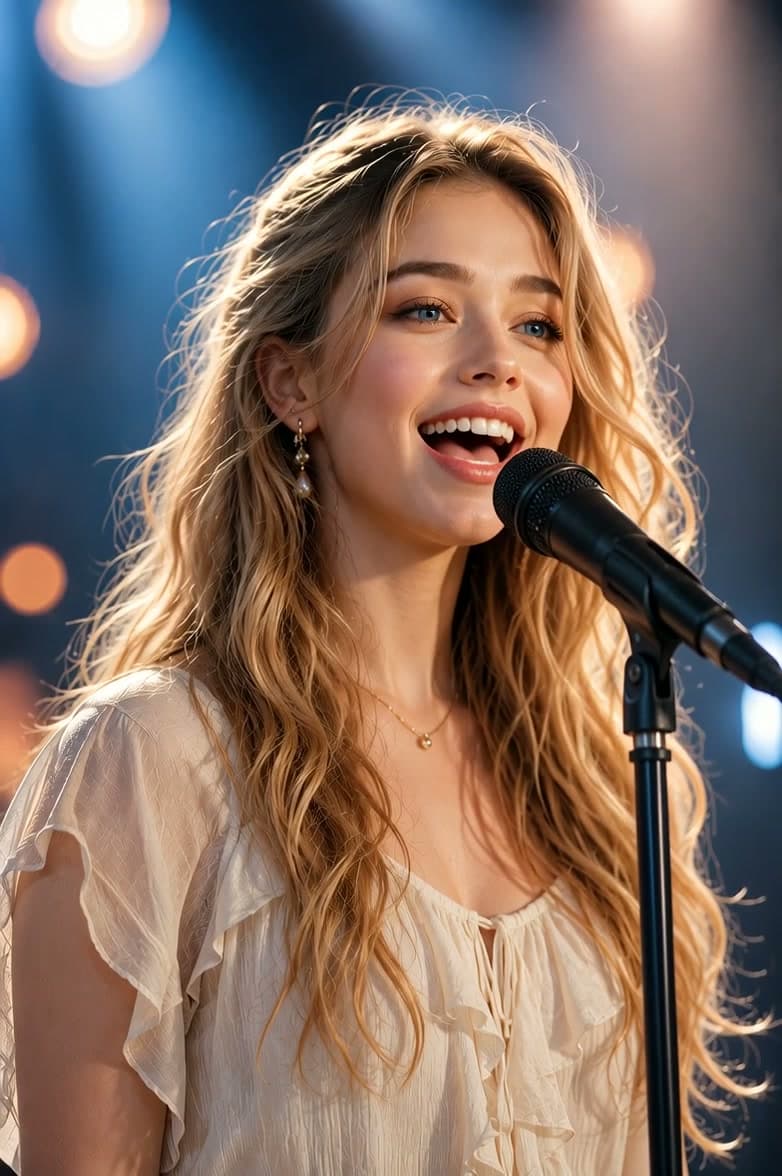
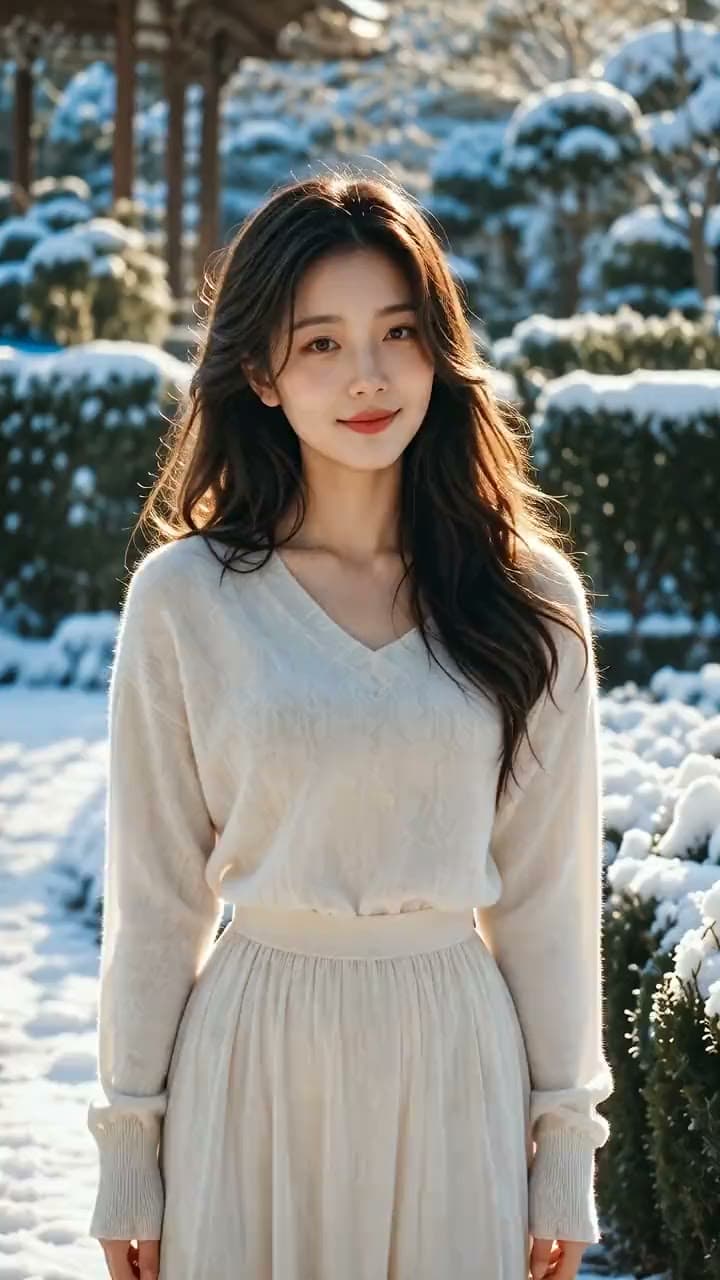
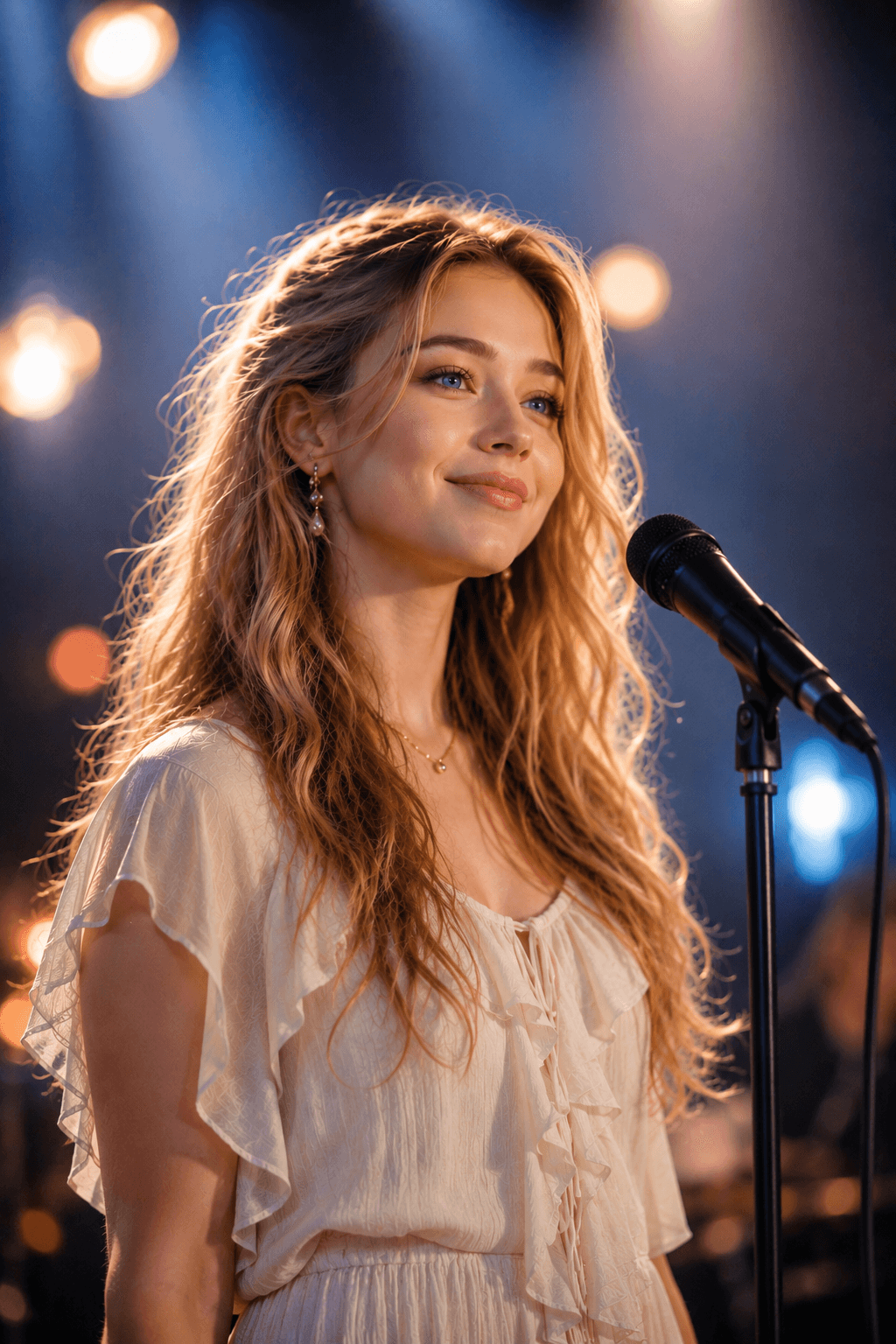
This Wan 2.7 example combines a first frame, a last frame, uploaded audio, and a prompt, with the settings set to 8 seconds and 720p. The complete original prompt is shown below. Its “8K” wording is part of the prompt; this example’s output resolution was set to 720p. Compare the two images with the video, checking the transition, face, hands, and sound. Reuse these checks when reviewing your own results.
Prompt, frames, and audio
A photorealistic medium close-up shot of a sweet and attractive young woman with long, light blonde wavy hair and bright blue eyes, naturally singing into a professional black microphone mounted on a stand. She has a warm, relaxed, and infectious smile, with an overall fresh, youthful, and natural vibe. She is wearing a light-colored, soft and airy top (such as cream white, light pink, or a soft nude tone), with a simple and delicate style that highlights her youthful charm. She is wearing refined but not overly exaggerated earrings, along with a small gold necklace. The overall lighting is soft and cinematic, with warm rim light and delicate skin texture. The background features a blurred bokeh effect, mainly in light blue, warm white, and soft warm-toned light spots, creating a relaxed, dreamy, and stylish stage or studio atmosphere. High quality, 8K resolution, social media influencer aesthetic, realistic photography texture, fresh and youthful color tones.
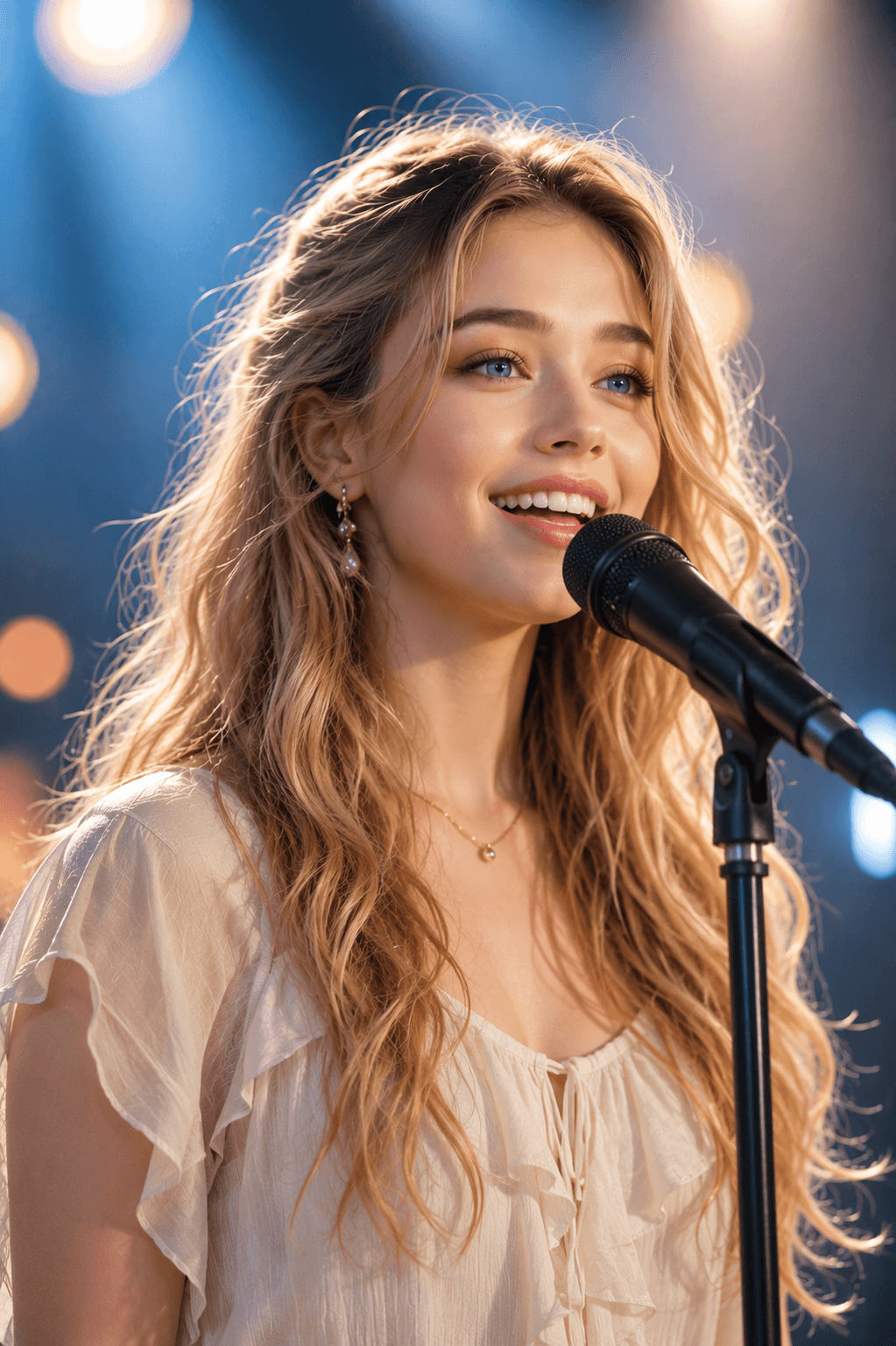
Generated video
How to animate a picture with AI
Choose the input mode, describe the movement, and review the full result before downloading.
Step 1 — Choose a model and upload your image
Select a model with the input mode you need. Use a clear starting image, or add an end image in a supported first-and-last-frame mode. Leave room around the subject for the intended movement and check the upload limits shown for that model.
Step 2 — Describe motion and choose output settings
Explain what the subject does, how the camera moves, and the pace of the action. Choose from the model's available duration, resolution, aspect-ratio, and audio options. Check the estimated credits before submitting.
Step 3 — Generate, inspect, and download
Follow the task status, then play the complete video. Check movement, faces, product details, flicker, and sound where present. Download the result you want to use. If you need another version, decide what to change first; each new generation uses credits.
Tools for preparing images and creating other videos
Frequently Asked Questions
What is image to video AI, and how is it different from a photo slideshow?
Image to video AI generates new movement from an image and a prompt. You can use it as a photo to video AI tool for portraits, products, or illustrations, describing subject motion or camera movement. A slideshow arranges existing photos in sequence; use a video editor if you need to assemble an album with transitions and a timeline.
How should I choose a model?
Choose by the inputs you need, then compare the available output settings and estimated credits. Open a model card above for its specific capabilities and limits. A short test with the same image and prompt can help you compare motion, faces, and fine details before committing to a longer clip.
Should I use one image, first and last frames, or multiple references?
A start image guides the opening, while first and last frames guide the beginning and end of the clip. Reference images provide visual guidance for characters, objects, or scenes. To include video or audio references, choose a model with Omni Reference. Check the upload controls for the selected mode’s file limits.
What is Omni Reference, and can I combine images, video, and audio?
Omni Reference lets you combine the selected model’s supported images, video, and audio in one generation. Choose a model with this mode, upload the media you need, and describe each file’s role in the prompt—for example, a photo for a character’s appearance, a video for motion, and audio for sound. You do not need all three media types, but accepted combinations, file counts, sizes, and durations vary by model; some require an image or video alongside audio. Check how the result follows your references: sound and visual details may change.
Which image formats, file sizes, and dimensions can I use?
JPG/JPEG, PNG, and WebP are common supported formats. File size, dimensions, and aspect-ratio requirements depend on the selected model. Check the upload instructions before adding your image; the model cards above lead to more detailed guidance. Use a clear image with the subject and important details visible.
What should I write in an image to video prompt?
Describe the subject's action, camera movement, pace, and details you want to preserve. For example: “The camera slowly moves toward the perfume bottle. Soft reflections shift across the glass. Keep the bottle centered and the label readable.” This describes your intent; inspect the generated label before using the clip. Prompt length limits vary by model, so follow the selected model's character limit.
How long can the video be, and which resolutions and aspect ratios are available?
Choose duration and resolution from the selected model's controls. Use 16:9 for landscape or 9:16 for portrait when those options are available. Some modes do not offer separate duration or aspect-ratio choices. The model guides explain the supported ranges; writing a resolution in the prompt does not override the output settings.
Can I upload audio or generate a video with sound?
Some models generate sound and some also accept uploaded audio. To use your own track, you can select Wan 2.7 and its audio upload option. Audio used as a reference may not be preserved unchanged. If your main goal is to make a person in a photo speak from a recording, see AI Avatar.
How long does generation take, and what if the result looks wrong?
Processing time varies, so follow the task status instead of relying on a fixed completion time. Once ready, check the entire clip for unwanted motion, facial changes, distorted hands, flicker, and audio issues. Try a clearer image, a simpler motion prompt, or a shorter clip where available. Another generation may help, but improvement is not guaranteed.
Can I use image to video AI for free, and how are credits calculated?
Sign in to generate. If your account has signup credits available, you can use them toward a task, but they may not cover a complete generation. Required credits depend on the model, output settings, and inputs; some mixed-reference models also count reference-video duration. Compare your balance with the estimate before submitting. Each new generation, including a rerun, uses credits.
Will faces, product text, and logos stay exactly the same?
An image provides visual guidance, but generated details can change. Check faces, hands, lettering, logos, and product shape before publishing or using the video. Clear inputs and restrained movement give you a more focused starting point, without guaranteeing an exact copy. If the source image itself needs changes, prepare it in Image to Image before generating the video.