
GPT Image 2.5
GPT Image 2.5 is OpenAI's image generation and editing model family, available in VidGen for text to image and image to image. Create product visuals, social posts, posters and illustrations from a description, or use reference images to change an outfit, replace a background or explore a new style. Choose Flare for quick creative drafts and Sunburst when fine detail and editing precision matter most.
Change an Outfit with Multiple Reference Images
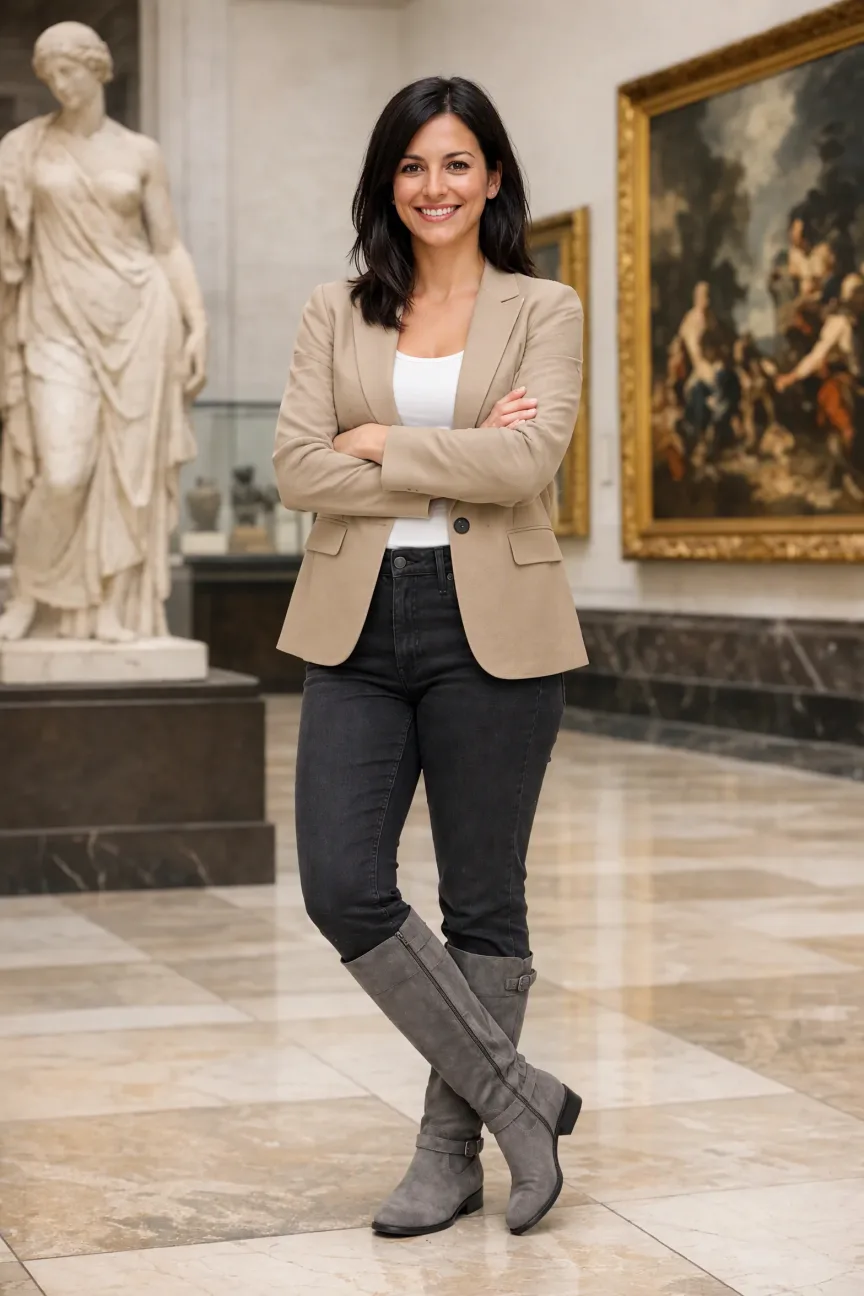
This GPT Image 2.5 Sunburst example pairs a portrait with three clothing references: a camel blazer, a white tank top and grey suede boots. The prompt asks for a new outfit while preserving the woman's appearance, pose and surroundings. Compare the references with the result to see how the clothing and lighting come together.
Reference Images + Prompt
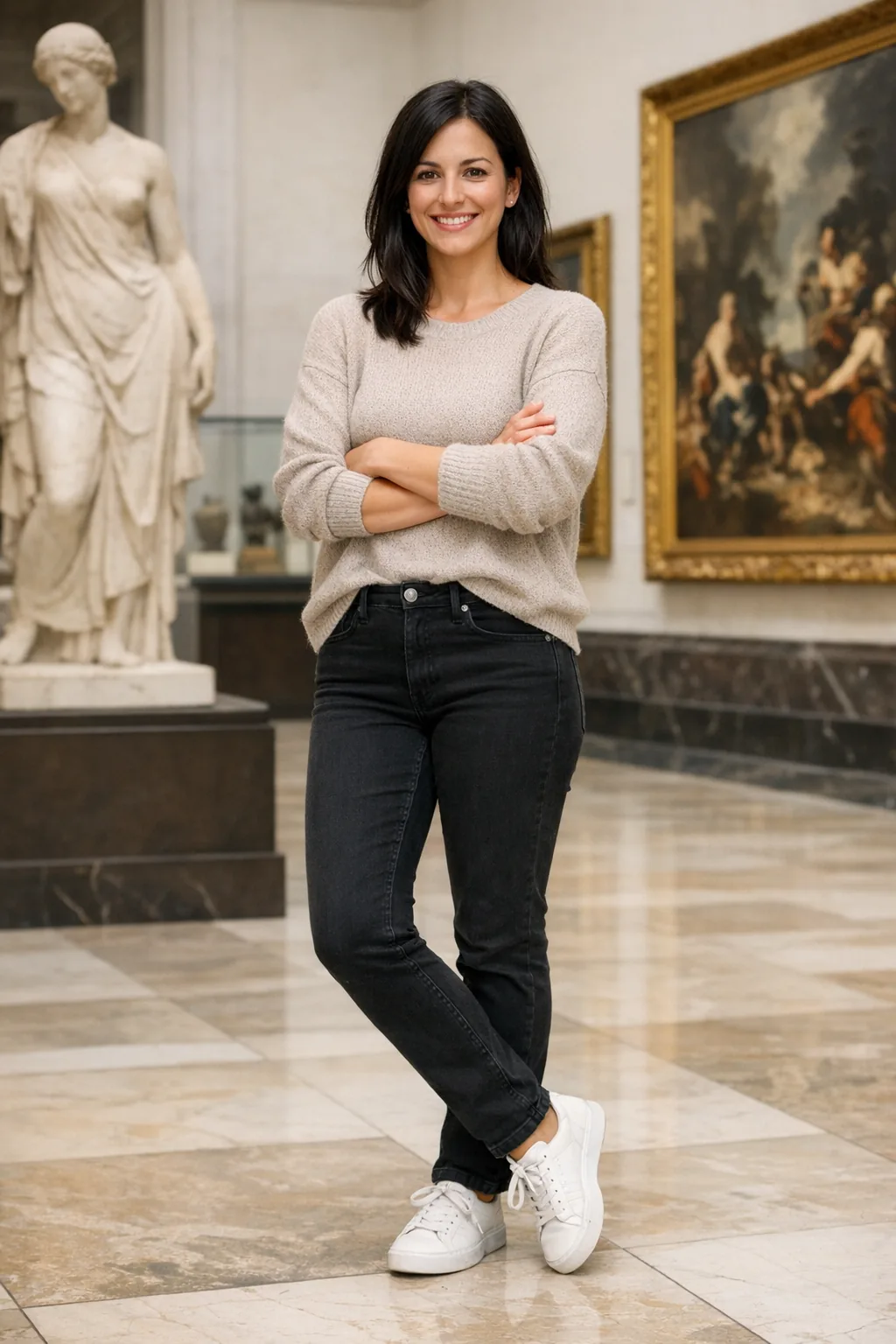
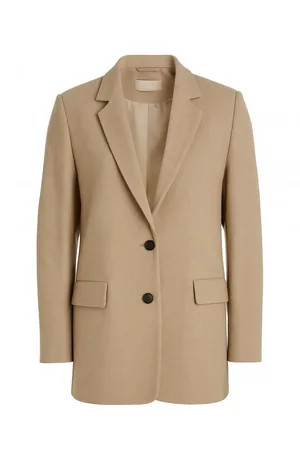
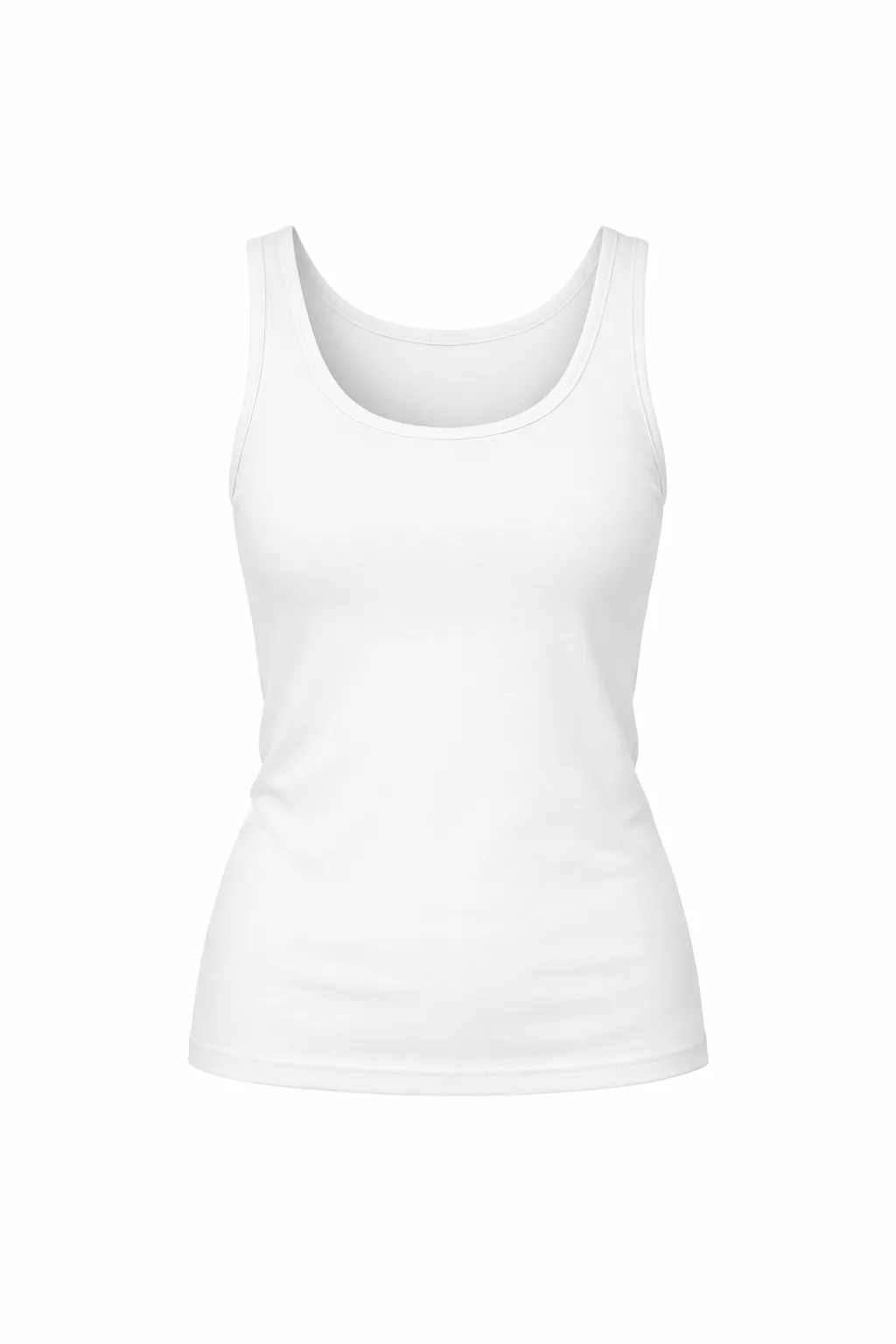
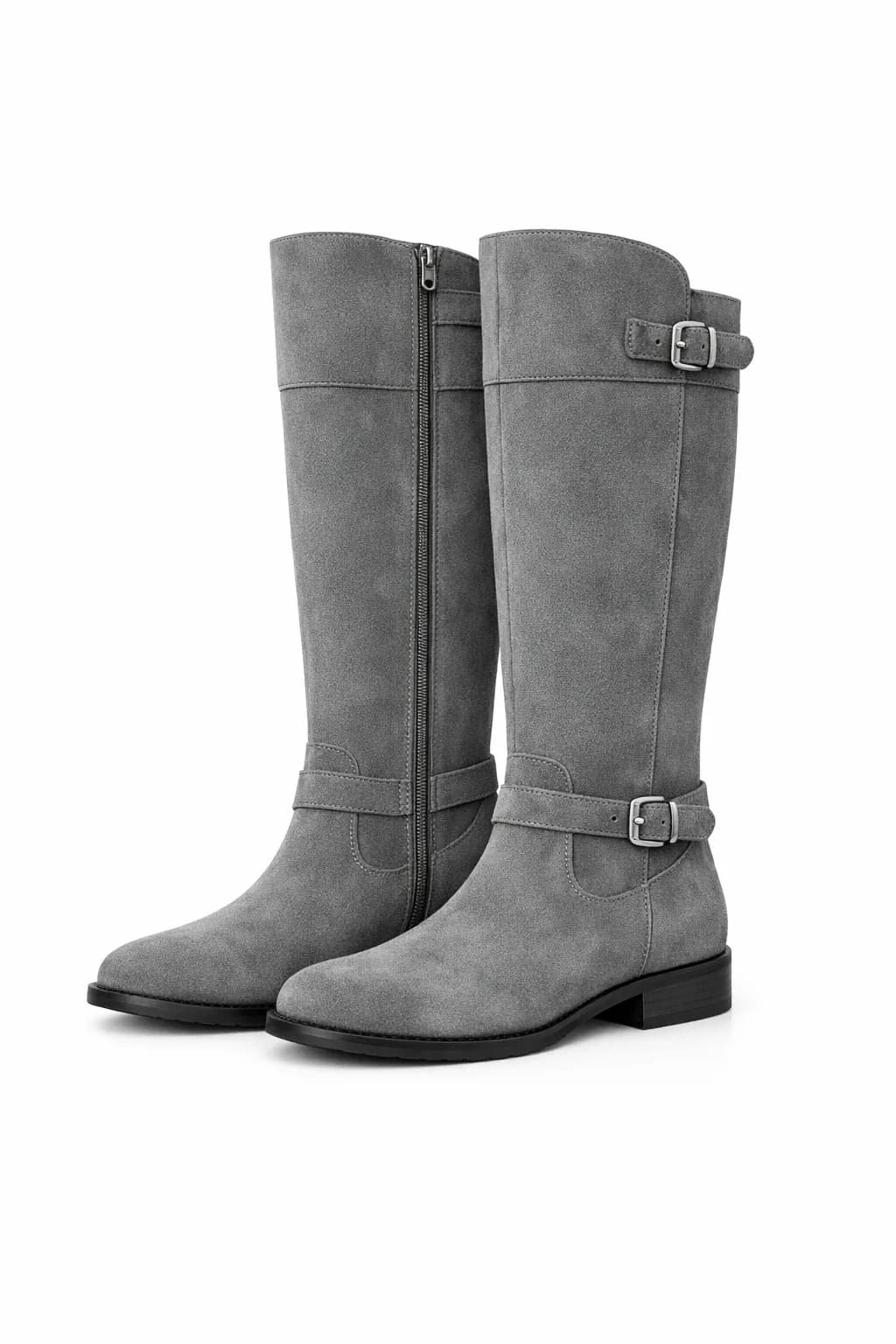
Edit the image to dress the woman using the provided clothing images. Do not change her face, facial features, skin tone, body shape, pose, or identity in any way. Preserve her exact likeness, expression, hairstyle, and proportions. Replace only the clothing, fitting the garments naturally to her existing pose and body geometry with realistic fabric behavior. Match lighting, shadows, and color temperature to the original photo so the outfit integrates photorealistically, without looking pasted on. Do not change the background, camera angle, framing, or image quality, and do not add accessories, text, logos, or watermarks.
Generated Result
How to Use GPT Image 2.5
Step 1
Choose how to start
Open Text to Image to create from a description, or Image to Image to edit an existing picture. Select GPT Image 2.5 and upload reference images if you are editing.
Step 2
Describe the image and choose settings
Write what you want to see and, for an edit, what should stay the same. Choose Flare or Sunburst, then set quality, resolution, aspect ratio and output format to suit your design.
Step 3
Generate, review and refine
Check the displayed credits, then create your image. Review the composition, text and important details before downloading. To refine it, upload the result in Image to Image and request one change at a time.
Common Questions
What is GPT Image 2.5?
GPT Image 2.5 is a family of OpenAI models that can generate images from text and edit existing pictures. In VidGen, you can use it to turn an idea into a visual or describe changes to an uploaded photo. Product images, campaign concepts, illustrations and social media graphics are useful starting points.
What is the difference between Flare and Sunburst?
Flare focuses on speed, making it a useful choice for exploring ideas and trying different compositions. Sunburst focuses on image quality and precise editing, so it is worth trying when a face, product or intricate detail needs closer attention. Both support generation and editing. Actual generation time depends on your prompt, reference images and output settings.
How does GPT Image 2.5 compare to GPT Image 2?
GPT Image 2.5 offers a choice between the speed of Flare and the quality focus of Sunburst. If GPT Image 2 already produces the look you want, try Flare with the same prompt. For more demanding scenes or edits, compare Sunburst. In VidGen, GPT Image 2.5 also includes Extra High and Max quality settings; compare the results on your own images before choosing.
Can I edit a photo while keeping the same person or product?
Yes. Upload the photo in Image to Image, describe the change and specify what to preserve. For example, ask to replace only a jacket while keeping the person's face, pose and background. The model is designed to follow these constraints, but small details can still change. Check faces, product shapes and other important features in the result.
How many reference images can I upload?
VidGen supports up to 16 reference images for GPT Image 2.5 editing. Upload JPEG, PNG or WebP files, up to 10 MB each. Explain the role of each image, such as the person to keep, the clothing to use or the visual style to follow, so the model has a clear editing target.
Can GPT Image 2.5 generate text in images?
Yes. You can request headlines, product labels or short captions as part of a poster or other design. Put the exact wording in quotes and describe where it should appear. Check spelling, readability and placement before using the image, especially with small lettering or long passages.
How should I choose a quality setting?
Both Flare and Sunburst offer Low, Medium, High, Extra High and Max in VidGen. Quality is separate from the model series and resolution. Start with Medium to explore an idea, then compare a higher setting if details need more work. Higher quality uses more credits and may take longer; it does not guarantee a better result for every prompt.
What image sizes and formats are available?
VidGen offers 1K, 2K and 4K resolution options, with PNG, JPEG or WebP output. Choose a square, portrait or landscape aspect ratio to suit your design. When editing with Aspect Ratio set to Auto, the first reference image determines the proportions. Resolution and aspect ratio work together to determine the output dimensions.
Is GPT Image 2.5 free to use?
Generating and editing images in VidGen uses credits. The amount depends on quality and resolution, with an additional charge for each reference image used in editing. Flare and Sunburst use the same credits at the same settings and reference image count. Check the amount displayed in the form before creating an image.
Do I need to write prompts in English?
No. You can describe your idea in English, Chinese, Japanese, Spanish or Portuguese. Focus on the subject, composition, lighting and style. For edits, state what should change and what should stay. VidGen accepts prompts up to 20,000 characters, but a clear, focused description is more useful than length alone.
Explore Other AI Models on VidGen
Bring Your Ideas to Life with GPT Image 2.5
Create a new image from a description or give an existing photo a new direction. Try Flare or Sunburst in VidGen for your next product visual, poster or photo edit.