
Wan 2.6
Create 5s, 10s, or 15s AI videos from text prompts or uploaded images with Wan 2.6 in VidGen. Use 720p or 1080p output, turn on optional Multi Shots when a clip needs clearer visual beats, and shape product demos, social ads, creator clips, or cinematic storyboard tests without setting up a local workflow.
Animate a Portrait from a Reference Image with Wan 2.6
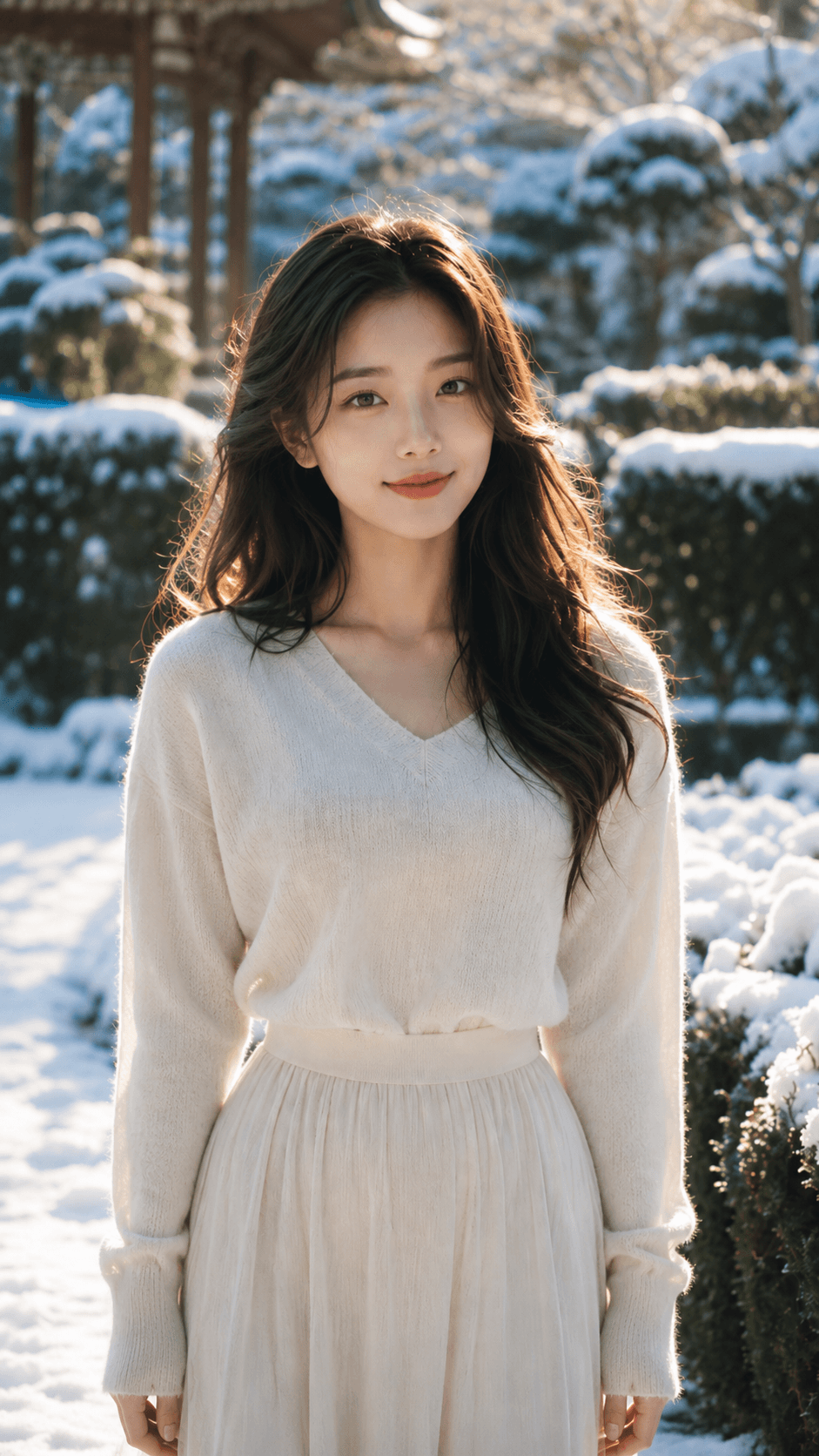
This Wan 2.6 image-to-video example starts from a vertical portrait frame and uses a time-coded prompt to guide natural hair adjustment, eye contact, a brief pause, and a small posture shift.
Prompt and Reference Image
Enter the frame in profile, with subtle and natural movements. Timing: 0-2 seconds: Adjusting hair 2-5 seconds: Gazing at the camera or into the distance 5-8 seconds: Brief pause 8-10 seconds: Slightly adjusting posture or position Lighting: Soft mixed warm and cool light, with delicate and natural shadows. Camera: Medium shot to close-up, with slight rotating movement. Hair/makeup: Natural style.
Generated Video
Wan 2.6 Key Features
Text or Image to Video
Start from a written prompt or an uploaded reference image, then guide subject, action, camera movement, lighting, and mood in one workflow.
15s 1080p Output
Generate 5s, 10s, or 15s clips in 720p for fast drafts or 1080p when the final video needs cleaner detail.
Optional Multi Shots
Enable Multi Shots when your video needs multiple visual beats, clearer pacing, or a storyboard-style sequence instead of one continuous scene.
Browser-Based Wan Workflow
Use Wan 2.6 online from VidGen without downloading model weights, configuring a GPU, or building a local ComfyUI setup.
Wan 2.5 vs Wan 2.6
Wan 2.5
Better for compact 5s or 10s clips, text-to-video aspect ratio choices, and quick image-to-video drafts.
Wan 2.6
Adds 15s generation and optional Multi Shots for product demos, storyboard tests, and clips that need clearer visual structure.
Best Uses for Wan 2.6
- Product demos that need a few clear visual beats
- Social ads and creator clips in short-form formats
- Storyboard tests for cinematic ideas before deeper editing
- Portrait, character, or product motion from a reference image
- Fast drafts when you want browser-based Wan video generation
How to Use Wan 2.6
Step 1
Choose Text to Video or Image to Video
Open Text to Video when you only have an idea. Open Image to Video when you want Wan 2.6 to animate a specific product image, character frame, poster, or first-frame composition.
Step 2
Write a Clear Motion Prompt
Describe the subject, action, camera movement, lighting, scene mood, and visual details that should stay consistent. For image to video, explain how the uploaded image should move.
Step 3
Set Duration, Resolution, and Multi Shots
Choose 5s, 10s, or 15s, select 720p for quick iteration or 1080p for cleaner output, and turn on Multi Shots when the clip needs a more structured sequence.
Step 4
Generate and Refine
Review the first result, then adjust the prompt, image, duration, resolution, or shot structure to improve motion, framing, and visual consistency.
Common Questions
What is Wan 2.6?
Wan 2.6 is an AI video generation model in the Wan family. In VidGen, it is available as an online text-to-video and image-to-video workflow for short 720p or 1080p clips.
Can I use Wan 2.6 as a text-to-video generator?
Yes. Open the text-to-video workflow, select Wan 2.6 T2V, write a prompt that covers subject, action, camera movement, lighting, and mood, then choose duration and resolution before generating.
Can Wan 2.6 turn an image into video?
Yes. Use the image-to-video workflow when you have a product image, character frame, poster, or concept visual. Wan 2.6 uses the uploaded image as the visual starting point and animates it with your motion prompt.
What does Multi Shots do in Wan 2.6?
Multi Shots is an optional Wan 2.6 setting in VidGen. Turn it on when the video needs multiple visual beats, clearer pacing, or a storyboard-like structure, such as a product demo, short concept sequence, or social ad.
Does Wan 2.6 support 15s and 1080p video?
Yes. VidGen's Wan 2.6 workflow supports 5s, 10s, and 15s duration choices, with 720p or 1080p output. Use 720p for quick drafts and 1080p when you need a cleaner final clip.
How is Wan 2.6 different from Wan 2.5?
Wan 2.5 is better for compact 5s and 10s clips and text-to-video aspect ratio choices. Wan 2.6 adds 15s generation and optional Multi Shots, so it works better for product demos, storyboards, and clips that need clearer visual beats.
Is Wan 2.6 free to try?
Wan 2.6 is not positioned as an unlimited free video generator, but VidGen gives new users free credits so you can test text-to-video and image-to-video results before creating larger batches.
Can I use Wan 2.6 without installing ComfyUI or running it locally?
Yes. VidGen provides a browser-based Wan 2.6 workflow, so you do not need to download model weights, configure a GPU, or build a local ComfyUI setup just to generate a video.
Explore Other AI Models on VidGen
Start Creating with Wan 2.6
Use Wan 2.6 online to turn prompts or images into 5s, 10s, or 15s AI videos, with 1080p and Multi Shots options for product demos, social ads, and short storyboards.