GPT Image 2
GPT Image 2 is OpenAI's latest image generation model, now available in VidGen for both text to image and image to image workflows. It delivers strong prompt following, improved text rendering inside images, and precise editing when you supply reference images. In practice, GPT Image 2 works well for brand visuals, product graphics, UI mockups, poster design, and any creative task where you need clean, instruction-driven output. You can supply up to 8 reference images for image-to-image editing, and prompts can go up to 20,000 characters for detailed scene direction.
Generate Creative Scenes with GPT Image 2
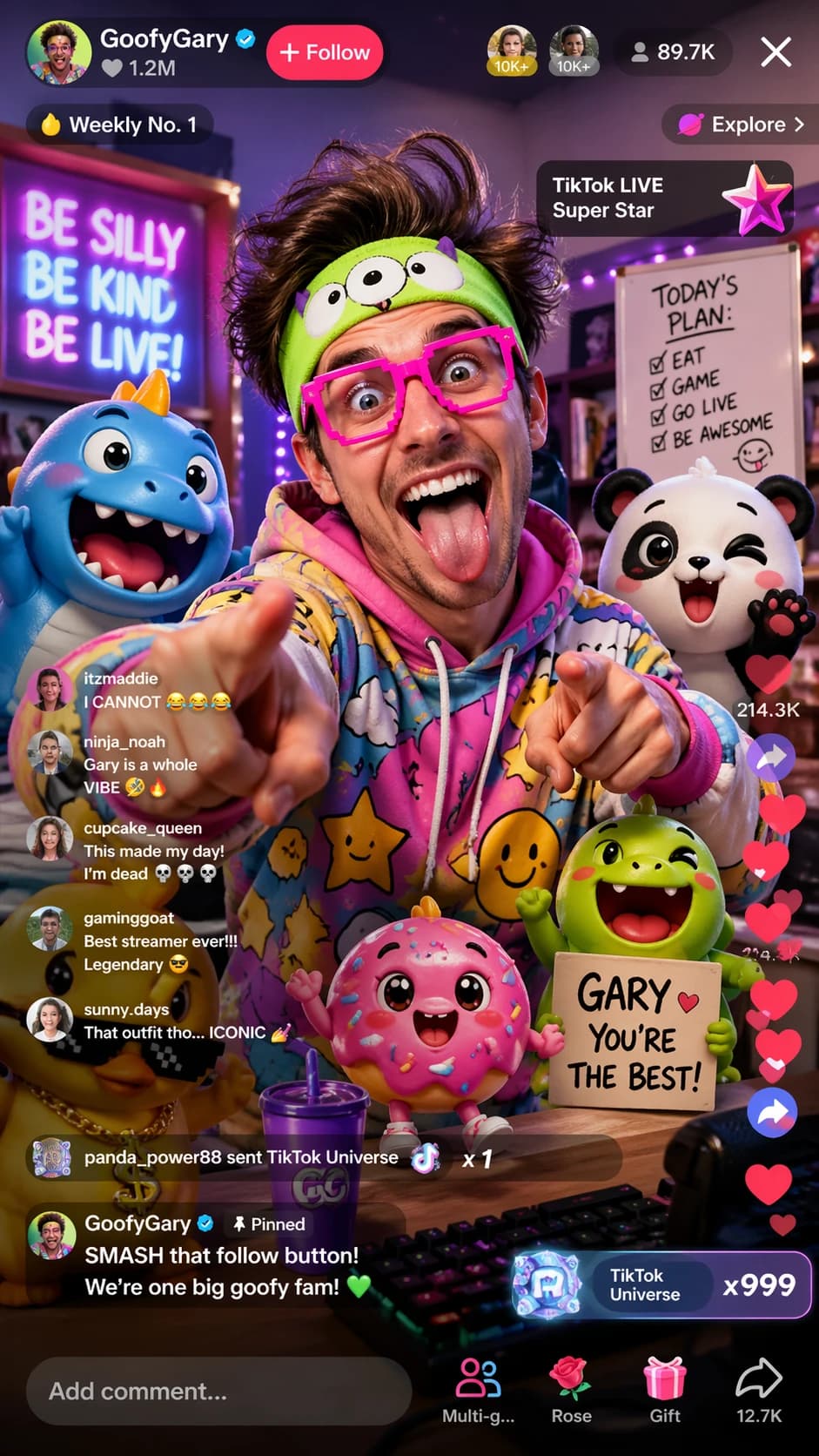
This example shows GPT Image 2 turning a fun, casual prompt into a highly detailed and playful image — complete with 3D cartoon characters, realistic textures, and a lively streaming room atmosphere.
Prompt Input
Generate an image of a funny guy that is live-streaming on tiktok and has 3d cartoon characters around him - design something funny.
Generated Result
How to Use GPT Image 2?
Step 1
Open Text to Image or Image to Image
Open Text to Image when you want to generate a new image from a prompt and select GPT Image 2. Open Image to Image when you already have a reference image and want to edit or transform it using GPT Image 2.
Step 2
Write a detailed prompt
Describe the subject, style, lighting, composition, and any text you want rendered inside the image. GPT Image 2 handles up to 20,000 characters, so you can be specific about scene details, colors, and format.
Step 3
Review and refine the result
Once you see the first output, adjust the prompt to fine-tune composition, text clarity, or style direction. For image-to-image, you can also swap or add reference images to steer the result further.
Common Questions
What is GPT Image 2?
GPT Image 2 is OpenAI's latest image generation model. In VidGen, it is available for both text to image and image to image workflows, with strong prompt following, improved text rendering, and precise editing capabilities.
How does GPT Image 2 compare to GPT Image 1.5?
GPT Image 2 offers better text rendering inside images, more precise instruction following, and improved handling of complex prompts and UI mockup requests compared to GPT Image 1.5. It also supports up to 8 reference images for image-to-image editing.
Can GPT Image 2 render text inside images?
Yes. GPT Image 2 delivers improved text rendering compared to earlier GPT image models, making it a good choice for poster design, UI screenshots, labels, and any visual that requires clear, legible text within the image.
How many reference images can I use with GPT Image 2 image-to-image?
In VidGen, you can upload up to 8 reference images when using GPT Image 2 in image-to-image mode. This lets you combine multiple visual references to guide style, subject, and composition.
What is GPT Image 2 good for?
GPT Image 2 works well for brand visuals, product graphics, UI mockups, poster and cover design, social media imagery, and any creative task where you need consistent, prompt-driven output with clean text rendering.
Should I use text to image or image to image with GPT Image 2?
Use text to image when you want to generate a new visual from scratch using a prompt. Use image to image when you already have a reference image and want to edit, refine, or transform it while preserving key elements.
Do prompts need to be written in English?
No. GPT Image 2 supports multilingual prompts in VidGen, so you can write in English, Chinese, Japanese, or other languages. Clear descriptions of subject, style, lighting, and composition tend to produce better results regardless of the language you use.
Explore Other AI Models on VidGen
Start Creating with GPT Image 2 in VidGen
Use GPT Image 2 for text to image generation, image editing, brand visuals, UI mockups, and poster design. Start from a prompt or upload a reference image to begin.