
Wan 3.0 Video AI Generator
Wan 3.0 Video brings text-to-video, first-frame image-to-video, first-and-last-frame image-to-video, and Omni Reference creation together in one generation form on VidGen. Generate 2-second to 30-second videos in 480p, 720p, or 1080p, choose synchronized audio, and use image, video, or audio references when you need more control over characters, products, scenes, motion, or sound.
A Blender, Elevated: Wan 3.0 Omni Reference UGC Ad
This official Wan 3.0 example combines two reference images with a detailed director prompt to preserve the woman, portable blender, and kitchen across a 30-second vertical UGC ad with English dialogue and synchronized sound.
Prompt, Parameters, and Two Reference Images
Create a 30-second premium UGC vertical ad with natural jump cuts, A-roll talking-to-camera shots and B-roll close-up product shots. [Image 1] is the portable blender product-in-kitchen reference. Keep one consistent blender: pale pink base and lid, clear straight cup, side strap, black power button, compact cylindrical shape, countertop lifestyle look, and fruit visible through the cup. Do not redesign the blender during the video. [Image 2] is the woman and outfit reference. Keep the same young Asian woman, high dark ponytail, face, slim body proportions, gold jewelry, warm beige knit cardigan worn loosely over a matching camisole, and matching loose lounge trousers. Scene: modern premium kitchen matching the product reference, soft daylight, clean stone countertop, fresh strawberries, banana slices, blueberries, mango pieces, and ice. Shot plan: 0–5s: Medium A-roll. The woman stands behind the kitchen counter holding the pink portable blender, speaking naturally to camera. She says: "I get asked how I make smoothies so quickly. Honestly, it’s this little blender." 5–9s: B-roll close-up of the blender upright on the countertop, already partly filled with fruit like the reference image. Her hands add strawberries, banana slices, blueberries and ice into the clear cup. Voice-over: "Fruit and ice go straight in." 9–13s: Close-up of the lid twisting on and her finger pressing the black power button. The blender stays vertical while fruit blends into a smooth pink smoothie. Voice-over: "One press, and it blends everything smooth." 13–18s: Medium handheld shot. She picks up the blender and smiles, holding it near her chest. She says: "It’s compact, powerful, and easy to clean." 18–23s: B-roll close-up. She pours the smoothie into a clear glass on the countertop. Voice-over: "I get a fresh smoothie without dragging out a full-size blender." 23–30s: Medium A-roll. She takes a sip, smiles warmly, and sets the glass beside the blender. She says: "Honestly, it’s the easiest healthy habit I’ve kept." Style: realistic premium UGC, handheld phone filming, soft natural light, shallow depth of field, gentle camera shake, realistic kitchen ambience, blending motor, pouring sound, casual room tone. No subtitles, no text overlays, no UI, no watermark, no extra people. Avoid extreme close-ups of fingers. Keep hands simple and natural. Keep the blender upright during blending. Keep the product shape, lid, button, strap and cup consistent throughout.
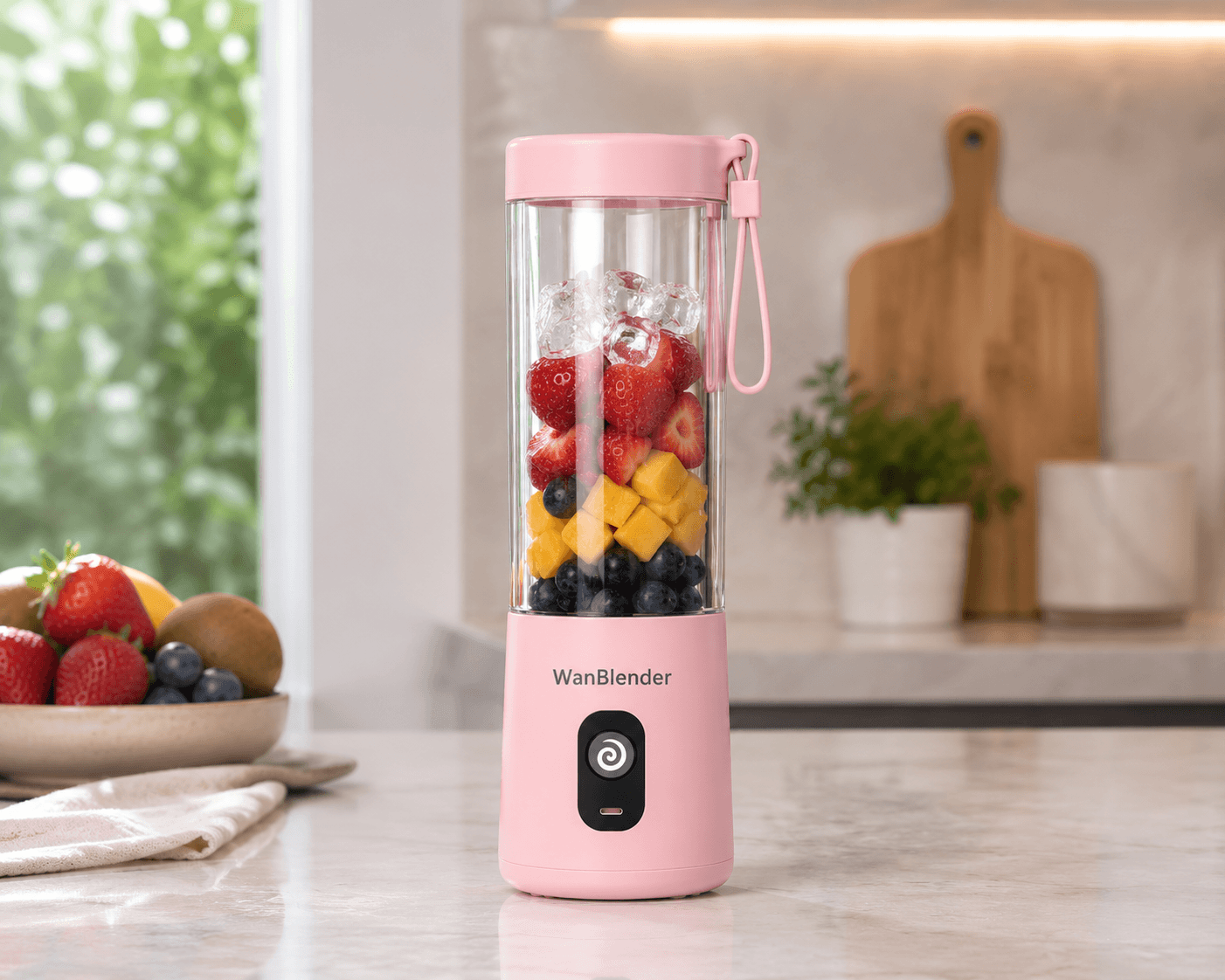
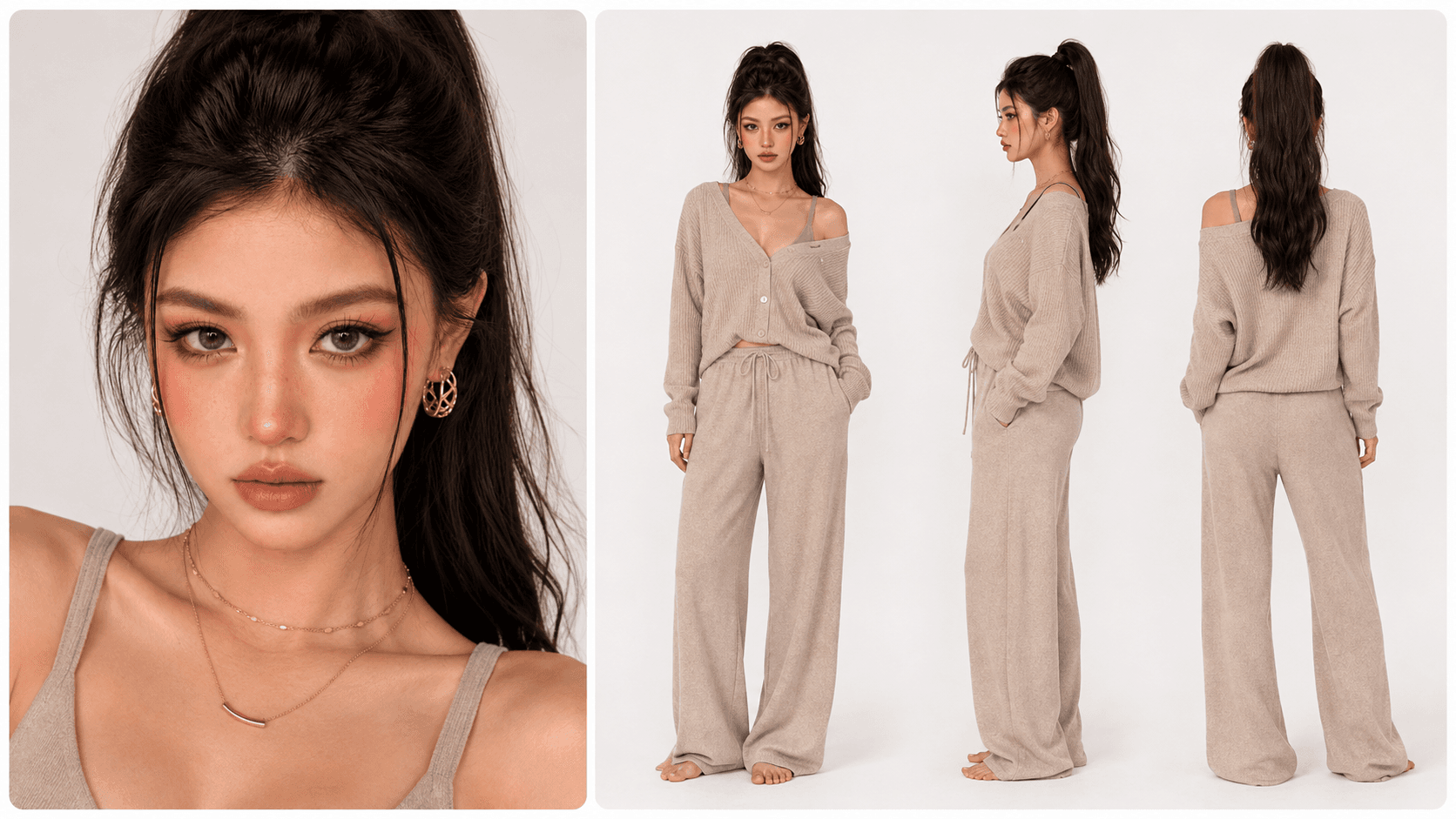
720p · 9:16 · 30-Second Video
Wan 3.0 Video Key Features
Four Creation Modes in One Wan Model
Move between text-to-video, first-frame animation, first-and-last-frame transitions, and Omni Reference creation without switching to a different Wan model.
2 to 30-Second Videos
Use short clips for motion tests or generate a longer single sequence up to 30 seconds when an idea needs more room for actions, camera changes, or a complete social story.
Omni Reference Inputs
Combine images, video clips, and audio references to guide character identity, product appearance, scene style, motion, performance, or sound in one generation.
Synchronized Audio
Turn audio generation on when you want the model to create video and sound together, then review speech, ambience, music, effects, and visual timing as one result.
480p, 720p, or 1080p
Start at 480p or 720p for iteration, then choose 1080p when you need more detail. Wan 3.0 Video produces 30 fps output across the supported resolution options.
Standard or Priority Processing
Standard processing uses wan3.0-video. Enabling Priority Processing switches generation to the high-speed wan3.0-video-prime model, which generates faster and uses more credits.
Four Ways to Create with Wan 3.0 Video
Text to Video
Start with a prompt and choose Adaptive, 16:9, 9:16, 1:1, 4:3, or 3:4. Describe the subject, action, scene, camera, lighting, pacing, and audio.
First Frame
Upload one image as the opening frame, then prompt the movement and camera behavior you want. The source frame sets the initial composition and visual identity.
First and Last Frame
Provide both a starting image and an ending image when the clip needs to move between two visual anchors, such as a reveal, transformation, or planned transition.
Omni Reference
Use multiple image, video, and audio references when consistency or multimodal control matters more than anchoring the result to a single first frame.
Wan 3.0 Video vs Wan 2.7
Wan 2.7: Focused Frame and Audio Control
Wan 2.7 in VidGen is a focused choice for 2-second to 15-second text-to-video, first-frame, first-and-last-frame, and optional uploaded-audio generation at 720p or 1080p.
Wan 3.0: Unified and Longer
Wan 3.0 Video extends the maximum duration to 30 seconds, adds 480p as an iteration option, brings the four creation modes under one model, and adds Omni Reference with image, video, and audio inputs.
Compare Like for Like
The broader set of generation options does not prove that every Wan 3.0 result will look better than every Wan 2.7 result. Test the same prompt, aspect ratio, resolution, duration, and source material when visual quality is the deciding factor.
Where Wan 3.0 Video Fits Best
- Longer social stories, trailers, and narrative sequences that need up to 30 seconds
- Character-led content that uses reference images or clips to reinforce identity and wardrobe
- Product demonstrations and advertising concepts that need stable shape, materials, and visual style
- First-and-last-frame reveals, transformations, transitions, and planned camera endpoints
- Reference-driven scenes that combine visual style, motion examples, voice, music, or sound cues
- Audio-visual creator videos, performance clips, and campaign drafts that need synchronized sound
How to Use Wan 3.0 Video
Step 1
Choose the Right Generator
Open Text to Video when you want to generate from a prompt alone. Open Image to Video when you want to use a first frame, a first-and-last-frame pair, or Omni Reference inputs.
Step 2
Select a Creation Mode
Choose Text to Video, First Frame, First and Last Frame, or Omni Reference based on the material you already have and the kind of control the shot needs.
Step 3
Write the Prompt and Add References
Describe the subject, action, camera, lighting, pacing, style, and sound. In reference modes, state what each image, video, or audio input should control.
Step 4
Set Duration, Resolution, Framing, and Audio
Choose 2 to 30 seconds, 480p to 1080p, synchronized audio on or off, and standard or Priority Processing. In text-to-video and Omni Reference modes, also choose an adaptive or fixed aspect ratio.
Step 5
Generate, Review, and Refine
Review identity, object geometry, movement, transitions, audio sync, and on-screen text. Revise one variable at a time so you can see which prompt or setting change improves the result.
Wan 3.0 Video Questions
What is Wan 3.0 Video?
Wan 3.0 Video is an all-in-one AI video model in the Wan series. VidGen integrates it for text-to-video, first-frame, first-and-last-frame, and Omni Reference creation with 2-second to 30-second duration, up to 1080p output, and optional synchronized audio.
How do I use Wan 3.0 Video in VidGen?
Open Text to Video for prompt-only creation or Image to Video for first-frame, first-and-last-frame, or Omni Reference creation. Select Wan 3.0 Video, add your prompt and references, choose the settings, and generate.
Does Wan 3.0 Video support both text-to-video and image-to-video?
Yes. Text-to-video starts from a written prompt. Image-to-video can use one first frame, a first-and-last-frame pair, or Omni Reference inputs that combine images, videos, and audio.
What is Omni Reference in Wan 3.0 Video?
Omni Reference is the multimodal reference mode. VidGen accepts up to 20 references in total: up to 10 images, 5 videos, and 5 audio files. Uploaded videos can total up to 15 seconds, and audio references can total up to 15 seconds.
How long can a Wan 3.0 Video generation be?
VidGen supports any whole-number duration from 2 to 30 seconds. A short test is useful for prompt iteration; a longer duration gives actions, camera movement, dialogue, or multiple beats more time to develop.
Does Wan 3.0 Video support 1080p and audio?
Yes. You can choose 480p, 720p, or 1080p and turn synchronized audio on or off. Wan 3.0 Video output runs at 30 fps.
Which aspect ratios are available?
VidGen offers Adaptive, 16:9, 9:16, 1:1, 4:3, and 3:4 in text-to-video and Omni Reference modes. The aspect-ratio control is not shown in first-frame or first-and-last-frame modes, where the uploaded frame or frames guide the composition.
What is the difference between standard and Priority Processing?
Standard processing uses the wan3.0-video standard model. Enabling Priority Processing switches generation to the official high-speed wan3.0-video-prime model. Prime matches the standard model in features and output quality while significantly improving end-to-end generation speed, so it uses more credits.
Is Wan 3.0 Video free to use?
Wan 3.0 Video uses VidGen credits rather than unlimited free generation. The required credits depend on resolution, duration, and whether Priority Processing is enabled, so check the current estimate in the form before generating.
Explore Other AI Models on VidGen
Create with Wan 3.0 Video
Choose text-to-video, first-frame, first-and-last-frame, or Omni Reference creation, then generate a 2-second to 30-second Wan 3.0 video with the resolution, framing, audio, and processing option your project needs.