
AI Photo Restoration
Restore old photos online: reduce scratches, fading and blur, with optional colorization. Upload a photo, choose your output resolution, and check the result before downloading.
AI Photo Restoration
Restore old photos online: reduce scratches, fading and blur, with optional colorization. Upload a photo, choose your output resolution, and check the result before downloading.
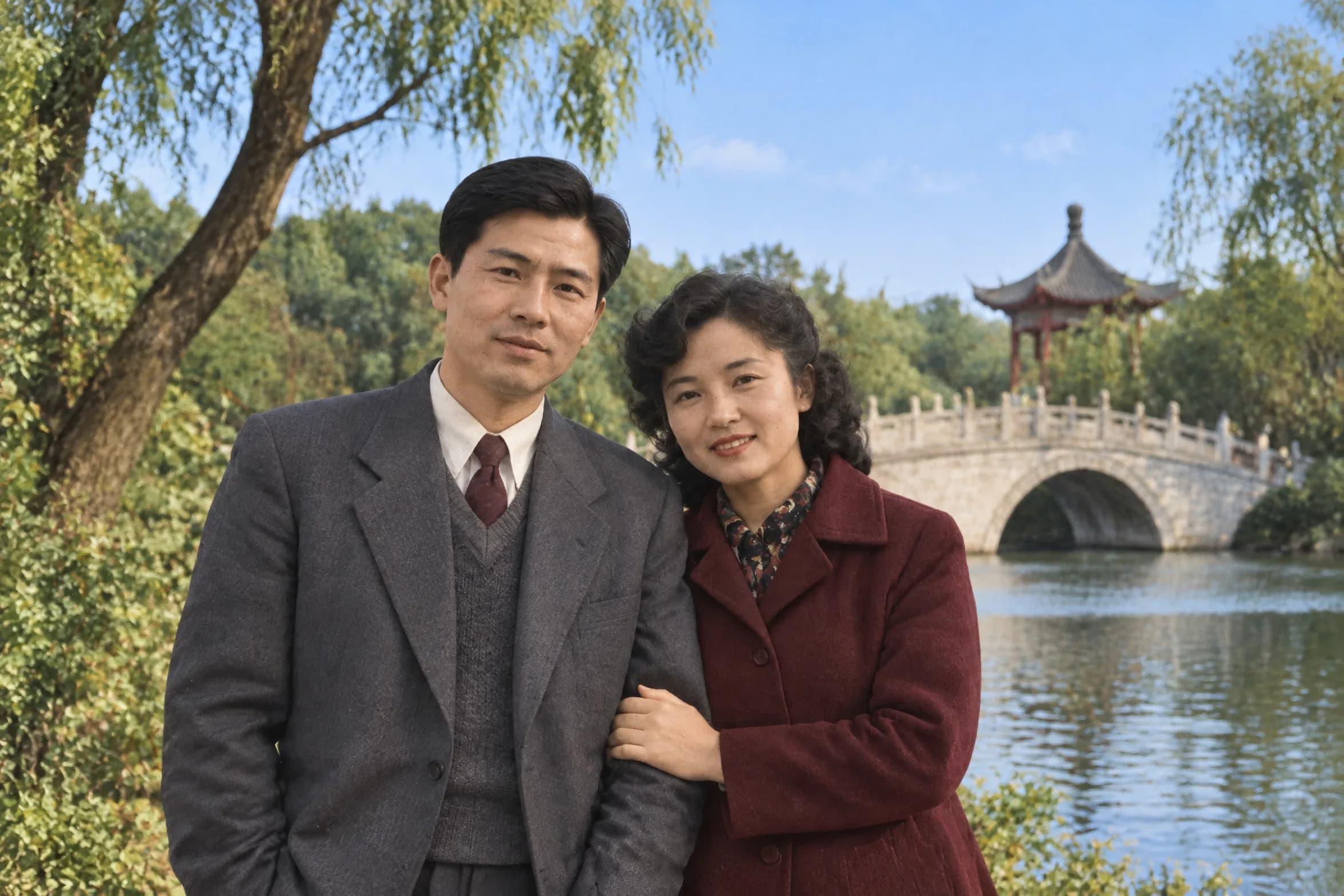
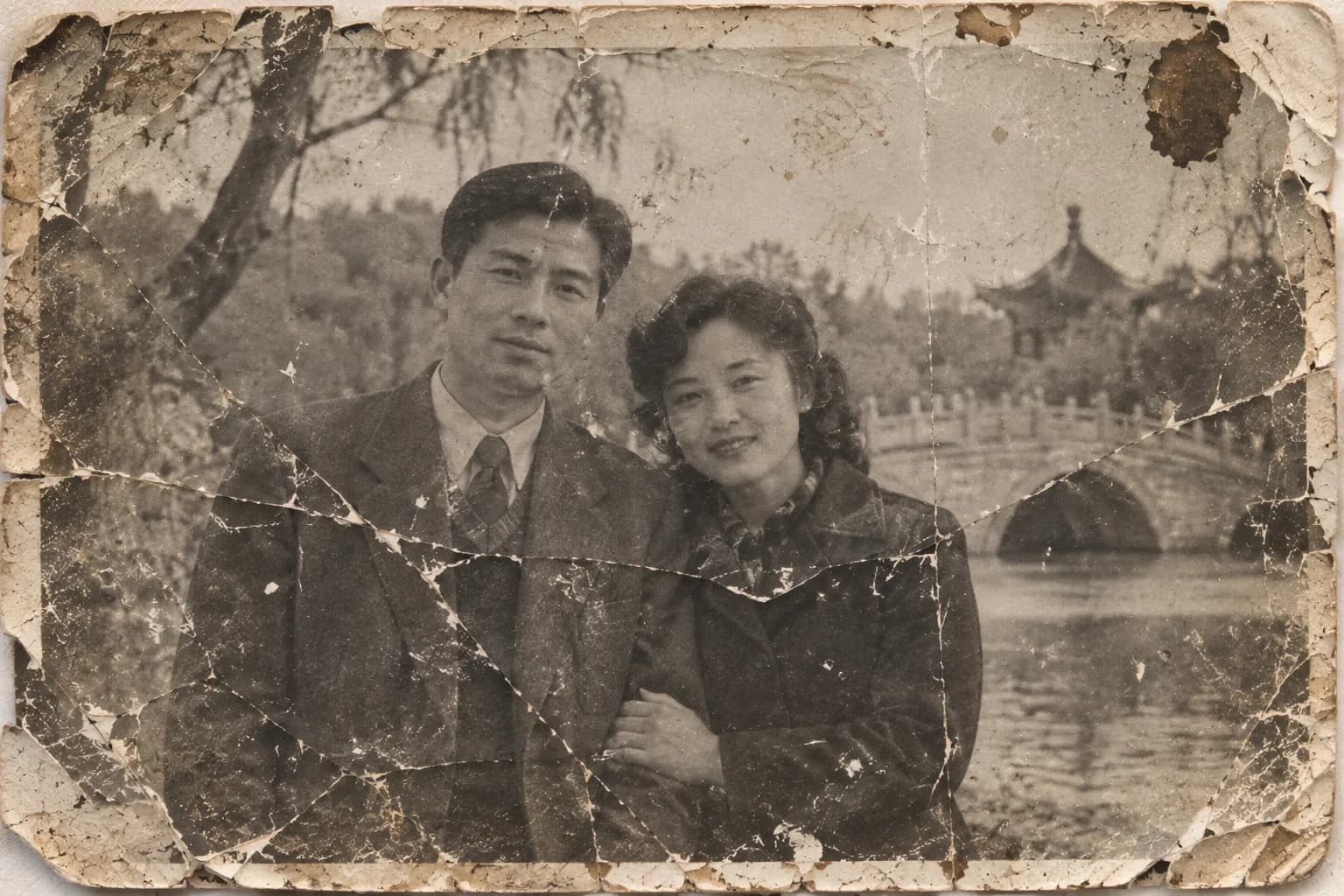
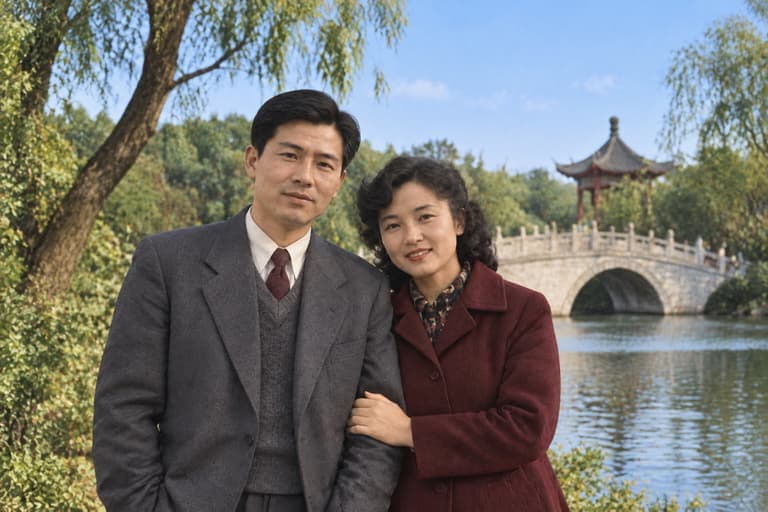
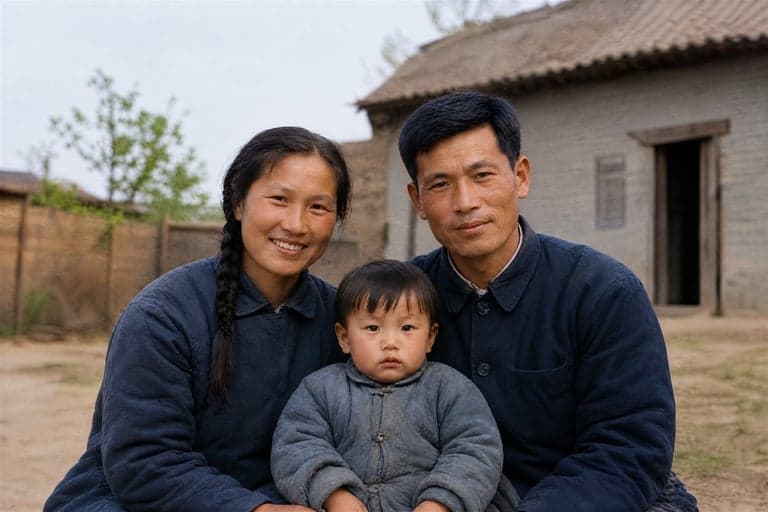
AI photo restoration for old family photos
A scratched print, faded portrait or worn family album can be a starting point for AI photo restoration. Upload your photo to restore damaged areas, reduce fading and improve clarity. Keep the original black and white, sepia or color tones, or turn on Colorize for a new color version. The aim is to preserve the people and composition while making the photo easier to see; compare faces and repaired details with the original before keeping the result.
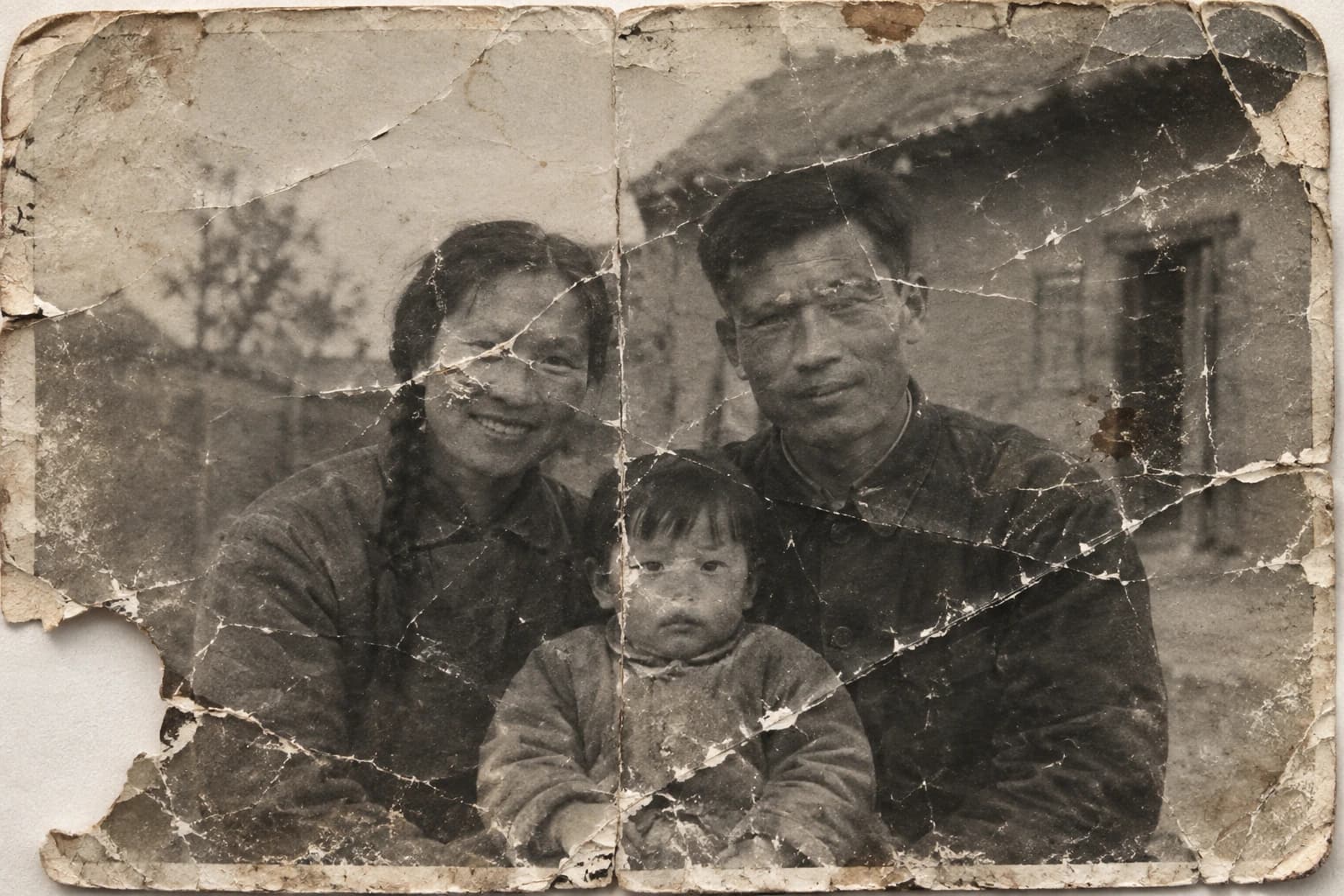
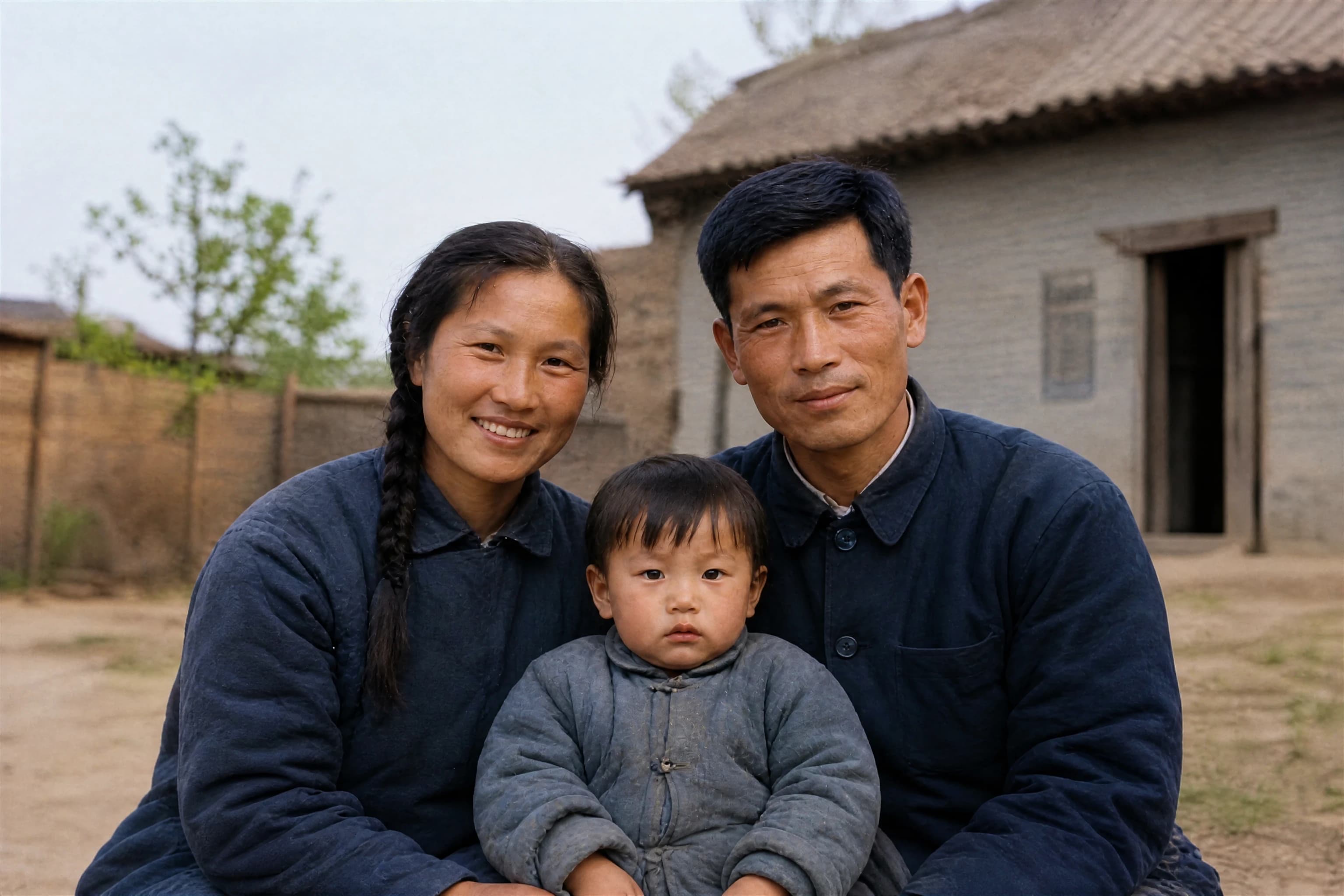
Old photo restoration: before and after
Use this family portrait example to compare the original with a restored, colorized version. Look beyond the overall sharpness: inspect facial expressions, clothing, edges and background details. A cleaner picture is useful only if the details that matter to you still look right. Other photos, especially those with small faces or large missing areas, may produce different results.
Original family photo
Restored and colorized photo
Restore damaged photos, faded prints and old portraits
Start with the best scan or photograph you have. Different kinds of damage need different checks when you review the restored photo.
Repair scratches, creases and small tears
Old photo restoration can reduce dust spots, scratches, fold lines and small damaged areas in a scanned print. Check repairs around eyes, fingers and clothing patterns, where a plausible reconstruction may differ from the original. If a large part of the picture is missing, AI can invent a replacement but cannot establish what was really there.
Restore faded photos without changing their character
Fading can leave an old portrait flat, with weak contrast and difficult-to-see details. Restore faded photos with Colorize off when you want to retain the existing palette, including black and white or sepia. After restoration, check that skin, clothing and background still look appropriate.
Colorize black and white photos
Turn on Colorize to combine restoration with an AI photo colorizer in the same task. It adds estimated colors to faces, clothing and surroundings. Keep the original scan as well: black and white photos do not record the actual colors, so a convincing colorized version is an interpretation, not evidence of the original clothing or eye color.
Improve soft portraits and family group photos
A clearer face can make an old family photo easier to recognize and share. Start with a sharp scan or a straight-on phone photo of the print, then inspect every person in the result. Very small faces and heavy blur leave less information for the model, and choosing a larger output alone cannot recover details the source never captured.
How to restore old photos online
Use a scan or a phone photo of a print, choose whether to add color, and review the restored image before saving it.
1. Digitize and upload the old photo
Scan the print, or photograph it straight on in even light without glare. Upload one JPG/JPEG, PNG or WebP up to 10 MB. Crop out the album page or frame if needed, while keeping the people and edges you want to preserve. Keep an untouched copy of your original.
2. Choose restoration with or without color
Leave Colorize off to preserve the original tones, or turn it on to colorize the old photo. Choose 1K, 2K or 4K output; 2K is selected by default. Check the credit cost in the form, sign in if needed, and submit the task.
3. Review the restored photo and download
Open the completed result and compare it with your original. Check faces, hands, lettering and repaired areas before downloading the PNG. If the result changes an important detail, try a clearer source or another crop. Each new generation is a separate task with its own credit cost.
More ways to work with your restored photo
AI photo restoration: common questions
What can AI photo restoration repair?
It is designed to reduce scratches, dust, stains, fold marks, small tears, fading and soft detail in old photos. Results depend on how much usable information remains. A missing face or a large torn area is reconstructed rather than recovered, so the generated detail may not match the original scene.
Can I restore old photos without colorizing them?
Yes. Leave Colorize off, which is the default. Restoration aims to retain the original palette, including black and white and sepia. This is useful when you want a cleaner version of a family print while keeping its existing appearance.
How does the AI photo colorizer choose colors?
When you enable Colorize, the model estimates plausible colors for skin, hair, clothes and surroundings while restoring the image. It cannot know the real colors from a black and white scan alone. Keep both versions if historical color accuracy matters to you.
Will the restored photo keep the same face?
AI photo restoration aims to preserve identity, expression, pose and composition. Generative editing can still change details such as eyes, teeth, jewelry or text. Compare the result with the source, especially for very small faces or damage across facial features.
How can I restore blurry old photos on my phone?
Take a clear, straight-on photo of the print in even light, then upload it on this page. Avoid glare, shadows and camera shake; crop away the surrounding surface if necessary. Restoration can improve the appearance of blur, but it cannot reliably recreate a face that is unrecognizable in the source.
Do I need a prompt or photo restoration software?
No. Upload your photo, choose whether to colorize it, and select an output resolution. You can restore the image online without writing a prompt or installing separate editing software.
Is online AI photo restoration free?
This tool uses credits and requires you to sign in. The form shows the cost for your selected resolution before you submit. Colorize does not add a separate charge, but generating another result creates another paid task. Check your available credits before starting.
Which image files can I upload?
Upload one JPG/JPEG, PNG or WebP image up to 10 MB. A scan or a phone photo of a print is suitable, and you can crop the image before submission. Upload several separate files as separate tasks; a group portrait can be processed as one image.
Should I choose 1K, 2K or 4K photo restoration?
These are output resolution tiers, with 2K selected by default. Choose according to the output size you need and the credit cost shown in the form. A larger image does not guarantee more authentic detail. For printing, inspect the result at the intended size rather than relying on the resolution label alone.
Can I restore several old photos at once?
Each task accepts one image. Submit separate tasks for separate photographs. If you photographed an entire album page, crop individual prints and process them separately so each photo fills more of the input image. Very small faces may remain difficult to restore.
What format is the restored photo, and where do I find it?
The restoration task outputs a PNG. Open and download the completed image from the results area; completed tasks are also available in My Assets. Download the versions you want to keep, as uploads and results are subject to the service’s retention rules.
Can photo restoration recover deleted or unreadable files?
This page needs an image you can upload and uses AI to repair its visible appearance. It does not recover deleted phone photos, restore cloud backups or repair a file that cannot be opened as an image. Find an accessible scan or copy before starting restoration.