
Wan 2.5
Create short AI videos from text prompts or uploaded images with Wan 2.5 in VidGen. Choose 5s or 10s duration, 720p or 1080p output, use text-to-video aspect ratio controls, and refine drafts with negative prompt and seed settings without setting up ComfyUI or running a local GPU setup.
Animate Images and Prompts with Wan 2.5
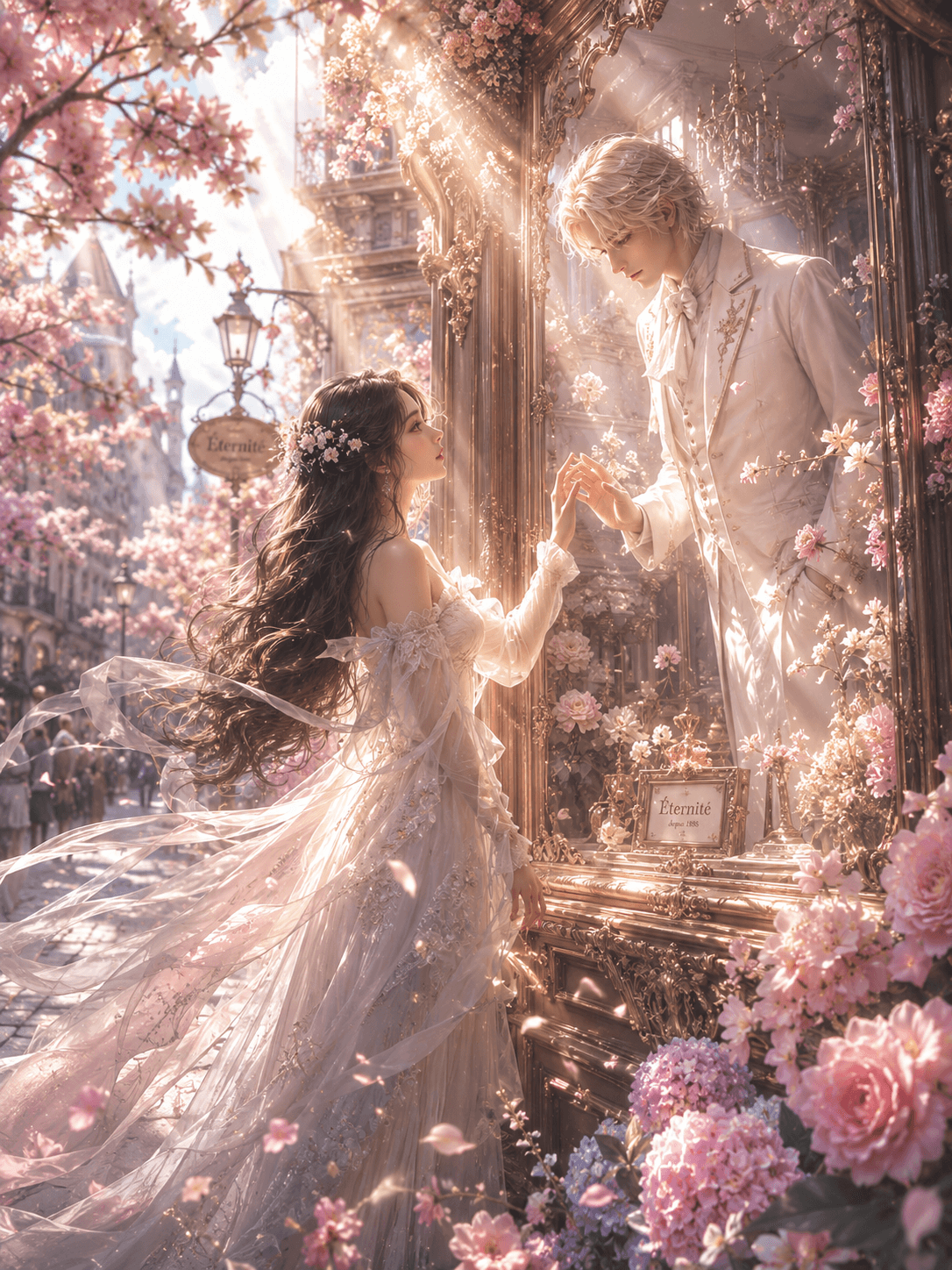
This example uses Wan 2.5 image to video to animate a romantic billboard scene. It shows how a still image and a detailed motion prompt can guide character movement, camera rotation, petals, glow, and cinematic atmosphere in one short clip.
Prompt and Reference Image
A handsome young man on a billboard slowly and gracefully steps out of the advertisement into the real world. Holding the girl's hand, he dances a light and elegant waltz with her face to face. The camera slowly rises and rotates 360 degrees around the dancing couple, then gradually moves closer, using an 80mm lens to capture a close-up of their affectionate gaze and tender, love-filled expressions. Cherry blossom petals and glowing mist-like particles float gently through the air all around them, drifting slowly and creating a romantic, blissful spring atmosphere.
Generated Video
Wan 2.5 Key Features
Text or Image to Video
Start from a written prompt or an uploaded reference image, then describe subject, motion, camera direction, lighting, and mood in one focused generator.
5s and 10s Short Clips
Generate compact clips for quick creative tests, product motion, social posts, ad concepts, and short cinematic drafts.
720p or 1080p Output
Use 720p when you want faster iteration, or switch to 1080p when the final clip needs cleaner visual detail.
Aspect Ratio Control
For text-to-video, choose 16:9, 9:16, or 1:1 so the output fits YouTube, Shorts, Reels, product pages, or square social posts.
Negative Prompt and Seed
Use advanced controls to describe what to avoid, or set a seed when you want a more repeatable generation setup.
Browser-Based Wan Generator
Use Wan 2.5 online from VidGen without downloading model weights, configuring a GPU, or building a local ComfyUI setup.
Wan 2.5 vs Wan 2.2
Wan 2.2
Wan 2.2 is an earlier Wan generation for short text-to-video and image-to-video clips. Its core T2V and I2V options are built around 5s silent video generation, with Plus and Flash variants covering different resolution and speed needs.
Wan 2.5
Wan 2.5 is the newer short-video option with broader duration and resolution coverage. In VidGen, it gives you 5s or 10s visual generation, 720p or 1080p output, text-to-video aspect ratio choices, negative prompt control, seed control, and image-to-video animation.
Best Uses for Wan 2.5
- Social ads and short creator posts that need fast visual drafts
- Product image animation for launches, feature teasers, and storefront motion
- Character, poster, or concept-frame motion from a reference image
- Cinematic prompt tests before moving into longer editing projects
- Browser-based Wan video generation when you do not want a local setup
How to Use Wan 2.5
Step 1
Open Text to Video or Image to Video
Open Text to Video when you only have an idea and select Wan 2.5. Open Image to Video when you want Wan 2.5 to preserve a specific character, product, poster, or first-frame composition.
Step 2
Write a Clear Motion Prompt
Describe the subject, action, camera movement, lighting, scene mood, and any visual details that should stay consistent. For image to video, explain how the uploaded image should move.
Step 3
Set Duration and Resolution
Choose 5s or 10s and select 720p for quick iteration or 1080p for cleaner output. For text to video, pick the aspect ratio that matches your publishing format, then use negative prompt or seed controls when needed.
Step 4
Generate and Refine
Review the first result, then adjust the prompt, image, duration, or resolution to improve motion, framing, and visual consistency.
Common Questions
What is Wan 2.5?
Wan 2.5 is an AI video generation model in the Wan family. In VidGen, it is available through online text-to-video and image-to-video tools for creating short clips from prompts or uploaded images.
Can I use Wan 2.5 as a text-to-video generator?
Yes. Open the text-to-video page, select Wan 2.5 T2V, write a prompt that covers subject, motion, camera direction, lighting, and mood, then choose duration, resolution, and aspect ratio before generating.
Can Wan 2.5 turn an image into video?
Yes. Use the image-to-video page when you already have a product image, character frame, poster, or concept visual. Wan 2.5 uses the uploaded image as the visual starting point and animates it with your motion prompt.
Is Wan 2.5 free to try?
Wan 2.5 is not positioned as an unlimited free video generator, but VidGen gives new users free credits so you can test text-to-video and image-to-video results before creating larger batches.
Does Wan 2.5 support 1080p video?
Yes. VidGen's Wan 2.5 generator supports 720p and 1080p output. Use 720p for faster drafts and 1080p when you need a cleaner final clip.
How is Wan 2.5 different from Wan 2.2?
Wan 2.2 is an earlier Wan generation centered on 5s silent video generation. Wan 2.5 extends the short-video range with 5s or 10s generation and broader resolution coverage. In VidGen, Wan 2.5 is available for visual text-to-video and image-to-video creation with 720p or 1080p output, text-to-video aspect ratio choices, negative prompt, and seed controls.
Can I use Wan 2.5 without installing ComfyUI or running it locally?
Yes. VidGen provides a browser-based Wan 2.5 generator, so you do not need to download model weights, configure a GPU, or build a local ComfyUI setup just to generate a video.
Explore Other AI Models on VidGen
Start Creating with Wan 2.5
Use Wan 2.5 online to generate 5s or 10s AI videos from prompts or images, then refine them with resolution, aspect ratio, negative prompt, and seed controls for social posts, product stories, ad concepts, and cinematic tests.