
AI Video Editor
Upload an existing video, describe what to change, and use optional image or audio references to guide the edit. Currently supports Wan 3.0.
AI Video Editor
Upload an existing video, describe what to change, and use optional image or audio references to guide the edit. Currently supports Wan 3.0.
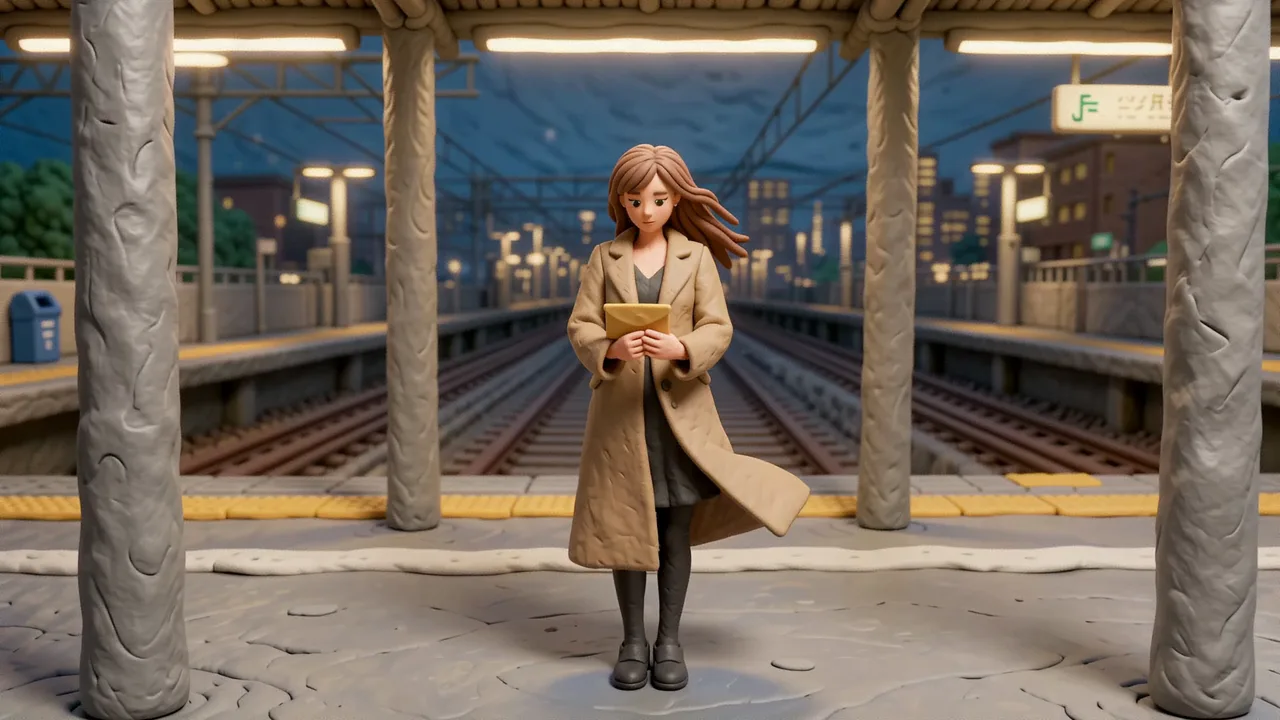
Models for AI video editing
Edit an existing video with AI using text prompts and optional reference media. This page currently supports Wan 3.0 Video. The selected model determines the available inputs, output settings and credit cost; the limits below describe the current Wan 3.0 configuration.
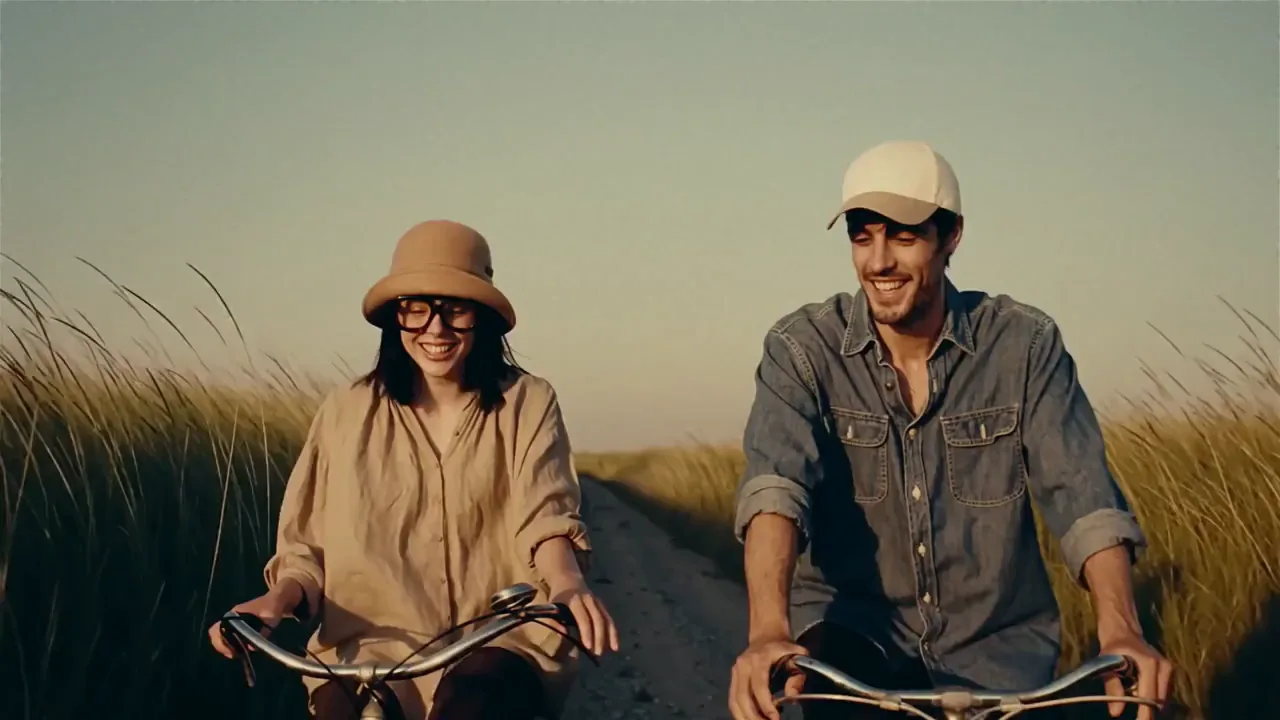
Video-to-video AI: before and after
Compare the source clip and editing prompt with the result of an official Wan 3.0 demo that changes outfits using reference images. Your result will depend on your footage, references, and instructions.
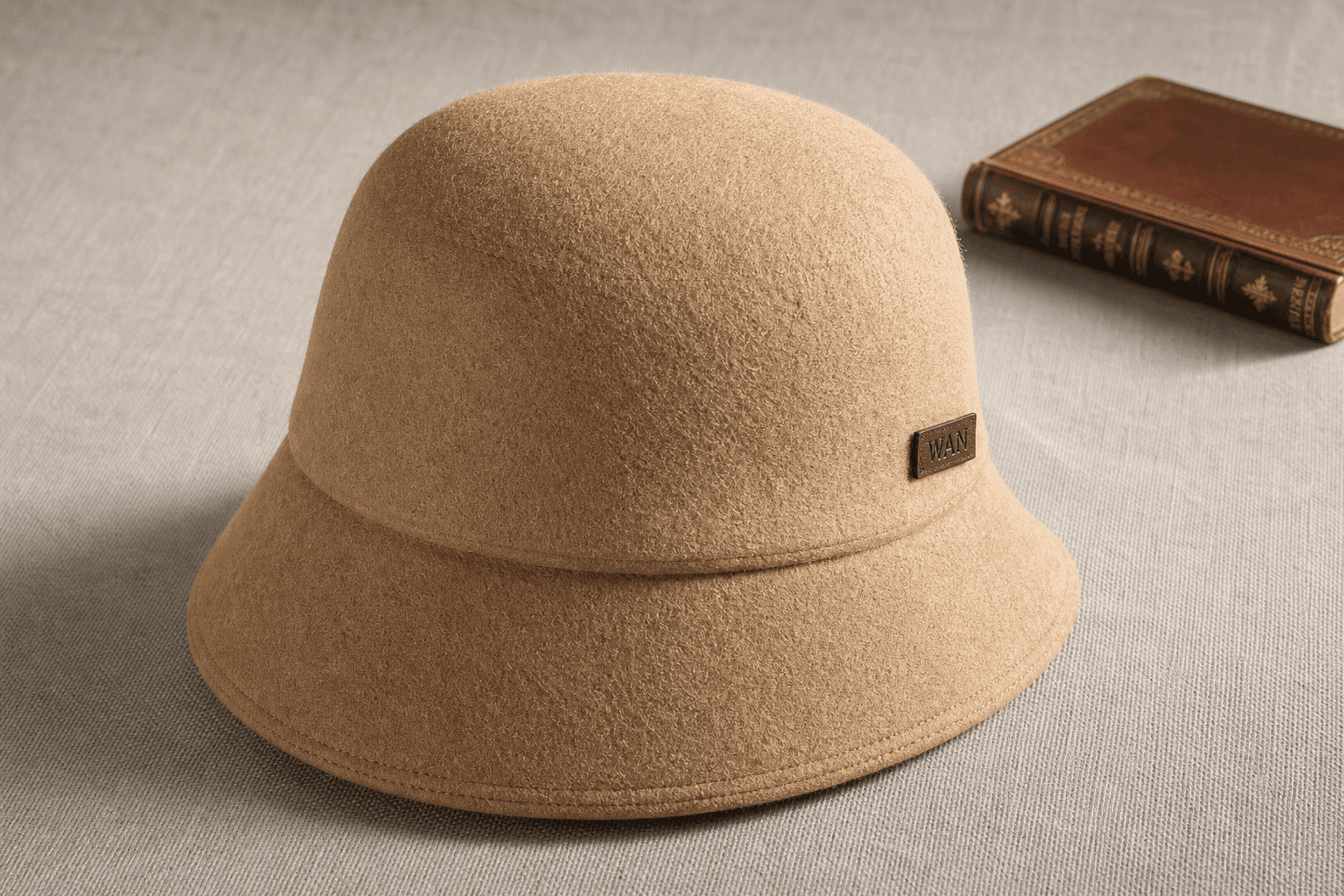
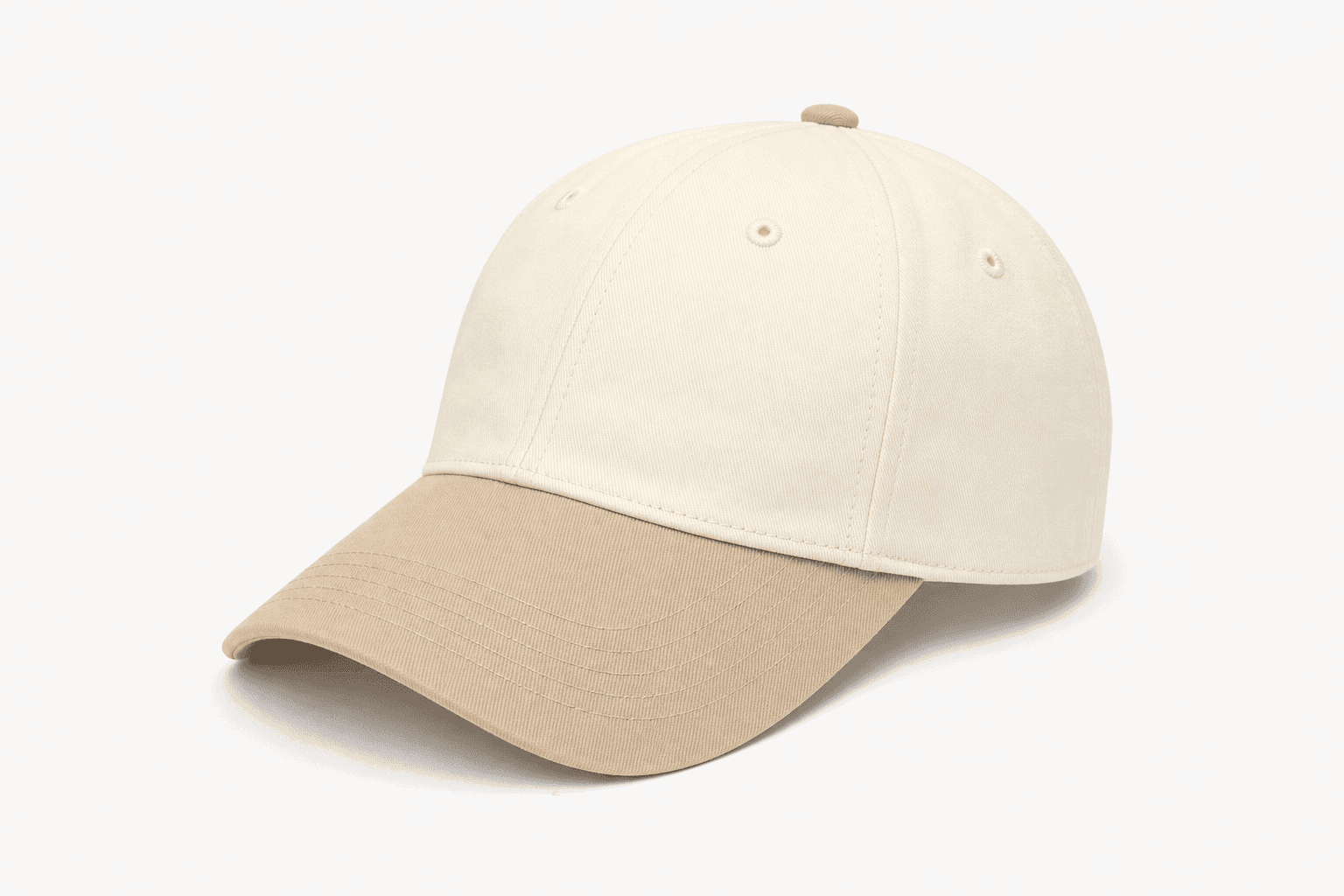
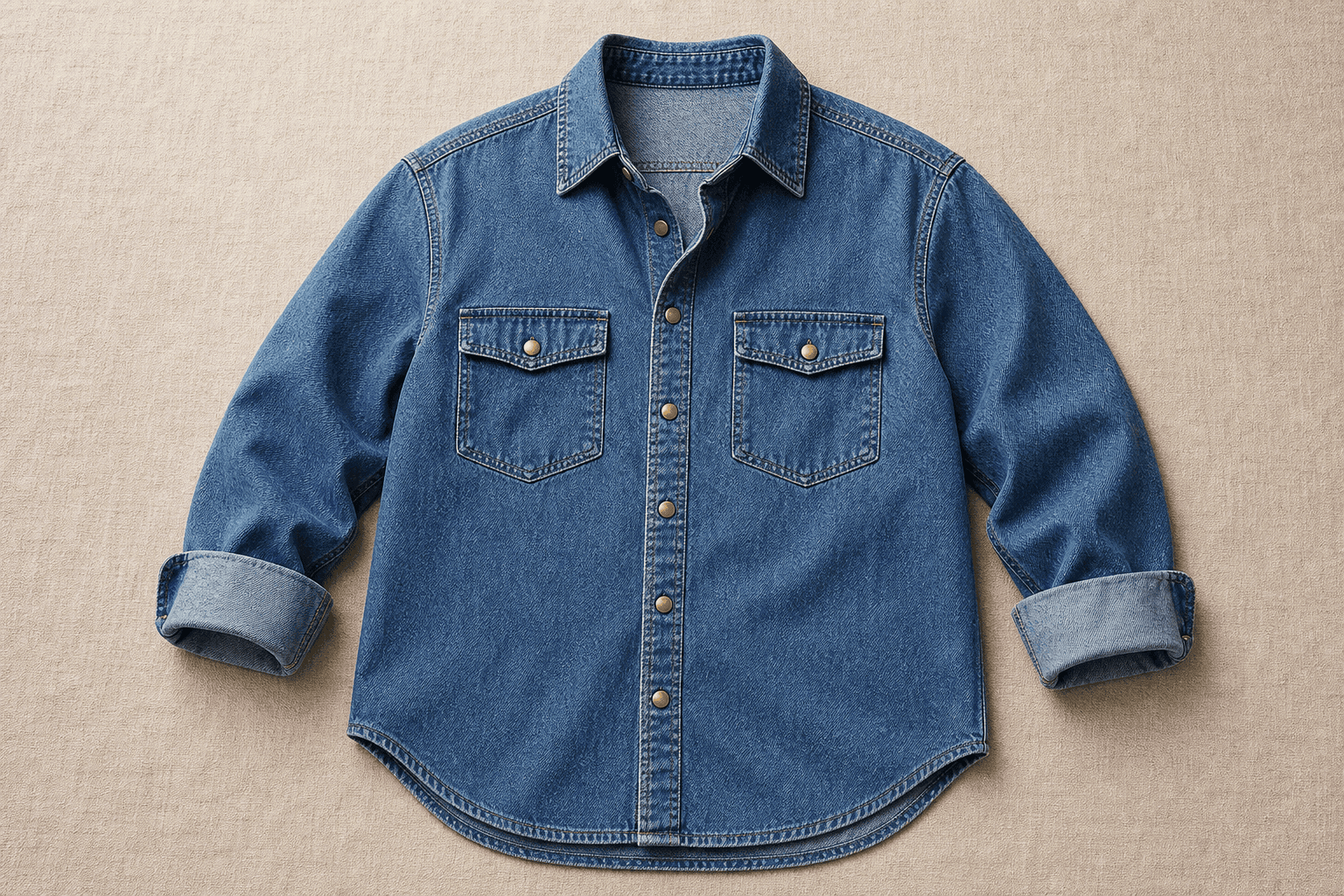
Source video, edit prompt, and reference images
Edit the video: make the woman in Video 1 wear the hat from Image 1, fitted naturally to her head. Make the man in Video 1 wear the hat from Image 2, also fitted naturally to his head. Replace the man's burnt-orange shirt with the blue washed loose-fit denim shirt from Image 3, with the collar open and the sleeves rolled to his forearms. Keep both people's actions, all other clothing, and the rest of the scene unchanged.
Edited result
What can you edit in a video with AI?
This generative AI video editor creates a new version of an uploaded clip from your instructions. Describe the change and the details you want to keep. Use it to explore visual variations of existing footage, then review the whole result.
Change the video style with AI
Use AI video style transfer to try clay animation, an illustrated style or a cinematic look. Describe the textures, colors and overall treatment you want, then ask the model to retain the source action and camera movement. Start with one clear style so you can judge its effect.
Adjust the scene and lighting
Describe a different background, time of day or lighting setup. For example, ask for warm evening light while retaining the subject's position and the camera angle. Specify whether the change should affect the whole scene or a particular area, then check the result for unintended changes.
Guide clothing and objects with reference images
Use an image to show the clothing, accessory or object you want in the edited video. Identify the person or item to change and explain how the reference should be used. With multiple images, make each image's role clear instead of asking the model to copy everything.
Describe the sound you want
Include instructions for dialogue, music or ambient sound when audio is part of your edit. With audio generation enabled, optional audio references can guide the result. Explain the intended sound and its role in the scene, then review both the audio and visuals in the generated video.
How to edit a video with AI
Start with a source clip and a specific editing goal. This workflow uses prompts and optional references to generate an edited version of your footage.
1. Upload your source video
Choose a short MP4 or MOV clip with a clearly visible subject and action. This is the footage the model will edit. If you only have an image or want to create a video from text alone, use the corresponding generation tool instead.
2. Add references if needed
Add images when appearance matters or audio when you want to guide the sound. Use references that directly support your editing goal and explain their role in the prompt. You can also submit a source video and an edit prompt without extra media.
3. Write an explicit edit prompt
Use an action such as change, replace or remove, identify the target, and describe what should stay the same. For a style edit, name the desired look and ask to preserve the subject's movement and framing. Keep the first request focused so the result is easier to evaluate.
4. Choose settings and review the result
Set the output resolution, duration, aspect ratio and audio option, then check the credit estimate and generate. Compare the result with the source for the requested change, subject details, motion and sound. Refine the instruction if the result misses your intent.
Related video tools
AI Video Editor FAQ
Can I edit an existing video with AI using a prompt?
Yes. Upload a source video and write the changes you want. The page works as a video-to-video AI generator: the model interprets your footage, instructions and any optional references to generate an edited clip.
How do I write an AI video editor prompt?
Include three things: the target, the requested change and the details to preserve. For example: “Edit the source video: change the person's jacket to dark green. Keep the face, walking motion, background and camera angle unchanged.” This is a writing example, not a promise of an exact result. If you add a reference image, explain which detail it should guide.
Will the person, motion and unedited areas stay exactly the same?
Not necessarily. AI video editing generates a new result, so details outside the requested change may also vary. Asking to preserve the face, motion or framing communicates your intent but does not lock those elements. Check continuity and any important text or product details before using the result.
Which video editing models are available on this page?
Wan 3.0 Video is currently the available editing model. The model selector and supported-model list show what you can use on this page. A model available elsewhere on VidGen Pro is not automatically available for video editing; check this page's options for its inputs and output settings.
What source video formats and limits apply?
This page currently accepts one MP4 or MOV video, 1–15 seconds long and up to 100 MB. The video must be at least 16 fps, with each side between 240 and 4096 pixels and a width-to-height ratio from 1:8 to 8:1.
Can I edit a video with reference images or audio?
Yes. With the current Wan 3.0 configuration, you can add up to 10 JPG/JPEG, PNG or WebP images, each up to 20 MB. You can also add up to 5 MP3 or WAV audio clips, each 1–15 seconds and up to 15 MB, with a combined duration of no more than 15 seconds. Both types of reference are optional.
Which output resolution, length and aspect ratio can I choose?
Wan 3.0 on this page offers 480p, 720p and 1080p output and whole-second durations from 2 to 15 seconds. Aspect ratios are adaptive, 16:9, 9:16, 1:1, 4:3 and 3:4. Adaptive follows the source video's aspect ratio; output duration is selected separately rather than automatically kept the same as the source.
Can the edited video include audio?
Yes. Audio generation is on by default for Wan 3.0 and can generate or adapt sound according to the edit. You can turn it off or add optional audio references to guide the sound. Do not assume that the original soundtrack will remain unchanged; listen to the generated result.
Is this AI video editor free, and how are credits calculated?
Generating an edit requires signing in and having enough credits. With the current Wan 3.0 configuration on this page, the charge uses the source duration rounded up to a whole second plus the selected output duration, multiplied by the credit rate for the resolution and processing option. For example, a 6.2-second source and 5-second output are billed as 12 seconds. Priority Processing has a higher rate; check the estimate before generating.
Does this editor have a timeline, captions or frame-by-frame controls?
No. This page edits video through prompts and reference media. It does not provide tracks, clip trimming or joining, layers, keyframes, subtitle editing or frame-by-frame timeline controls. For those tasks, use a timeline editor; this tool is intended for generating changes to the content of an existing clip.