
AI Image Upscaler
Upload a JPG, PNG or WebP, choose 2K or 4K, and preview the enhanced image before downloading.
AI Image Upscaler
Upload a JPG, PNG or WebP, choose 2K or 4K, and preview the enhanced image before downloading.
Prepare larger images for layouts, products and print
Process one existing image at a time with a 2K or 4K output tier. AI enhancement may change edges and textures; compare the result with the original before using it.
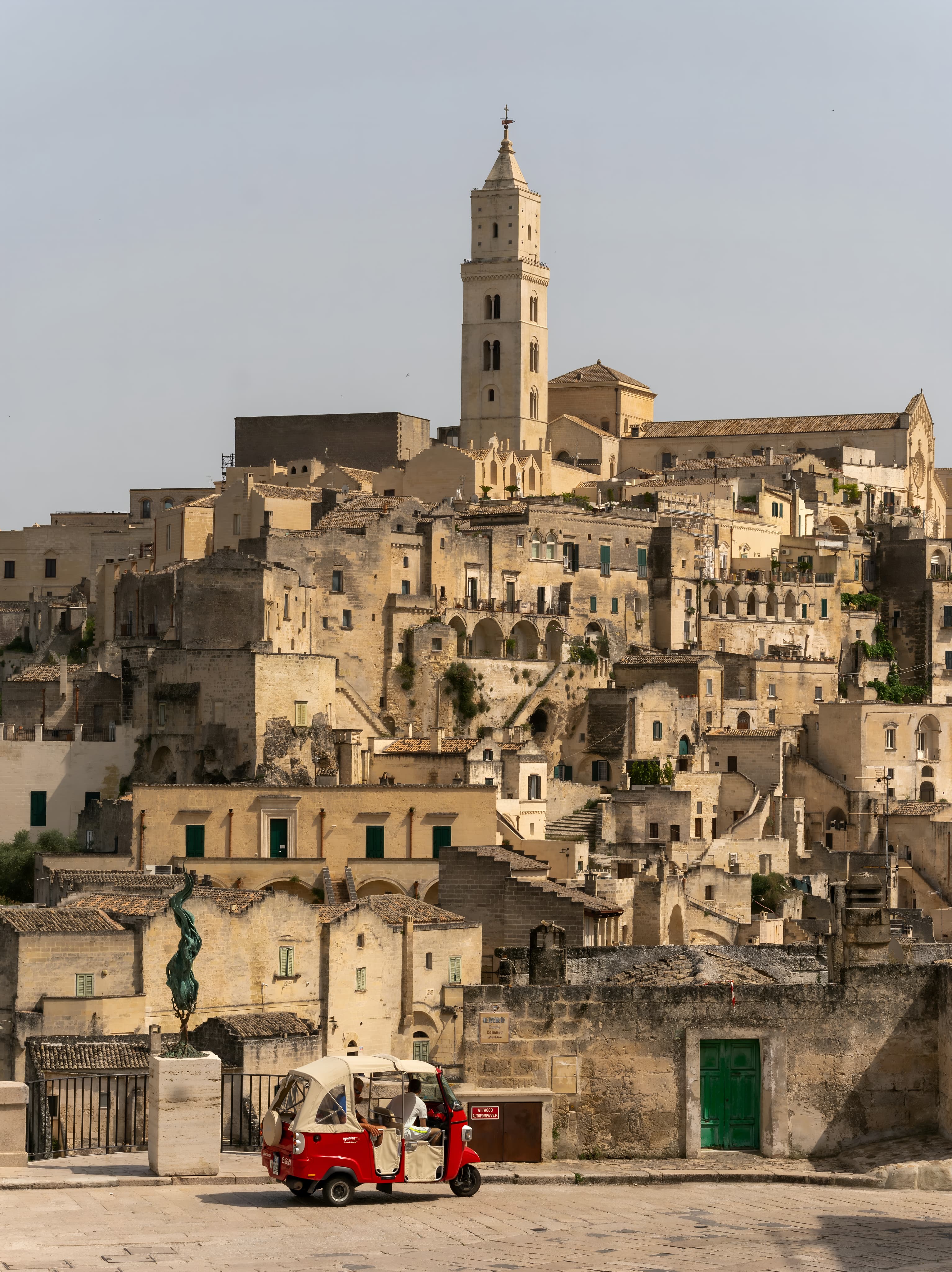
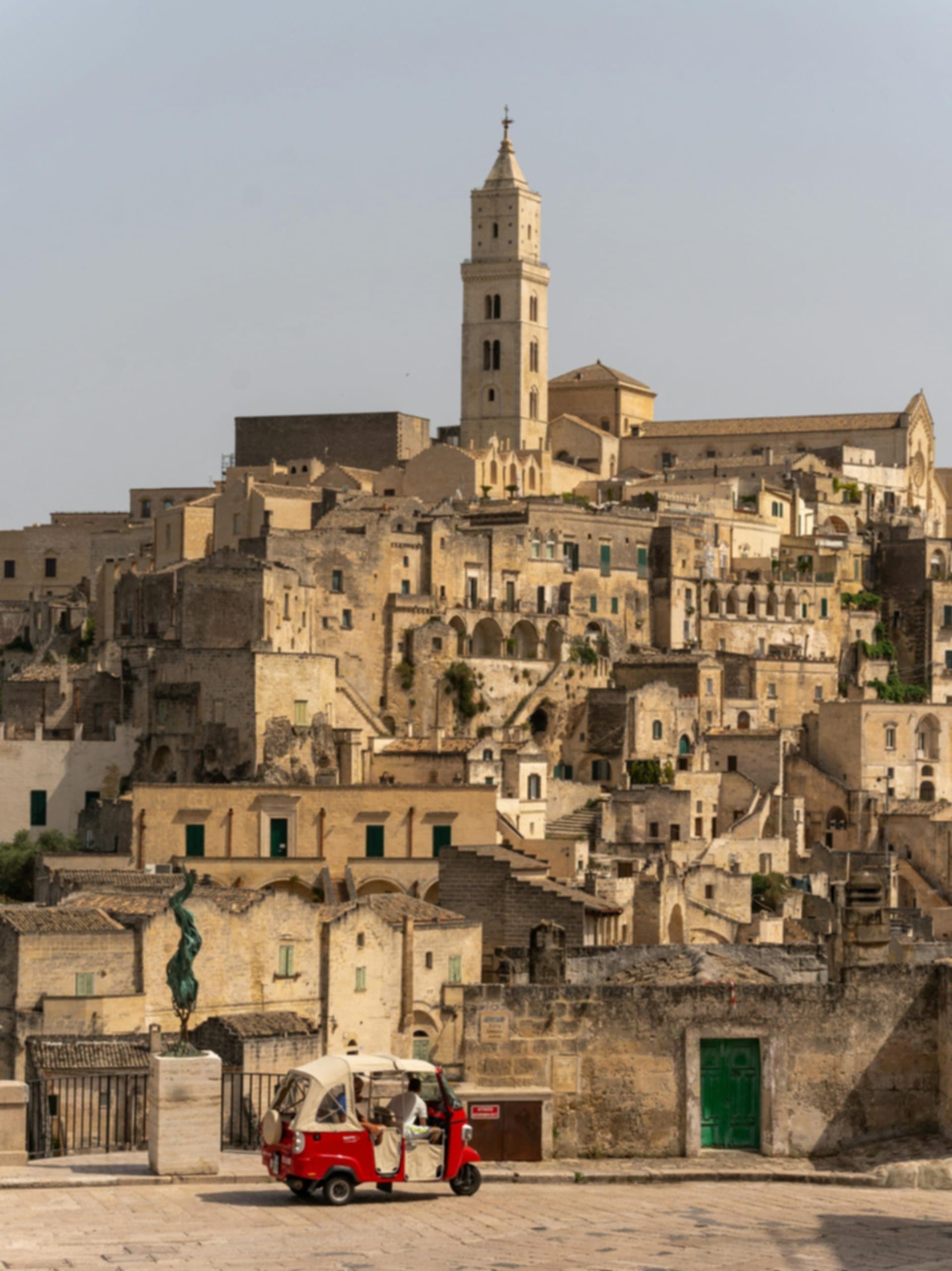
Compare the original streetscape and the upscaled preview
This example shows a 1917 × 2560 architectural street scene alongside a 3067 × 4096 preview of the processed result. Compare the tower outline, window frames, stone wall textures and vehicle edges for changes in detail, edge halos or excessive sharpening.
Original streetscape
Upscaled preview
How to upscale an image online
Upload your source image, choose an output resolution, and inspect the result.
1. Prepare your image and target size
Upload one JPG/JPEG, PNG or WebP up to 10 MB. Use the clearest source available. You can crop it or use the original.
2. Choose a resolution and check the credits
Choose 2K or 4K. Sign in, confirm the displayed credit cost, and select Create. Follow the task status until processing finishes.
3. Compare details and download
Compare the original and result, especially faces, text and fine textures. Download the PNG and check its dimensions. Each new task has a displayed credit cost.
Choose a tool for the next task
Image upscaling: sizes, results and credits
What image formats, file sizes and dimensions are supported?
Upload one JPG/JPEG, PNG or WebP up to 10 MB. Use the clearest source available. You can crop it or use the original.
Do I need a prompt or a model choice, and can I upload a batch?
Upload one image and choose 2K or 4K. No prompt or model selection is needed. Cropping changes the submitted image. Batch processing and custom width-and-height controls are not available.
How should I choose between 2K and 4K?
Start with 2K for everyday use, and choose 4K when you need a larger output. Review faces, text and textures: a higher resolution does not guarantee more accurate details.
Does 2K or 4K mean a fixed width and height?
These are target resolution tiers. Actual dimensions depend on the source aspect ratio and processing result. Check the downloaded image rather than assuming a fixed widescreen size.
Can I upscale an image without losing quality or recover real missing details?
AI upscaling can make some edges and textures look clearer, but it can also generate plausible details that were not present in the source. It does not guarantee lossless quality, exact facial features or accurate text. Check small numbers, labels and other details against the original. More pixels do not prove that missing information has been recovered.
Can I use the upscaler for faces, logos, anime and illustrations?
You can submit these as supported image files. When using an anime upscaler or enlarging an illustration, inspect outlines, small gaps and flat-color areas for changes in style or unwanted texture. For portraits, check eyes, skin and facial edges; for logos and product photos, compare lettering and fine strokes. This is raster-image processing, not SVG vectorization or a guarantee that every detail stays unchanged.
How much can it improve a blurry, pixelated or old photo?
The result depends on how much useful information remains in the source. Mild softness or compression may be easier to improve than severe blur, large pixel blocks or missing facial detail. AI may create incorrect text or texture while trying to make the image look clearer. Start with a better source when possible. This page has no dedicated scratch-repair, colorization or complete photo-restoration controls.
How do I enlarge a photo for printing? Does it become 300 DPI?
Work from the physical print size and the pixel density your printer or print service needs. A 3000-pixel-wide image printed 10 inches wide provides 300 pixels per inch (PPI). PPI describes image pixel density; DPI describes the printer’s dots. Upscaling changes available pixels, not an automatic 300 DPI setting. Download the result and prepare it in your layout or print software. This page does not print, split posters across sheets or convert DPI metadata.
Can I choose the output format, and will transparency be preserved?
Results are output as PNG; this page has no format selector. Check transparency, color and details before using the file in a design.
How long does processing take, and what if it fails or looks wrong?
Follow the task status; there is no fixed completion time. If processing fails, check the error and uploaded file. If the result has altered details, try another source or resolution and confirm the cost before creating a new task.
Is this a free AI image upscaler, and how are credits charged?
Sign in and ensure you have enough credits. Each task is charged by the selected resolution: 2K or 4K. The cost is shown before submission. Available promotional credits follow their applicable terms.
How are my uploaded images processed and retained?
VidGen’s Privacy Policy states that uploaded content is not used to train our own proprietary AI models. Processing may involve third-party AI providers, whose privacy policies and service terms also apply. Uploaded content and results follow the service’s retention rules and are not stored permanently. Download results you want to keep, and consult the Privacy Policy for retention and deletion details.