
Create AI video clips from a text description
Describe the scene and movement, choose a model and its output settings, then preview and download your video.
Create AI video clips from a text description
Describe the scene and movement, choose a model and its output settings, then preview and download your video.
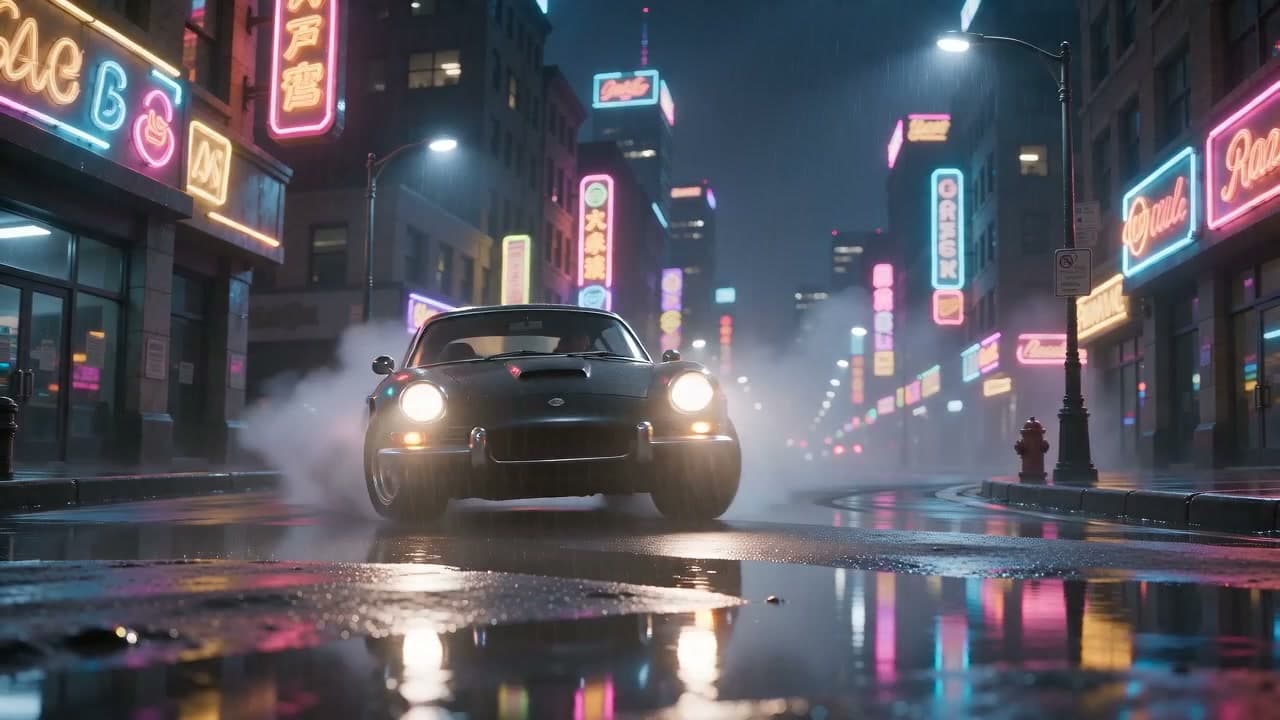
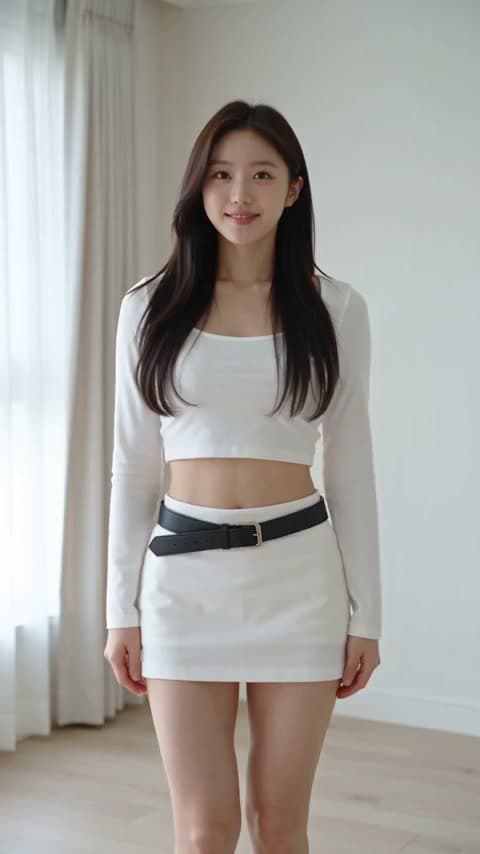
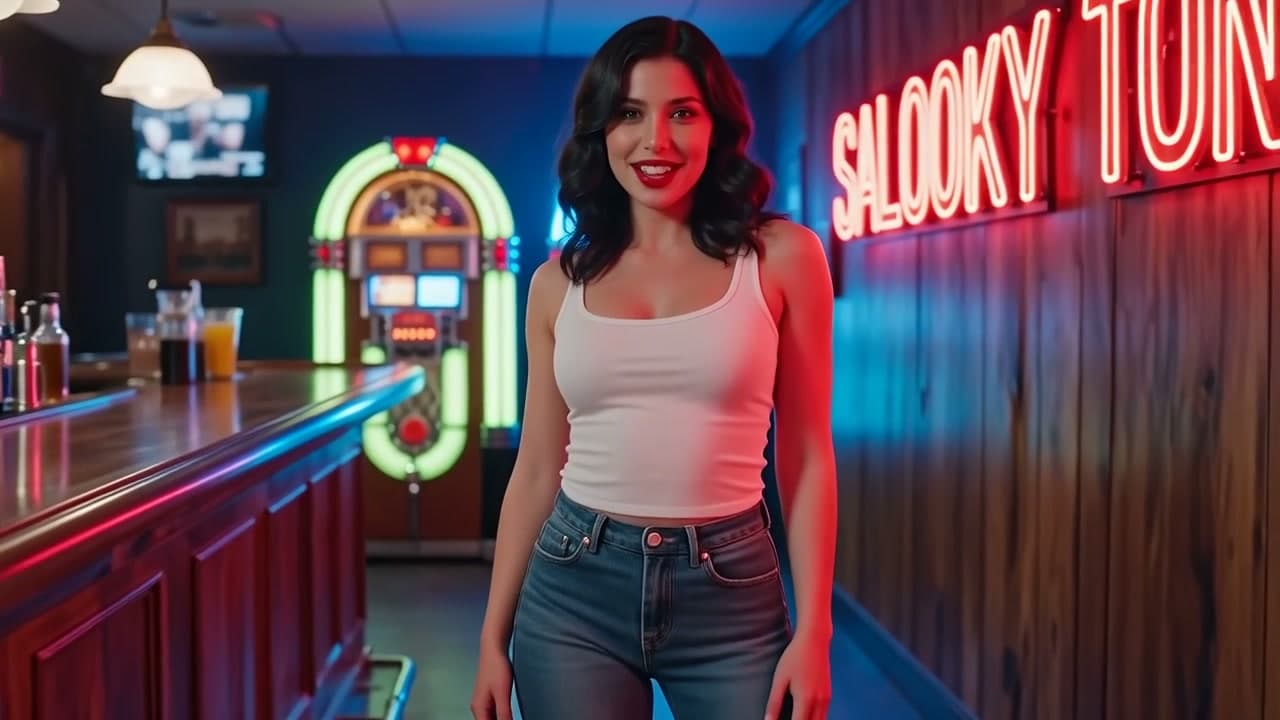
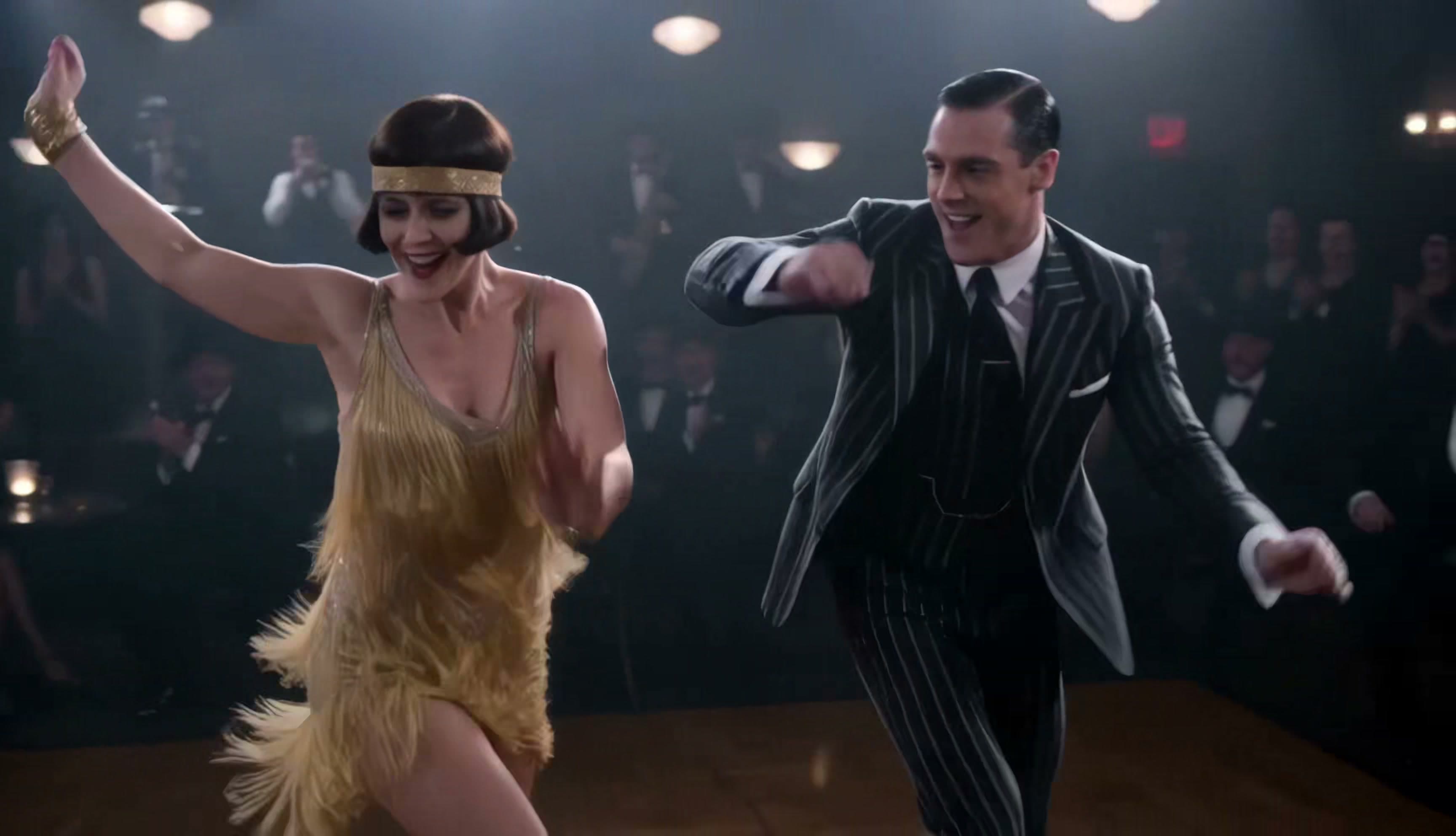


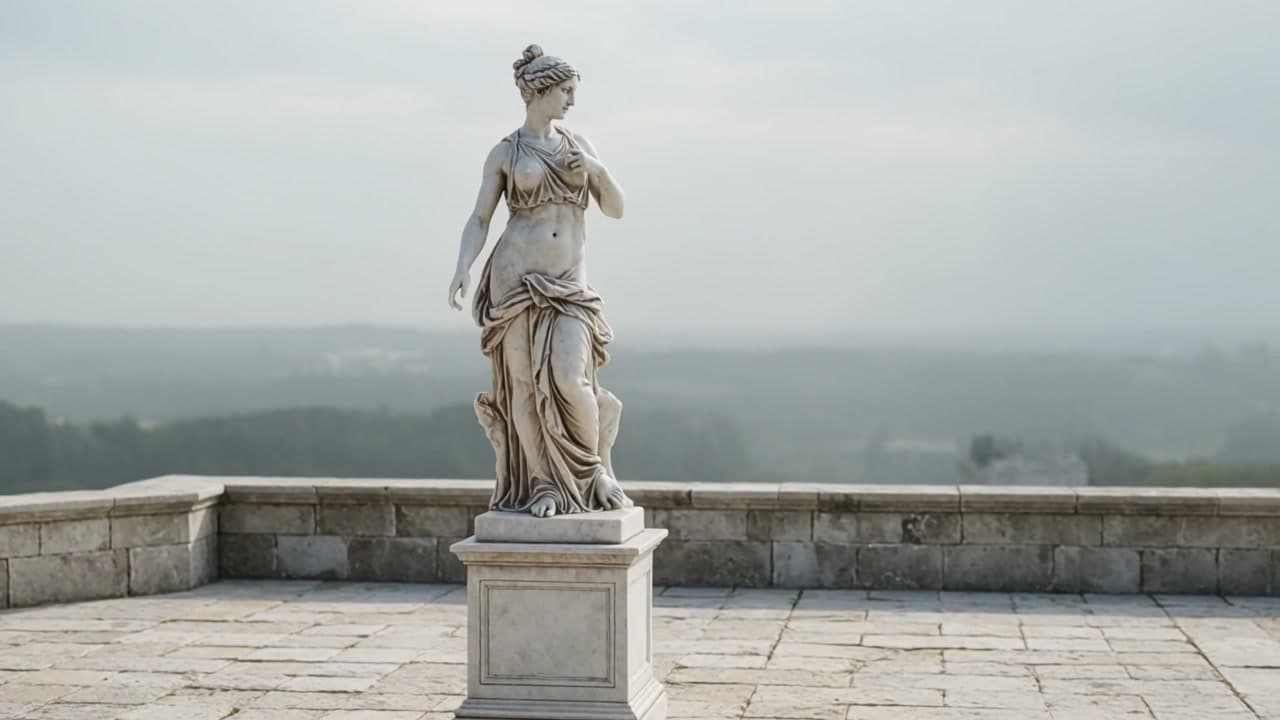
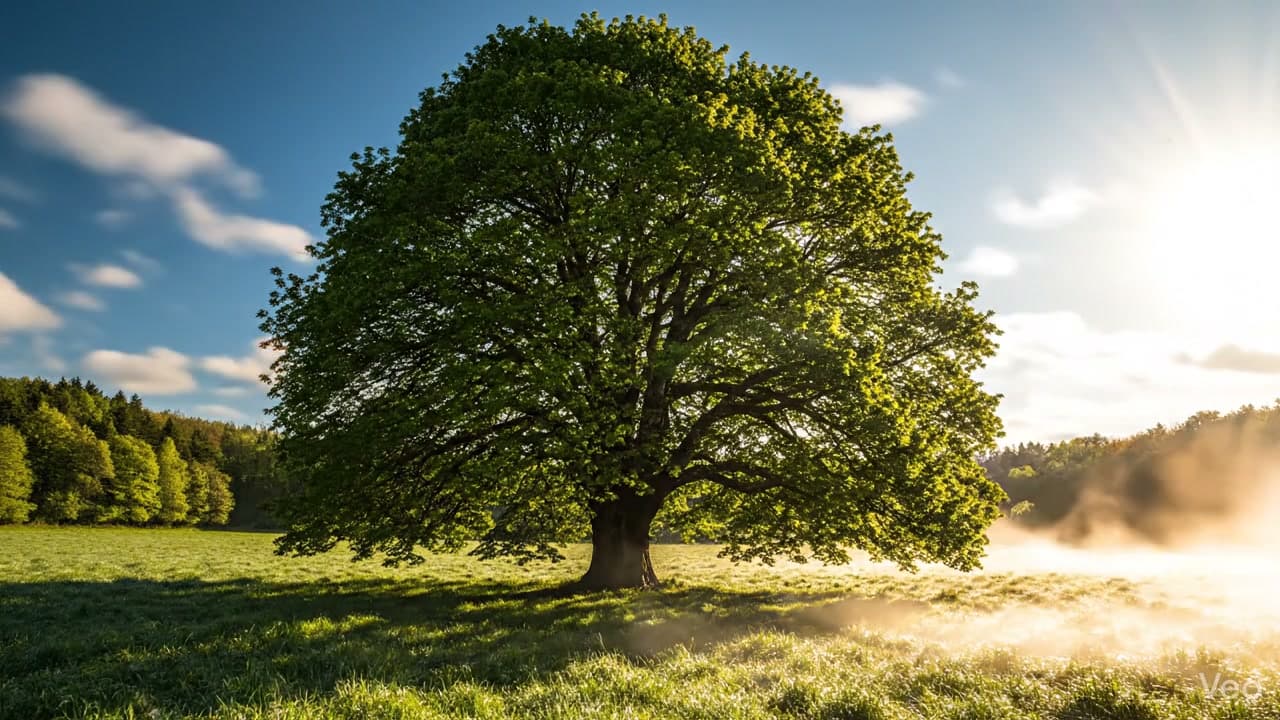
Choose a model for your text to video project
Generate a new video scene from a written description, without uploading an image. Choose among the models below by the clip length, resolution, and audio options you need. Wan 2.7 offers audio upload, while Seedance 2.5 and Wan 3.0 Video include durations up to 30 seconds. Check the available settings and required credits for your selected model.
From a scene description to a video clip
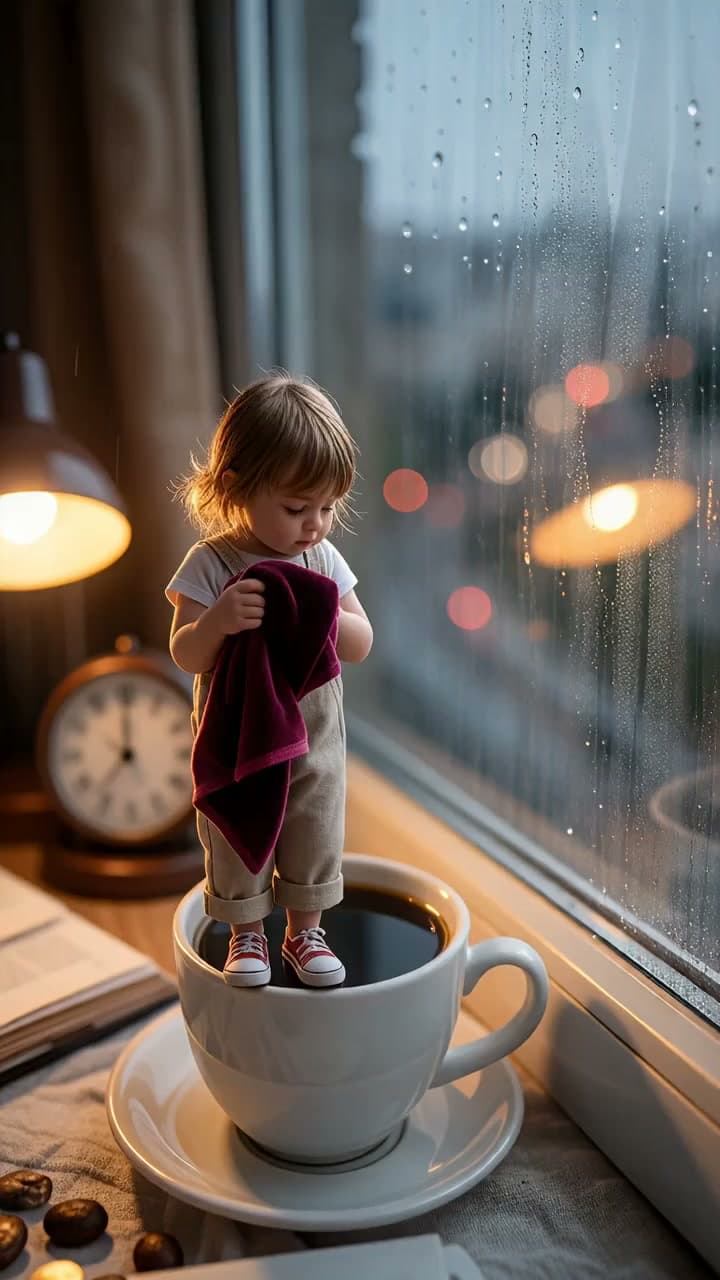
This example pairs a macro-scene prompt with a vertical video. Compare the girl's movement, her size relative to the coffee mug, the lighting, and the sound with the details in the prompt. These give you specific things to look for and adjust when describing your own scene.
Scene description
Macro shot: a tiny girl in linen overalls stands on the rim of a coffee mug, wiping condensation from the window with a velvet cloth. Blurred city lights glow outside; the warm shine of a desk lamp reflects in her hair. Sound: gentle rain + a ticking clock. Mood: peaceful and focused.
Generated video clip
How to create a video from a text prompt
Start with one clear scene, choose the output settings you need, and refine the result after previewing it.
Step 1 — Describe your scene
Describe who or what appears, where the scene happens, and one main action. Add a camera direction such as a fixed shot or slow push-in, plus any essential lighting or style. Keep the prompt within the selected model's character limit.
Step 2 — Choose a model and settings
Choose a model, then select from its available durations, aspect ratios, and resolutions. If you need sound or an uploaded recording, check that model's audio settings. Review the required credits before starting.
Step 3 — Generate, preview, and download
Generate the clip and play it with sound when audio is included. Check the subject's appearance, movement, and framing. If needed, change one part of the prompt or settings, generate another version, and download the result you want to use.
Tools for your next video task
Text to video questions
What does text to video AI generate?
It creates a new video scene from a written description of subjects, setting, and movement. Use it to explore a scene idea or create a clip for a larger project. This page does not automatically turn a long article into an edited video with narration and subtitles.
How do I write prompts for AI video generation?
Start with the subject, setting, and main action, then add a camera direction and lighting. For example: A red bicycle stands beside a quiet coastal road at sunset. A ribbon on the handlebar moves in the breeze as the camera slowly pushes in. Prompt length limits vary by model; focus on a clear scene rather than filling the character allowance.
Which text to video model should I choose?
Choose by the output you need. For 4K output, check Veo3.1 Fast or Standard; for your own audio file, check Wan 2.7. Then compare the available duration and required credits. Try a short scene with the same prompt across models to see how each handles the subject and motion.
How long can a generated video be?
Duration depends on the selected model. Veo3.1 Lite offers 4, 6, or 8 seconds, and Wan 2.7 offers 2–15 seconds. Seedance 2.5 and Wan 3.0 Video include options up to 30 seconds. Select an available duration in the form; writing a longer prompt does not extend the clip automatically.
Can I make portrait or square videos, and choose the resolution?
Choose 16:9 for landscape or 9:16 for portrait when the model offers those ratios. Some models also provide 1:1, 4:3, or 3:4. Resolution options vary too, so check the selected model's controls. An aspect ratio or resolution available on one model may not be offered on another.
Can the generated video include sound?
On this page, Veo3.1 Lite generates video with audio by default. Veo3.1 Fast and Standard let you turn audio generation on or off. When using a model with sound generation, describe the dialogue or ambience you want in the prompt, then listen to the finished clip to check the result.
Can I use my own audio file?
Wan 2.7 offers audio upload alongside automatic audio generation. Select its upload mode and check the accepted formats, file size, and recording length before adding your file. The selected video duration still controls the clip length; uploading a longer recording does not automatically produce a video of the same length.
Can I try text to video AI with free credits?
New accounts receive starter credits. Whether the balance covers a video depends on the model, duration, resolution, and other settings. Check the required credits before generating. Some configurations may need more credits than your starter balance, so free credits do not cover every model and duration.
How can I improve a result that does not match my prompt?
Models can interpret details differently, especially in scenes with several subjects or actions. Simplify the scene, make the main movement explicit, and check that the camera direction is clear. Change one part of the prompt or settings at a time so you can compare the next version with the previous result.
When should I use Image to Video instead?
Use Image to Video when you want to start from an existing photo, illustration, or specific character image. Text to Video creates a new scene from your description without requiring an image. For a speaking portrait driven by your own recording, use AI Avatar with a portrait and audio instead.