
Veo 3.1
Use Veo 3.1 in VidGen with Lite, Fast, or Standard. All three versions generate video from text or a starting image and support first and last frames. Fast and Standard also accept reference images. Compare the version-specific resolution, input, and audio options below, then open the generator to choose settings and check the required credits.
Turn a Detailed Prompt and Frame into a Cinematic Clip
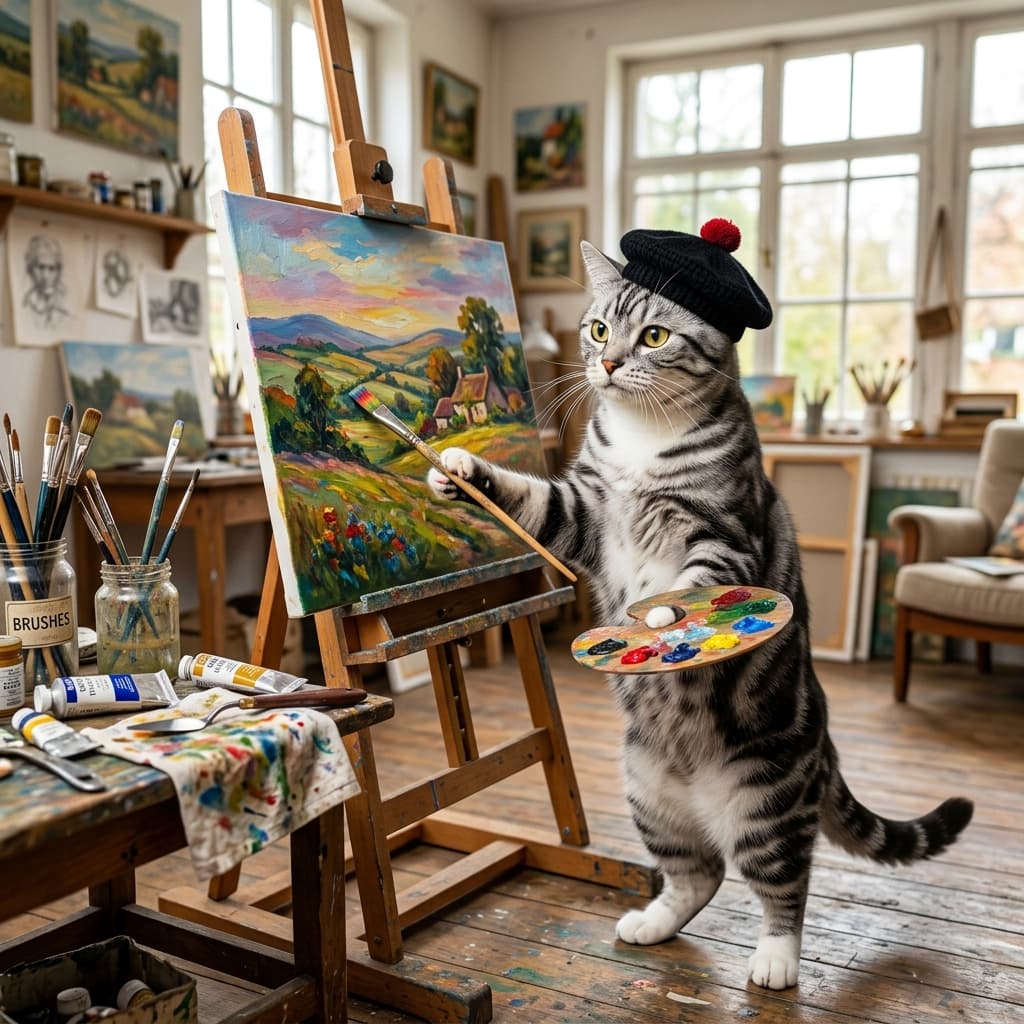
This example pairs a richly directed scene prompt with a reference still, then renders the idea as a polished short-form video.
Prompt + Reference
A silver tabby American Shorthair wearing a black beret stands on its hind legs in a sunlit artist studio and paints a vivid landscape on canvas. It dips the brush into a palette, lays down one careful stroke, steps back to inspect the painting, then adds a second confident stroke. Paint tubes and brushes rest on a nearby table. Warm golden light pours through large windows. Start on a close-up of the brush touching canvas, then slowly pull back to reveal the full studio. Cinematic, cozy, artistic mood, shallow depth of field.
Generated Clip
How to Use Veo 3.1?
Step 1
Choose Text or Image Input
Open Text to Video or Image to Video, select Lite, Fast, or Standard, and choose one of that version's available input modes.
Step 2
Write the Scene Clearly
Describe the subject, action, camera, and lighting. Choose from the available resolution, duration, aspect-ratio, and audio settings, then check the credit estimate.
Step 3
Generate and Refine
Generate a clip and review its motion, composition, details, and sound where present. Adjust the prompt or images if needed; another generation uses credits and does not guarantee an improvement.
Common Questions
What is Veo 3.1?
Veo 3.1 is an AI video generation model used for cinematic text to video and image to video workflows. In VidGen, it can turn prompts, still frames, and reference visuals into short-form video clips.
How do I use Veo 3.1?
Open Text to Video or Image to Video, then select Veo3.1 Lite, Fast, or Standard. Choose a supported input mode, describe the scene and movement, and set the available resolution, duration, and aspect ratio. Check the credit estimate before generating, then review the complete result.
What is the Veo 3.1 length limit?
When duration selection is available, the current Veo 3.1 form offers 4, 6, or 8 seconds. Lite's first-and-last-frame mode and the reference-image modes in Fast and Standard do not offer a duration control. These are short-clip workflows; a longer prompt does not extend the selected duration.
How do Veo 3.1 Lite, Fast, and Standard differ?
Lite offers 720p and 1080p. Fast and Standard also offer 4K, except that Fast's reference-image mode is limited to 720p or 1080p. Fast and Standard provide an audio-generation switch; Lite has no such switch. Compare the available modes and required credits, and test your own material rather than assuming one version always produces better results.
What is Veo 3.1 pricing?
Veo 3.1 uses VidGen credits. The estimate depends on the version, input mode, resolution, and duration where selectable. Check the current estimate in the generator against your balance before submitting. Each new generation uses credits, including a rerun with the same prompt.
Should I use text to video or image to video with Veo 3.1?
Use text to video when you want to create a scene from scratch with prompt-only direction. Use image to video when you already have a still frame, concept image, product shot, or key visual and want Veo 3.1 to animate it.
Which image modes and upload limits apply to Veo 3.1?
Lite, Fast, and Standard support one starting image or first and last frames. Fast and Standard additionally accept 1–3 reference images; Lite has no reference-image mode. The current upload controls accept JPG/JPEG, PNG, and WebP up to 10 MB per image. Use frames to guide the beginning and end, or reference images to guide appearance and composition.
Do prompts need to be written in English?
The input field has no English-only restriction, but this workflow does not automatically translate your prompt. Use clear sentences to describe the subject, action, camera movement, and sound you want. The current Veo 3.1 prompt limit is 2,000 characters; review how the model interprets your instructions in the result.
Which aspect ratio should I choose?
Where the control is available, choose 16:9 for landscape or 9:16 for portrait. Fast's reference-image mode supports both ratios. Standard's reference-image mode does not offer aspect-ratio selection. There is no Auto option in the current VidGen Veo 3.1 form.
Can Veo 3.1 generate sound or use my own audio file?
Fast and Standard let you turn model-generated audio on or off. Lite has no audio-generation switch. The current Veo 3.1 forms do not offer an audio file upload field. If using your own recording is essential, check a model with audio upload, such as Wan 2.7, or AI Avatar for a speaking portrait.
Explore Other AI Models on VidGen
Start Creating with Veo 3.1
Use Veo 3.1 in VidGen to turn prompts, still frames, and visual references into polished short-form AI videos.