
Create AI videos and images,
bring ideas to life.
Choose from multiple AI models in one place. Generate images and videos from text, or upload reference images to edit visuals and create character and product clips.



Turn words and references
into a new image.
Generate product images, posters, and imaginative scenes from text, or use reference images to adjust the composition. This example combines a courtyard, a tea set, and fabric into an afternoon tea scene.


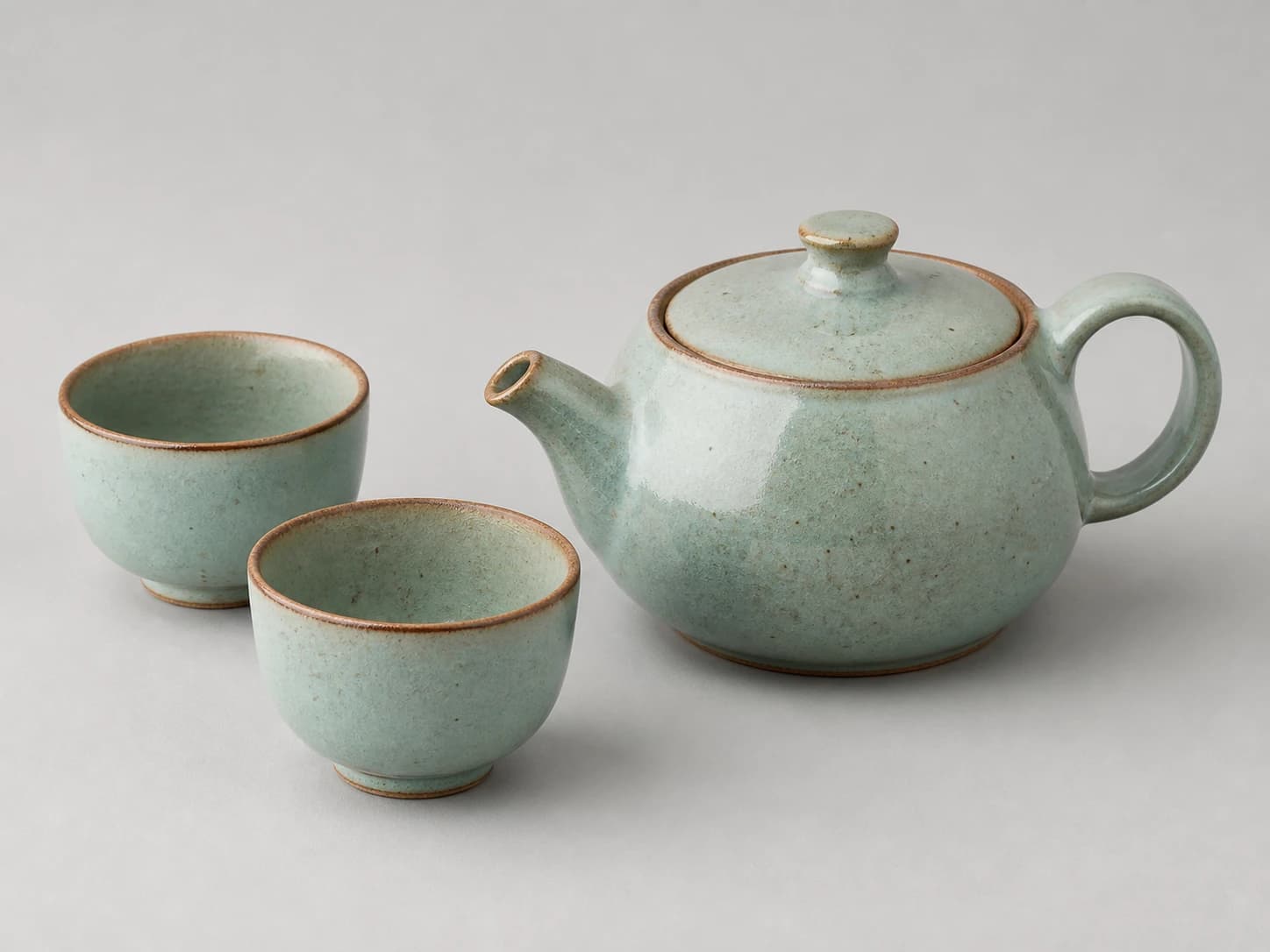



Turn still images
into moving scenes.
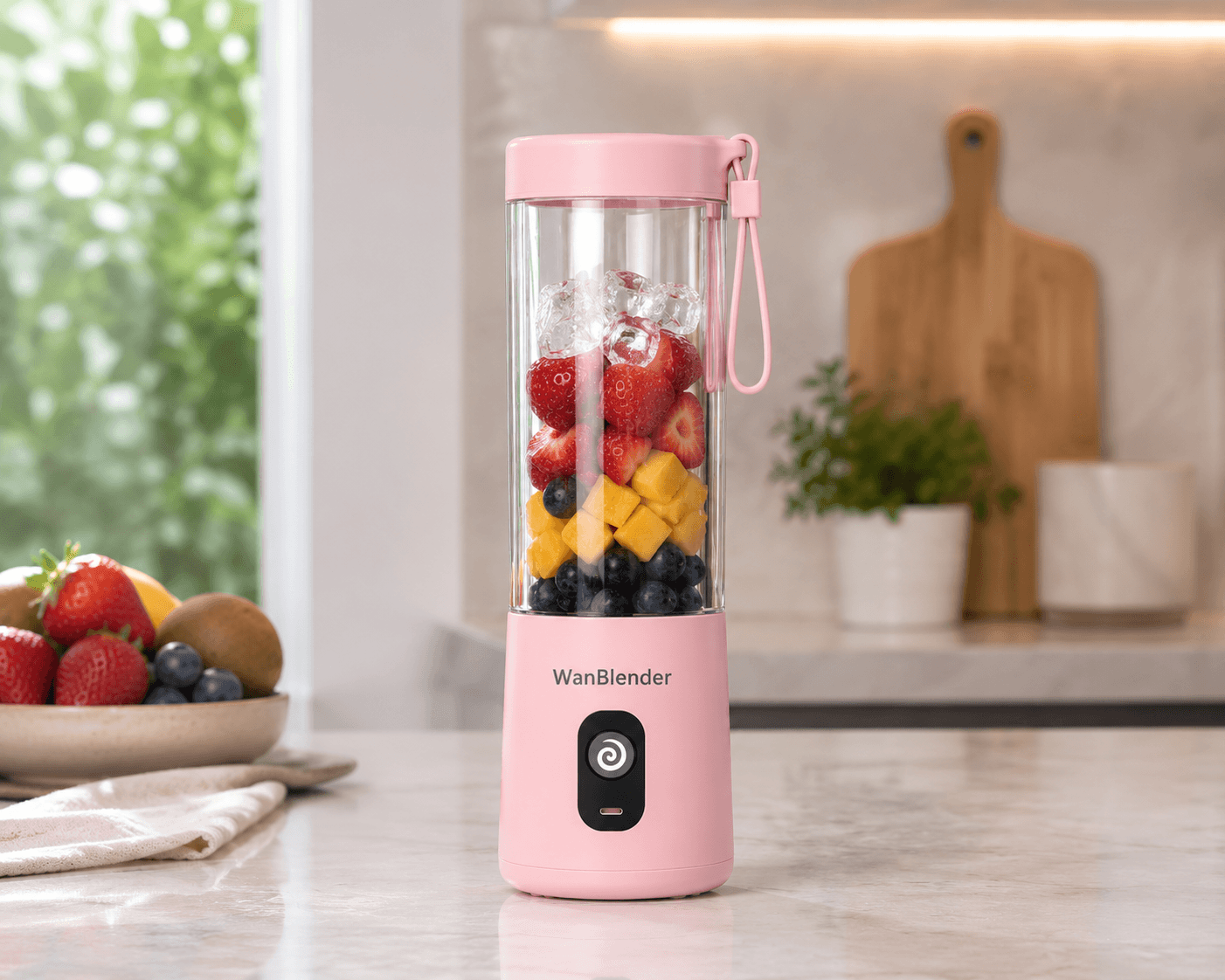
Describe scenes and camera movements, or upload images as video references. This example uses product and character images to create a short blender demonstration; the supported reference formats vary by model.
Take your creation a step further.
Explore all toolsPeople and voices
Create talking avatars, sync lip movements to audio, or guide character movement with a reference video.
Create a character videoImage and video tools
Restore old photos, upscale images, remove backgrounds and watermarks, or translate videos.
Find editing toolsCreative effects
From portrait transformations to playful videos, choose an effect and try a new look with your own material.
Explore creative effectsBefore you start, what you may want to know.
Can I try VidGen without a subscription?
Yes. New accounts receive trial credits on registration; check your account for the amount actually credited. Creation consumes credits based on your chosen model and settings. Before submitting, you can view the required or estimated credits on the generation page.
Should I start with text to video or image to video?
If you have an idea but no image, start with text to video and describe the subject, scene, and action. If you already have a photo, product shot, or concept image, choose image to video, upload it, and describe the motion you want.
Can I use my own reference images?
Yes. Image editing and image-to-video tools support reference images. The number of images and options such as starting and ending frames depend on the inputs supported by the selected model. Check its generation form for the available options.
How do I choose a model and check the credit cost?
Check the model's supported duration, aspect ratio, resolution, and reference inputs. After you choose the settings, the page shows the required or estimated credits; duration, resolution, and other options can change the amount. The page also indicates if you need to sign in or a quote is temporarily unavailable.
How do I subscribe or buy more credits?
Choose a monthly or yearly subscription on the pricing page. Monthly plans issue credits each month; yearly plans issue the full year's credits upfront. Subscriptions renew automatically on the chosen billing cycle. With an active subscription, you can also buy a one-time credit pack, which does not renew and expires 30 days after payment. If you do not have an active subscription, subscribe first. See the pricing page for current prices and credit amounts.
Do credits expire?
Yes. Registration credits expire after one month. Subscription credits have a validity period based on the purchased plan, and one-time credit packs expire 30 days after payment. You can find the exact expiration dates in your account's credit details.
Can I cancel my subscription?
Yes. Cancel automatic renewal in your account's subscription management. Your subscription ends after the current paid billing period. For help, contact [email protected].
Where can I view and download my result?
Your task appears in the results area of the generation page. When it is complete, you can preview the video or image and use the download action to save it. To try another version, change the inputs and generate again.
Let your next creation start here.
Choose how to create, or explore a credit plan that fits your needs.