
Wan 2.7
Create AI videos from text prompts, first frames, first-and-last frames, or optional uploaded audio with Wan 2.7 in VidGen. Choose 2s to 15s duration, 720p or 1080p output, and text-to-video aspect ratios for social ads, product demos, creator clips, and cinematic drafts with no local setup.
Guide a Singer Clip with Frames and Audio in Wan 2.7
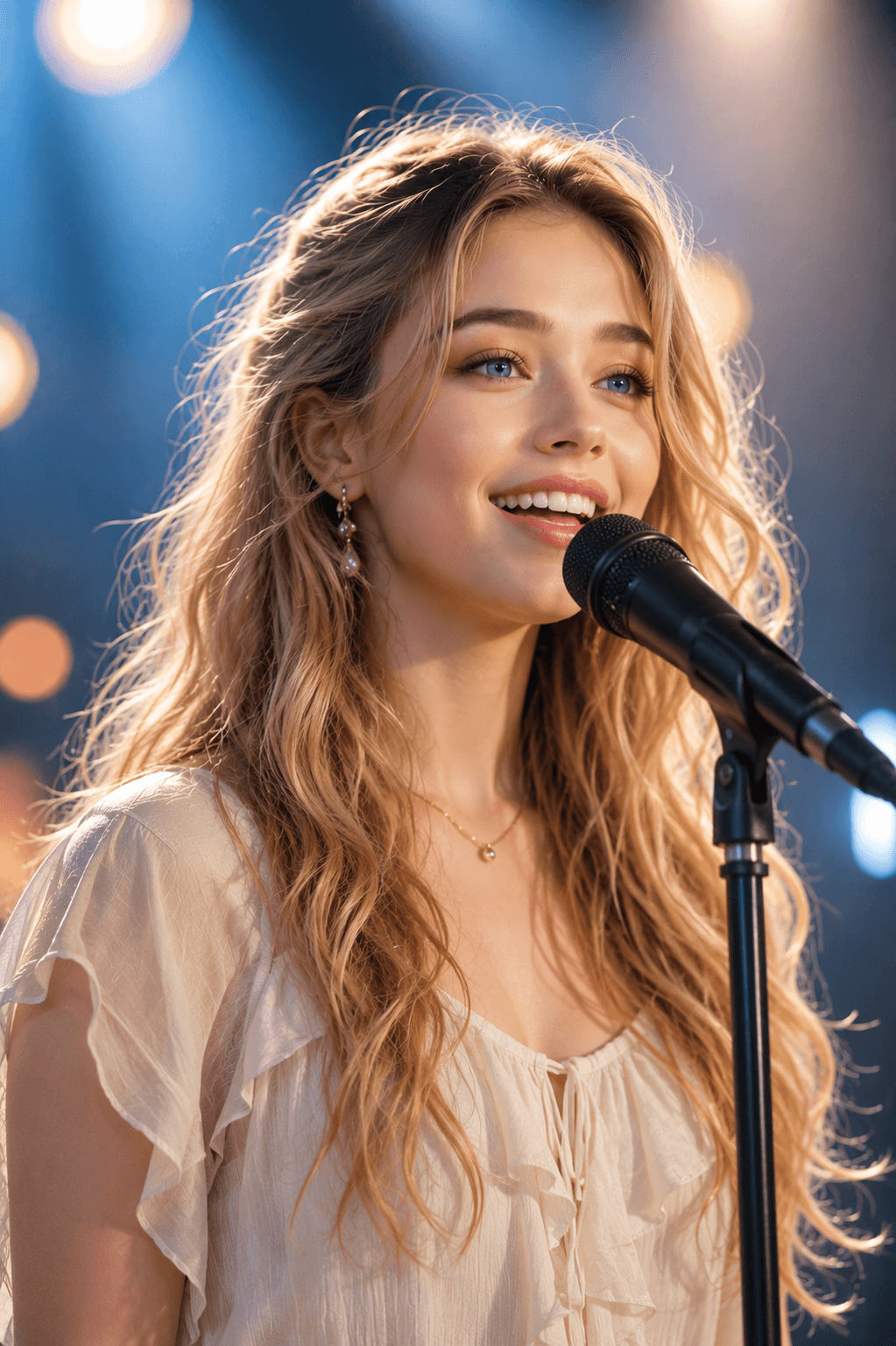
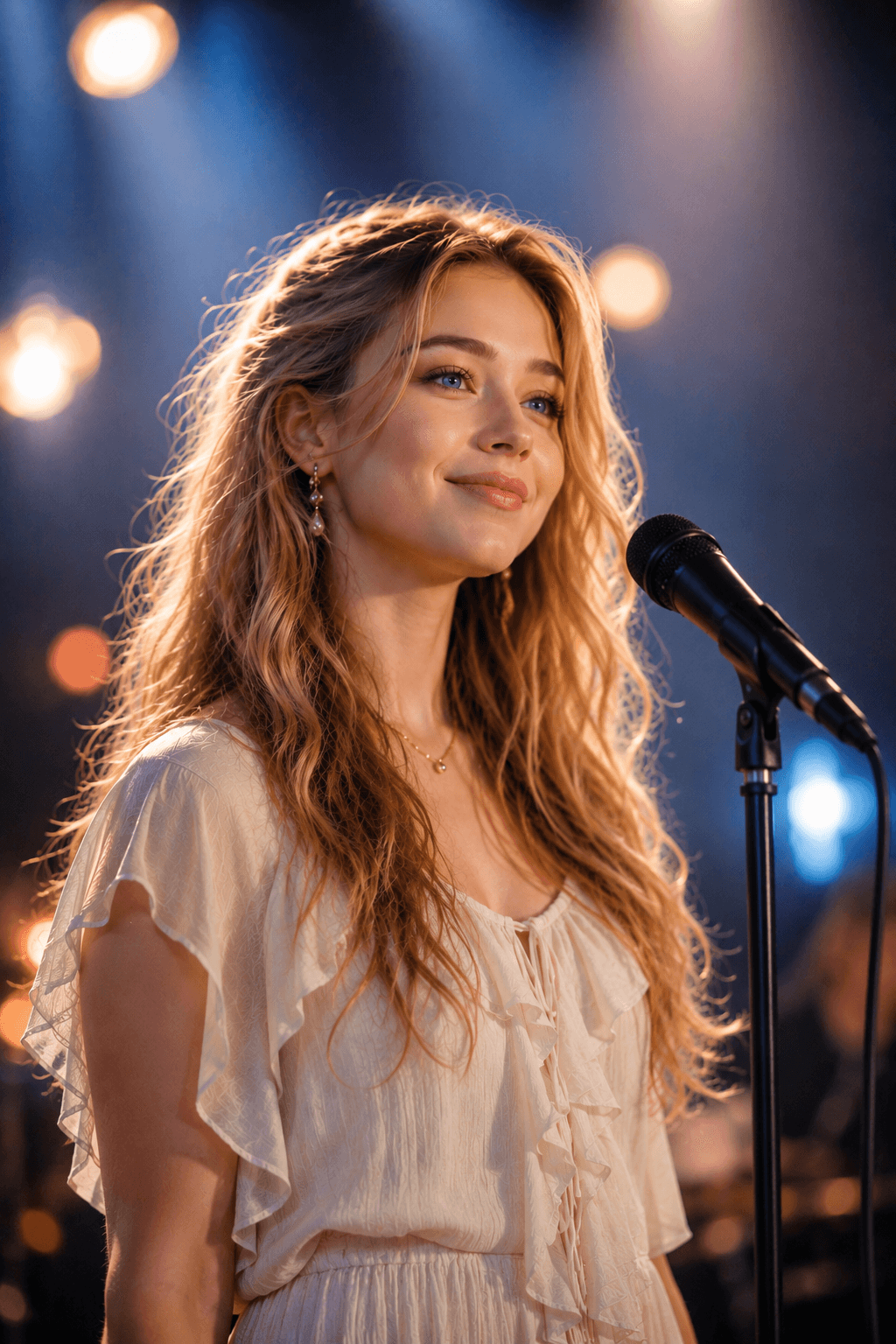
This Wan 2.7 image-to-video example uses a first frame, a last frame, and uploaded audio to guide a portrait-style singing clip. It shows how visual anchors and sound can shape motion, expression, and pacing in one short video.
Prompt, Frames, and Audio
A photorealistic medium close-up shot of a sweet young woman with long light blonde wavy hair and bright blue eyes, naturally singing into a professional black microphone on a stand. She has a warm, relaxed smile, soft cinematic lighting, refined earrings, a small gold necklace, and a blurred blue and warm-white studio bokeh background. Keep the performance fresh, natural, and youthful while matching the uploaded audio rhythm.
Generated Video
Wan 2.7 Key Features
Text or Image to Video
Start from a written prompt or upload a first frame, then describe subject, motion, camera direction, lighting, and mood in one Wan AI video generator.
First and Last Frame Control
Use a first frame alone for image animation, or add a last frame when you want Wan 2.7 to build motion between two visual anchors.
Optional Audio Guidance
Let Wan 2.7 generate with automatic audio settings, or upload a short audio file when the clip should follow a specific rhythm, voice, or sound cue.
2s to 15s Output
Choose short 2s drafts for quick motion tests or longer clips up to 15s when the idea needs more time to unfold.
720p or 1080p Clips
Use 720p for fast iteration and 1080p when you need cleaner visual detail for a final social, product, or cinematic draft.
Online Wan 2.7 Generator
Use Wan 2.7 online from VidGen without downloading model weights, configuring a GPU, or building a local ComfyUI setup.
Wan 2.6 vs Wan 2.7
Wan 2.6
Wan 2.6 is a strong online Wan video option for 5s, 10s, or 15s text-to-video and image-to-video generation, with optional Multi Shots for clearer visual beats.
Wan 2.7
Wan 2.7 adds a more flexible 2s to 15s range, first-frame and first-last-frame image-to-video options, wider text-to-video aspect ratios, and optional uploaded audio guidance in VidGen.
Best Uses for Wan 2.7
- Text-to-video drafts for social ads, product stories, and cinematic concepts
- Image-to-video clips that need a clear first frame or first-and-last-frame transition
- Creator videos, portraits, and performance clips that benefit from audio guidance
- Product demos and launch teasers where duration and resolution need flexible control
- Browser-based Wan AI video generation when you want the latest Wan option without local setup
How to Use Wan 2.7
Step 1
Choose Text to Video or Image to Video
Open Text to Video when you only have a prompt. Open Image to Video when you want Wan 2.7 to animate a first frame, connect a first frame to a last frame, or follow an uploaded audio cue.
Step 2
Write a Clear Motion Prompt
Describe the subject, action, camera movement, lighting, scene mood, and visual details that should stay consistent. For image to video, explain how the frame should move.
Step 3
Set Frames, Audio, Duration, and Resolution
Upload a first frame and optional last frame for image-to-video, add audio if needed, choose 2s to 15s duration, and select 720p for drafts or 1080p for cleaner output.
Step 4
Generate and Refine
Review the first result, then adjust the prompt, frames, audio, duration, resolution, or aspect ratio to improve motion, pacing, and visual consistency.
Common Questions
What is Wan 2.7?
Wan 2.7 is a newer Wan AI video generation model. In VidGen, it is available through online text-to-video and image-to-video tools for creating short 720p or 1080p clips from prompts, frames, and optional audio.
Can I use Wan 2.7 as a text-to-video generator?
Yes. Open Text to Video, select Wan 2.7 T2V, write a prompt with subject, action, camera movement, lighting, and mood, then choose duration, resolution, and aspect ratio before generating.
Can Wan 2.7 turn an image into video?
Yes. Open Image to Video when you have a product image, character frame, poster, or concept visual. Wan 2.7 can animate a first frame and can also use a last frame for between-frame motion.
What is first and last frame mode in Wan 2.7?
First and last frame mode lets you upload a starting frame and an ending frame. VidGen sends both frames to Wan 2.7 so the model can generate motion that moves from the first visual anchor toward the final one.
Can I use audio with Wan 2.7?
Yes. Wan 2.7 in VidGen supports automatic audio settings and optional uploaded audio. Use uploaded audio when the video should follow a specific voice, beat, or sound reference.
Does Wan 2.7 support 1080p and 15s video?
Yes. VidGen's Wan 2.7 generator supports 2s to 15s duration choices and 720p or 1080p output, so you can move from quick tests to cleaner final clips.
Is Wan 2.7 free to try?
Wan 2.7 is not positioned as an unlimited free video generator, but VidGen gives new users free credits so you can test text-to-video and image-to-video results before creating larger batches.
How is Wan 2.7 different from Wan 2.6?
Wan 2.6 focuses on 5s, 10s, or 15s text and image video generation with optional Multi Shots. Wan 2.7 keeps online Wan generation simple while adding 2s to 15s duration, first-and-last-frame control, optional uploaded audio, and more text-to-video aspect ratios.
Explore Other AI Models on VidGen
Start Creating with Wan 2.7
Use Wan 2.7 online to turn prompts, images, frame pairs, or optional audio into 2s to 15s AI videos, with 720p or 1080p output for social posts, product demos, creator clips, and cinematic tests.