
MiniMax H3
Create 768P or 2K AI videos from text prompts, a first frame, a first-and-last-frame pair, or image, video, and audio references with MiniMax H3 in VidGen. Choose 5 to 15 seconds and use six aspect ratios for text-to-video or Omni Reference workflows. It is especially useful when a project needs defined opening and closing compositions, multiple visual references, or more precise motion direction than a prompt alone can provide.
Create a Sakura Bicycle Ride Between Two Frames
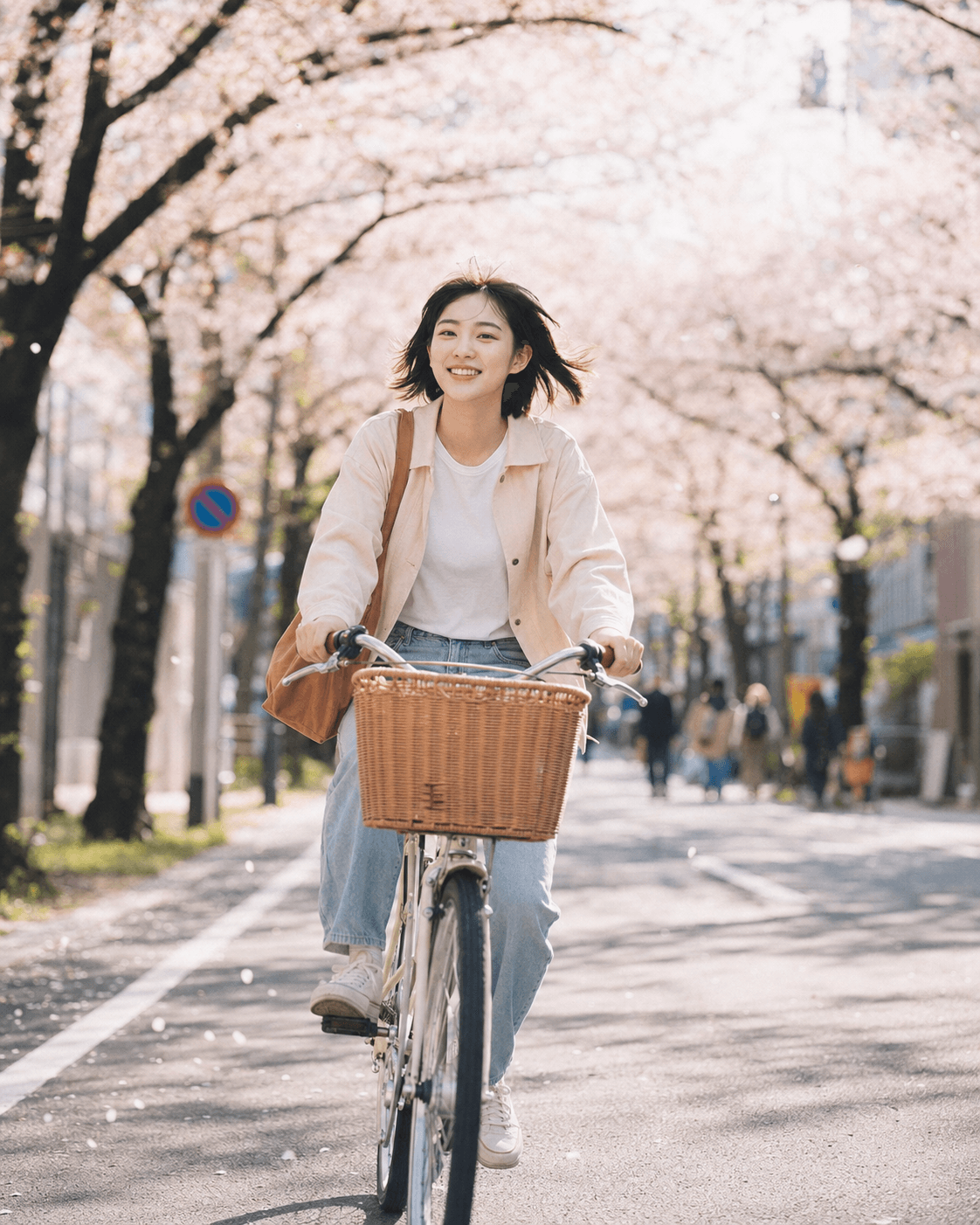
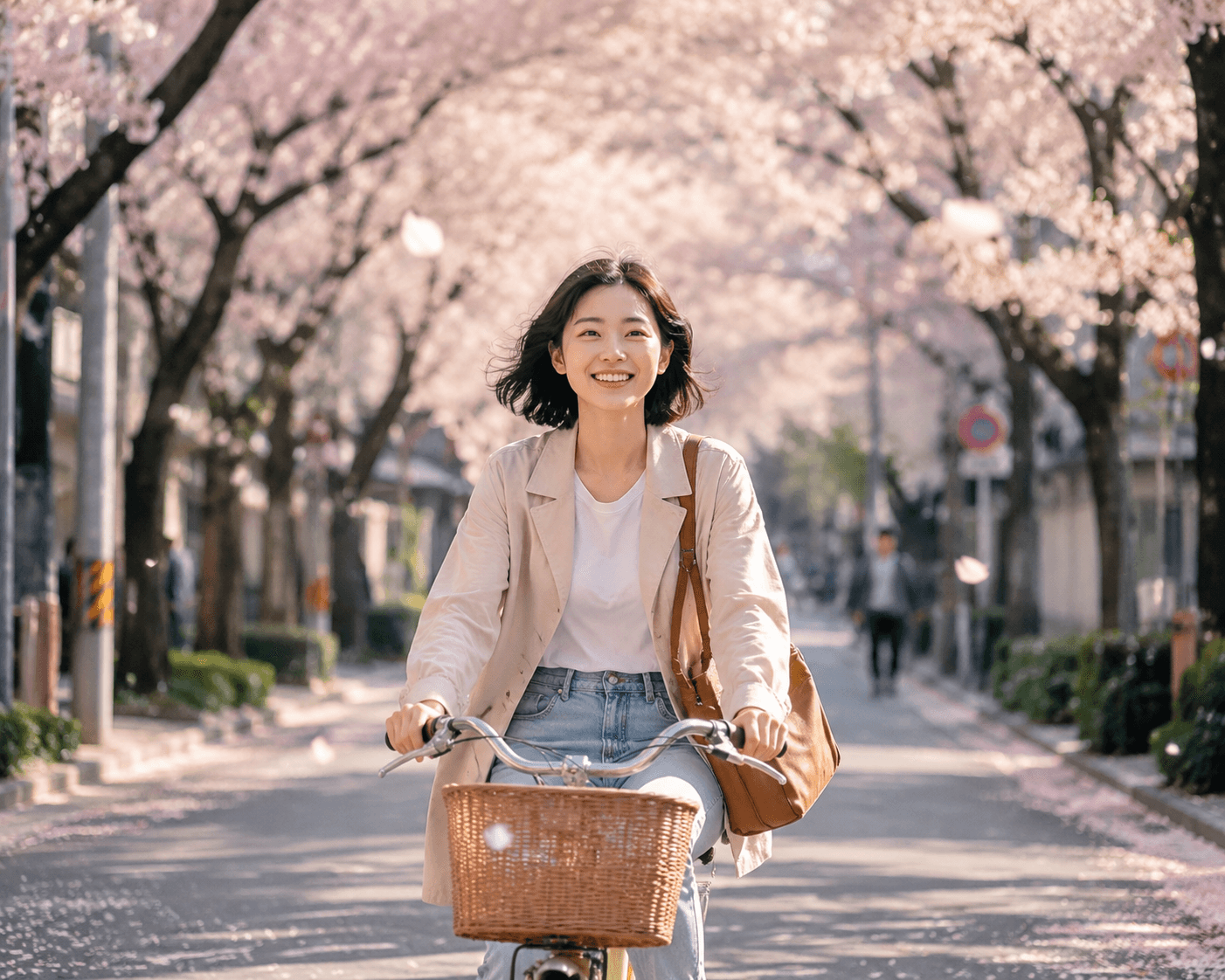
This MiniMax H3 example uses a first frame, a last frame, and a detailed five-second motion prompt to guide a cyclist along a cherry-blossom-lined street. The frame pair defines the opening and ending composition while the prompt directs the subject, petals, camera tracking, and pacing.
Prompt and First/Last Frames
Use the young Asian woman in the reference images as the subject, keeping her appearance, hairstyle, clothing, bicycle, and the cherry-blossom-lined street environment completely consistent. Generate a 5-second photorealistic, cinematic video. In a medium close-up, front-facing tracking shot, the young woman slowly rides a vintage city bicycle through the cherry-blossom-lined street, maintaining a natural, joyful smile. Her short hair is gently stirred by the spring breeze, while her clothes and the canvas bag on her shoulder sway subtly with her riding motion. The wicker basket at the front of the bicycle rocks slightly, and the wheels turn slowly. The surrounding cherry trees sway gently in the breeze as pink and white petals fall naturally through the air, with a few passing close to the lens. Keep the pedestrians and buildings in the background softly blurred to create a quiet, soothing springtime city atmosphere. Use natural, stable camera movement that simulates a real camera operator following the subject with a handheld gimbal, keeping her centered in the frame throughout. Maintain an 85mm lens look with a wide aperture and shallow depth of field, soft natural light, cinematic color grading, realistic skin texture, and a candid, everyday-life feel. Action pacing: 0–2 seconds: The bicycle approaches the camera from a distance as the woman maintains a natural smile and cherry blossom petals fall around her. 2–4 seconds: The camera moves slightly backward to follow her, capturing the details of the cycling motion and the spring breeze moving her hair. 4–5 seconds: The woman draws close to the camera and smiles more noticeably as petals drift past the lens. End on this warm, natural image as the video's final frame. Style: photorealistic, cinematic, Japanese spring aesthetic, soft natural lighting, realistic motion, high detail, smooth camera movement.
Generated Video
Key Features
Four Generation Modes
Use one model for text to video, first-frame animation, video generation with first and last frames, or Omni Reference generation.
First and Last Frame Control
Provide an opening and closing image when the shot needs a defined visual destination, then describe the movement between those two anchors.
Omni Reference Mode
Use reference images and short videos to guide appearance, motion, and creative direction, with optional audio available as an additional reference input.
768P or 2K Output
Choose 768P for lower-cost iteration or 2K for higher-resolution delivery before generating the clip.
5 to 15 Second Duration
Choose a duration from 5 to 15 seconds in one-second increments for quick motion tests, planned transitions, or scenes that need more time to develop.
Six Aspect Ratios
Choose 21:9, 16:9, 4:3, 1:1, 3:4, or 9:16 for text-to-video and Omni Reference generation; frame-based modes follow the uploaded images.
MiniMax H3 vs Hailuo 2.3
MiniMax H3
Choose this option for text-to-video, single-frame animation, first-and-last-frame transitions, or multi-reference creation. It supports 768P or 2K output and flexible 5–15 second clips.
Hailuo 2.3
Choose Hailuo 2.3 for a focused single-image animation workflow with Standard or Pro tiers, 6- or 10-second duration, and compatible 768p or 1080p settings.
Best Uses for MiniMax H3
- First-and-last-frame transitions with a defined opening and closing composition
- Character or product videos guided by multiple reference images
- Motion studies that use a short reference video for additional direction
- Text-to-video drafts for cinematic scenes, product ideas, and visual concepts
- Horizontal, vertical, square, and ultrawide clips from 5 to 15 seconds
How to Use MiniMax H3
Step 1
Choose a Generation Mode
Start with Text to Video for a prompt-only scene. Open Image to Video for a first frame, a first-and-last-frame pair, or an Omni Reference set.
Step 2
Add Frames or Reference Media
Upload the media required by the mode. Use visually coherent first and last frames for a planned transition, or give each reference image or video a clear visual or motion role. Audio is available as an optional additional reference input.
Step 3
Write a Focused Motion Prompt
Describe the subject, action, camera movement, environment, lighting, pacing, and details that should remain consistent. For multiple references, explain the role of each one.
Step 4
Set the Duration and Generate
Choose 768P or 2K, set 5–15 seconds, and select the aspect ratio where available. Generate the video, review the movement and composition, then refine the prompt or references if needed.
Common Questions
What is MiniMax H3?
It is an AI video model for text-to-video, image-to-video, generation with first and last frames, and Omni Reference workflows. In VidGen, it produces 768P or 2K videos from 5 to 15 seconds.
Can MiniMax H3 generate video from text?
Yes. Open Text to Video, select the model, write a prompt, and choose the resolution, duration, and aspect ratio before generating the clip.
Can MiniMax H3 turn an image into a video?
Yes. Upload one first frame and describe the motion you want. You can also add a last frame when the video needs to move toward a specific ending composition.
How does MiniMax H3 start and end frame video generation work?
Upload a first frame and a last frame, then describe how the subject, camera, and environment should move between them. The two images act as visual anchors for the generated transition.
How does MiniMax H3 Omni Reference work?
Omni Reference lets you combine images and short videos to guide subject appearance, motion, and style. You can also add audio as an optional reference input. Use the prompt to specify which visual details to preserve or borrow from each image or video.
How many reference files can I use with MiniMax H3?
VidGen accepts up to nine reference images, three reference videos, and three reference audio files. Each video or audio file must be 2–15 seconds, and reference videos and audio files are each limited to 15 seconds in total.
Can I generate a MiniMax H3 video using only audio?
No. Omni Reference mode requires at least one image or video. Audio can be included as an additional reference, but it cannot be the only uploaded input.
What resolution and duration does MiniMax H3 support?
It supports 768P and 2K output in VidGen, with durations from 5 to 15 seconds in one-second increments.
Which MiniMax H3 aspect ratios are available?
Text-to-video and Omni Reference modes support 21:9, 16:9, 4:3, 1:1, 3:4, and 9:16. Image-based modes follow the composition of the uploaded frame or frame pair.
Is MiniMax H3 the same as Hailuo 2.3?
No. They are separate options in VidGen. Hailuo 2.3 focuses on single-image animation, while this model also supports text, first-and-last-frame, and multi-reference workflows.
What does MiniMax H3 cost in VidGen?
It uses VidGen credits. Resolution and output duration affect the estimate. In Omni Reference mode, reference video cost also follows the selected resolution, while any reference images beyond the first five add credits; the first five reference images and reference audio do not add credits. VidGen shows the current estimate before generation.
Explore Other AI Models on VidGen
Create with MiniMax H3
Turn a prompt, one frame, a first-and-last-frame pair, or reference media into a 5–15 second 768P or 2K video.