GPT Image 1.5
GPT Image 1.5 is VidGen's OpenAI image workflow for creators who care about prompt fidelity, clean text rendering, and precise image editing. Use it when you want one model that handles both text to image and image to image reliably, especially for product visuals, branded graphics, UI mockups, posters, and iterative edits where small instruction changes matter. In practice, GPT Image 1.5 is a strong fit when other models give you approximate changes but you need tighter control over wording, layout, and edit intent.
See GPT Image 1.5 Make a Precise Image Edit
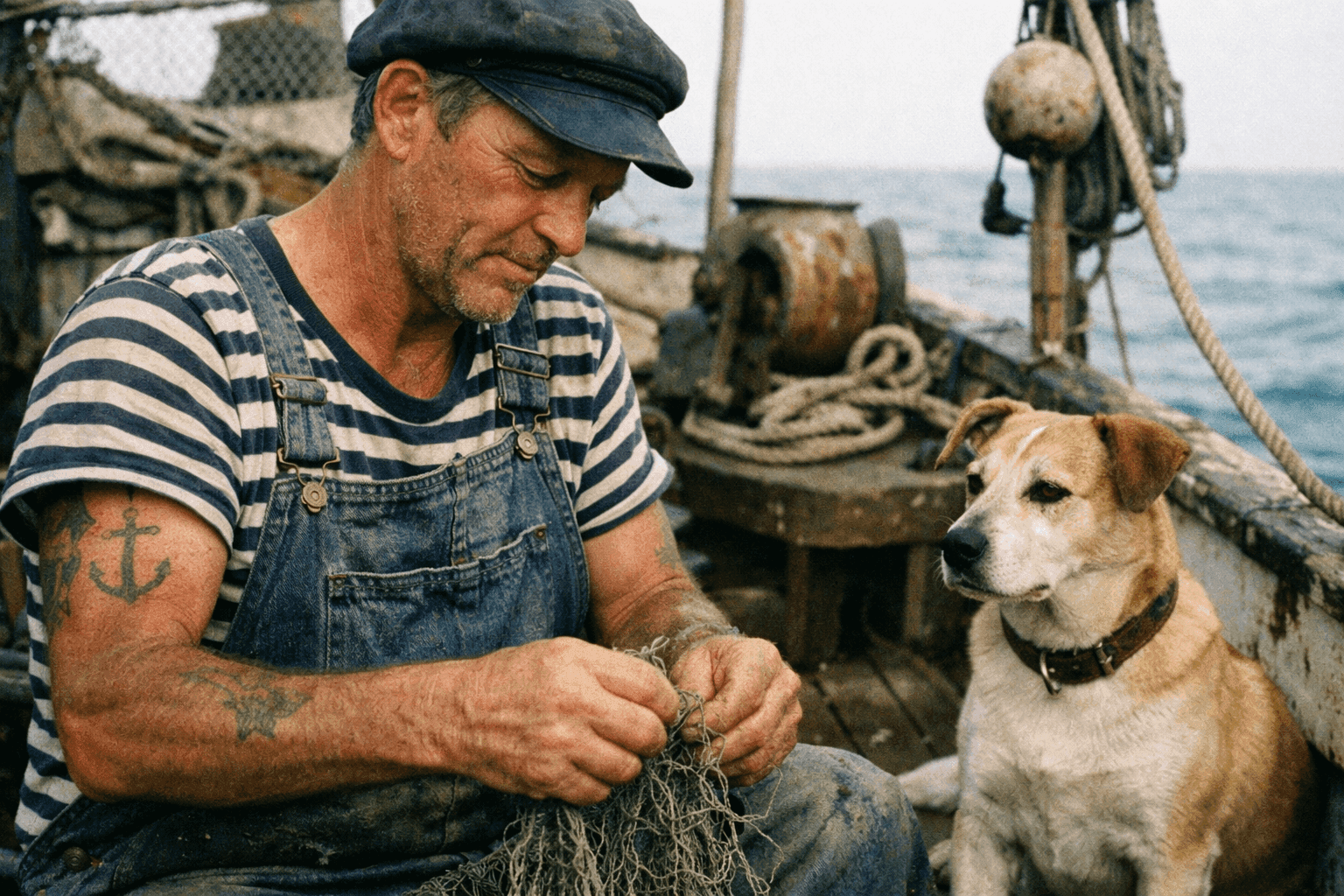
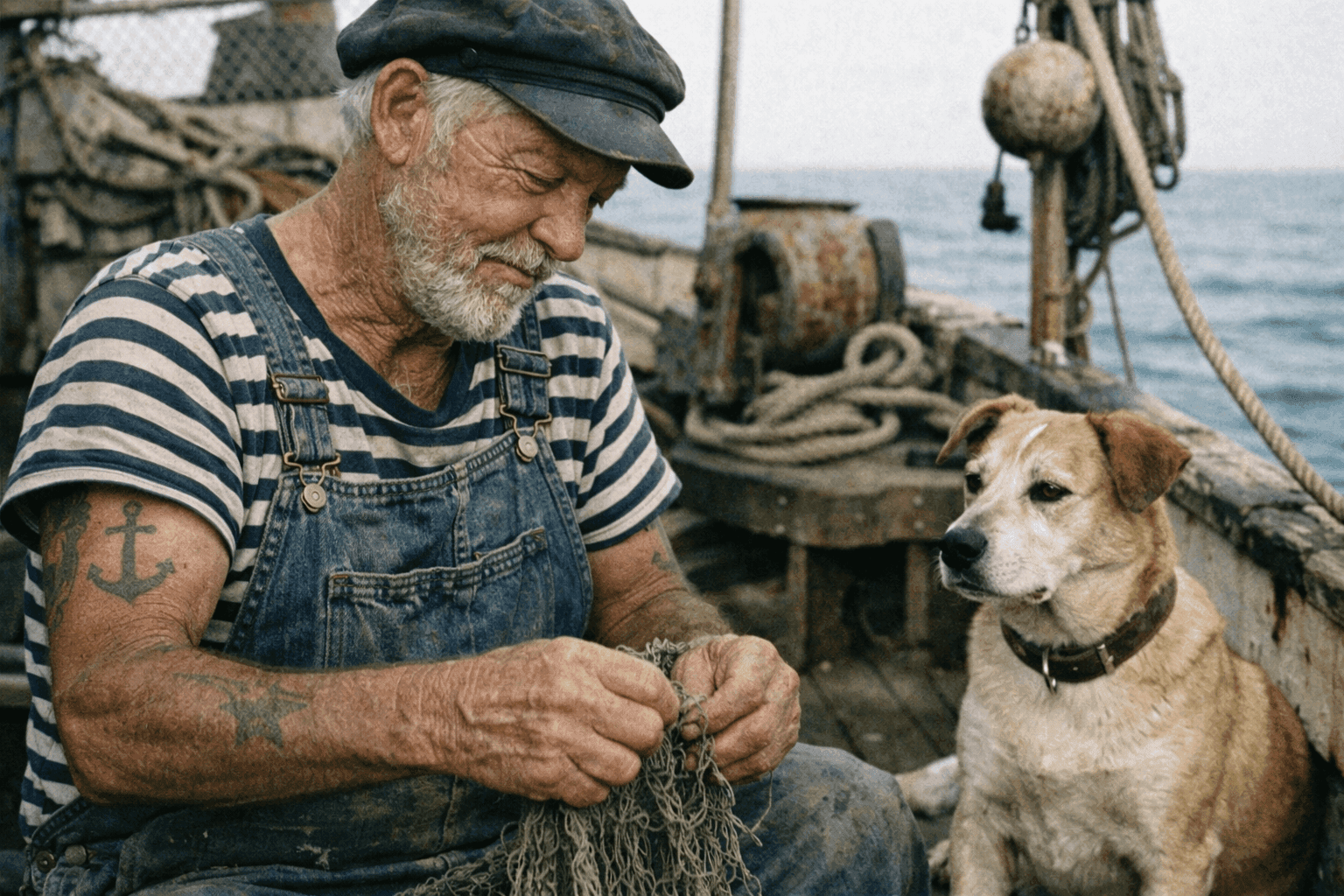
This example shows GPT Image 1.5 in an image-to-image workflow: one natural portrait, one short edit instruction, and one controlled result that ages the subject without changing the whole scene.
Source Image + Edit Prompt
Make the man look older.
Edited Result
How to Use GPT Image 1.5?
Step 1
Choose Text to Image or Image to Image
Start with Text to Image when you want to create from a prompt, or switch to Image to Image when you want GPT Image 1.5 to follow an uploaded source image.
Step 2
Write a Precise Instruction
Describe the subject, composition, wording, and exact change as clearly as possible. GPT Image 1.5 performs best when the edit goal is explicit and the details you want to preserve are named directly.
Step 3
Generate and Tighten the Edit
Render the first version, review the result for wording, layout, and visual consistency, then refine the prompt until the image is ready for product, brand, or campaign use.
Common Questions
What is GPT Image 1.5?
GPT Image 1.5 is an AI image model for both text-to-image and image-to-image workflows. In VidGen, it is positioned as the OpenAI option when you care about precise prompt following, cleaner text inside images, and controlled edits that preserve the original scene.
How do I use GPT Image 1.5?
Choose Text to Image if you want to create from scratch, or switch to Image to Image if you want to start from an uploaded source image. Then describe the subject, layout, wording, and exact change you want, generate the first version, and refine with tighter instructions if needed.
Does GPT Image 1.5 support image editing?
Yes. GPT Image 1.5 works well for image-guided edits when you want to preserve composition and scene structure while changing age, styling, product details, labels, or other controlled visual elements.
Can GPT Image 1.5 render text inside images?
Yes. GPT Image 1.5 is one of the better choices when your image needs clearer words, labels, packaging copy, UI text, or poster typography. Results still improve when your prompt states the exact wording and placement clearly.
Is there a GPT Image 1.5 API?
Users often search for a GPT Image 1.5 API when evaluating integrations. In VidGen, the model is already available through the browser workflow, so you can use it directly without managing provider setup yourself.
When should I choose GPT Image 1.5 instead of Flux Kontext or Nano Banana?
Choose GPT Image 1.5 when prompt fidelity, text rendering, and precise local edits matter most. Flux Kontext and Nano Banana are strong for fast visual exploration and broader creative iteration, while GPT Image 1.5 is the safer starting point when small wording or layout details matter.
Is GPT Image 1.5 free?
GPT Image 1.5 is not positioned as an unlimited free model, but VidGen gives new users free credits so you can test the workflow before moving into larger usage.
Explore Other AI Models on VidGen
Try GPT Image 1.5 in VidGen
Use GPT Image 1.5 in VidGen for text to image, image to image, cleaner text rendering, and precise visual edits in one browser workflow.