
FLUX.2 Pro
FLUX.2 Pro is the production-oriented model in Black Forest Labs' FLUX.2 family: a practical default for product photography, branded graphics, and repeatable campaign assets. VidGen gives it a focused text-to-image and image-to-image workflow with up to 3 references and Auto or seven fixed aspect ratios. Choose Pro when you want a strong balance of visual quality, clear creative direction, and everyday production volume rather than the final-fidelity emphasis of Max or the typography-first precision of Flex.
Create a Text-Accurate Botanical Tea Campaign Image
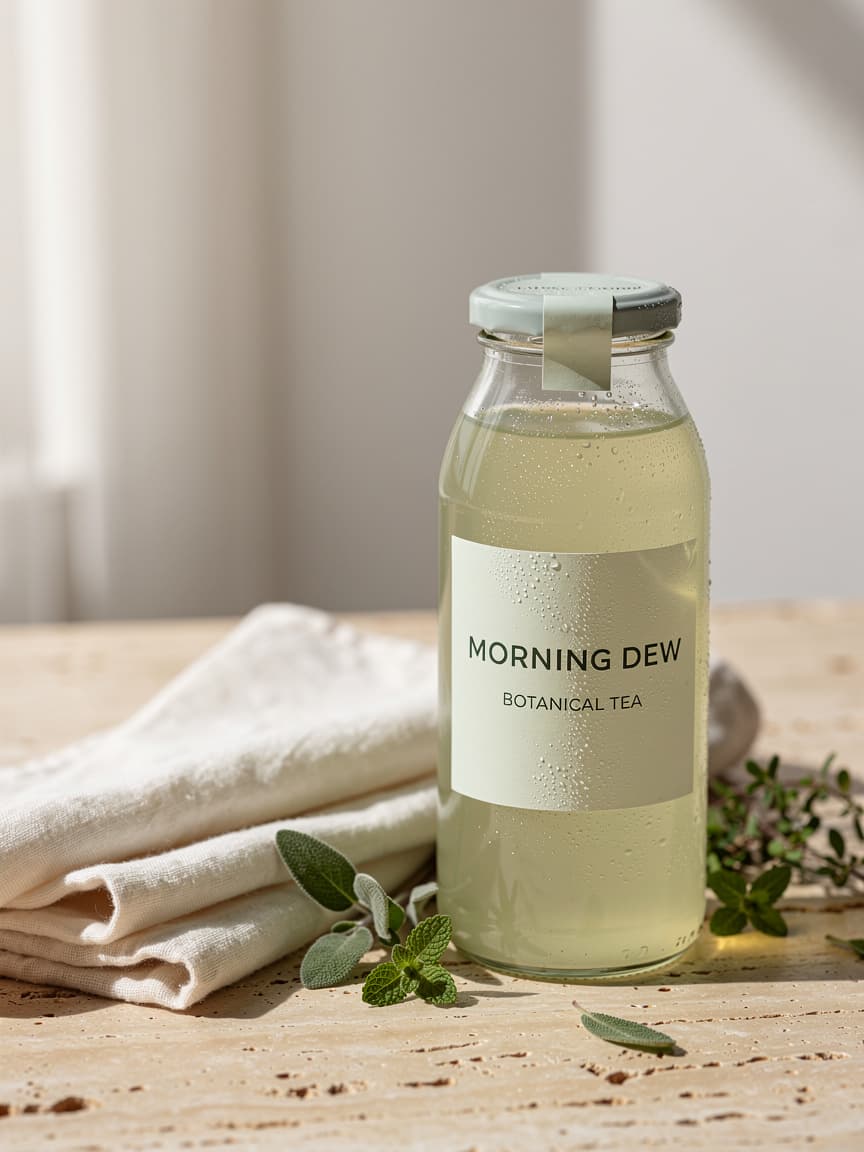
This real VidGen text-to-image example used FLUX.2 Pro with a 3:4 aspect ratio. The 864×1152 result follows the requested pale-green palette, commercial lighting, glass detail, and two lines of label copy.
Original Prompt
A polished campaign photograph for a fictional botanical tea brand called "MORNING DEW". A pale green glass bottle rests beside folded linen and fresh herbs on a warm travertine surface. The label clearly reads "MORNING DEW" and "BOTANICAL TEA". Soft window light, gentle condensation, accurate glass reflections, sage green #8FAF93 accents, calm natural mood, premium commercial photography.
Generated Image
What Makes FLUX.2 Pro Stand Out
Production Default for Repeatable Assets
Move from a creative brief to product shots, ad variants, and campaign images with a model positioned for production at scale.
Brand Colors and Required Copy
Tie hex colors to named objects and put required wording in quotation marks to give packaging, labels, and headlines clearer direction.
Structured Briefs for Complex Scenes
Organize subject, action, style, context, camera, and lighting as separate instructions so multi-element scenes are easier to review and refine.
References for Campaign Continuity
Use up to 3 images in VidGen to anchor a product, visual style, or setting while you create new campaign contexts.
Best Uses for FLUX.2 Pro
- Product photography, packaging concepts, and e-commerce campaign images
- Posters, social ads, labels, and layouts that include visible text
- Multi-reference compositions that combine products, materials, styles, or locations
- Photorealistic editorial scenes with controlled light, lenses, and color palettes
- Brand visual exploration using named colors or hex-code color directions
- Landscape, portrait, square, and social-first creative variations
How to Use FLUX.2 Pro in VidGen
Step 1
Turn the Brief into a Shot Plan
List the product, background, composition, camera view, lighting, required copy, and delivery context before writing the prompt. This makes campaign variants easier to compare.
Step 2
Lock Copy and Brand Color
Put required wording in quotation marks, attach each hex code to a specific object, and upload product, style, or setting references when the brief depends on existing visual assets.
Step 3
Choose the Delivery Ratio and Proofread
Select the ratio for the final placement, generate a draft, then inspect label text, product edges, glass or material reflections, and color direction before producing the next variant.
FLUX.2 Pro Questions Answered
Why choose FLUX.2 Pro for production work?
Black Forest Labs positions Pro as the production model in the FLUX.2 family. It is the practical choice for recurring product shots, branded graphics, and campaign variants when you need strong overall quality without moving every job to the final-fidelity Max tier.
How should I prompt FLUX.2 Pro for product photography?
Build the prompt around subject, action, style, and context, then add the surface, lighting direction, camera angle, and lens feel. State the required packaging copy and color directions separately so the first result is easier to evaluate against the brief.
How do I direct brand colors and text?
Put exact copy in quotation marks and specify its placement, hierarchy, capitalization, and visual treatment. Associate each hex code with a named object, such as ‘bottle label in sage green #8FAF93,’ rather than listing colors without context. Proofread every final label or headline before publishing.
When should I start from text and when should I upload references?
Use Text to Image when the brief defines the scene but no existing visual must be preserved. Use Image to Image when a real product, established style, material sample, or location needs to remain recognizable. VidGen accepts up to 3 references, and the prompt should assign a clear role to each one.
Does FLUX.2 Pro use negative prompts?
No. Black Forest Labs recommends describing the result you want instead of listing what to avoid. Replace a negative instruction such as ‘no clutter’ with positive direction such as ‘a clean surface with one bottle, folded linen, and generous empty space.’
What is the difference between FLUX.2 Pro and FLUX.2 Flex?
Pro is the broader production default for product, campaign, and photorealistic work. Flex is the more specialized choice for typography, small-detail preservation, and fine-grained inference control. VidGen exposes the same prompt, reference, and aspect-ratio controls for both, so choose by the type of image rather than by hidden parameter tuning.
What is the difference between FLUX.2 Pro and FLUX.2 Max?
Pro balances quality and production efficiency for repeated generation and editing. Max is positioned as the family's quality ceiling, with the strongest emphasis on editing consistency, prompt adherence, and style fidelity. Use Pro for the working campaign pipeline and Max when a critical final asset justifies the higher-quality tier.
Which references and aspect ratios can I use in VidGen?
VidGen accepts up to 3 references and offers Auto plus 1:1 (1024×1024), 16:9 (1344×768), 9:16 (768×1344), 4:3 (1152×864), 3:4 (864×1152), 3:2 (1200×800), and 2:3 (800×1200). Auto leaves sizing to the provider and can follow the source image during editing.
Explore Other AI Models on VidGen
Build Repeatable Brand Assets with FLUX.2 Pro
Turn structured briefs into product photos, campaign variations, and text-directed brand visuals with FLUX.2 Pro in VidGen.