
FLUX.2 Flex
FLUX.2 Flex is the precision-oriented FLUX.2 variant for typography, small details, and layouts that need explicit visual direction. In VidGen, it handles both prompt-based generation and reference-guided editing with up to 3 input images and Auto or seven fixed ratios. Choose Flex for posters, labels, UI concepts, editorial layouts, or transformations where preserving fine objects and the source structure matters more than using a broad production default.
Transform a Classic Library into an Ocean Research Interior
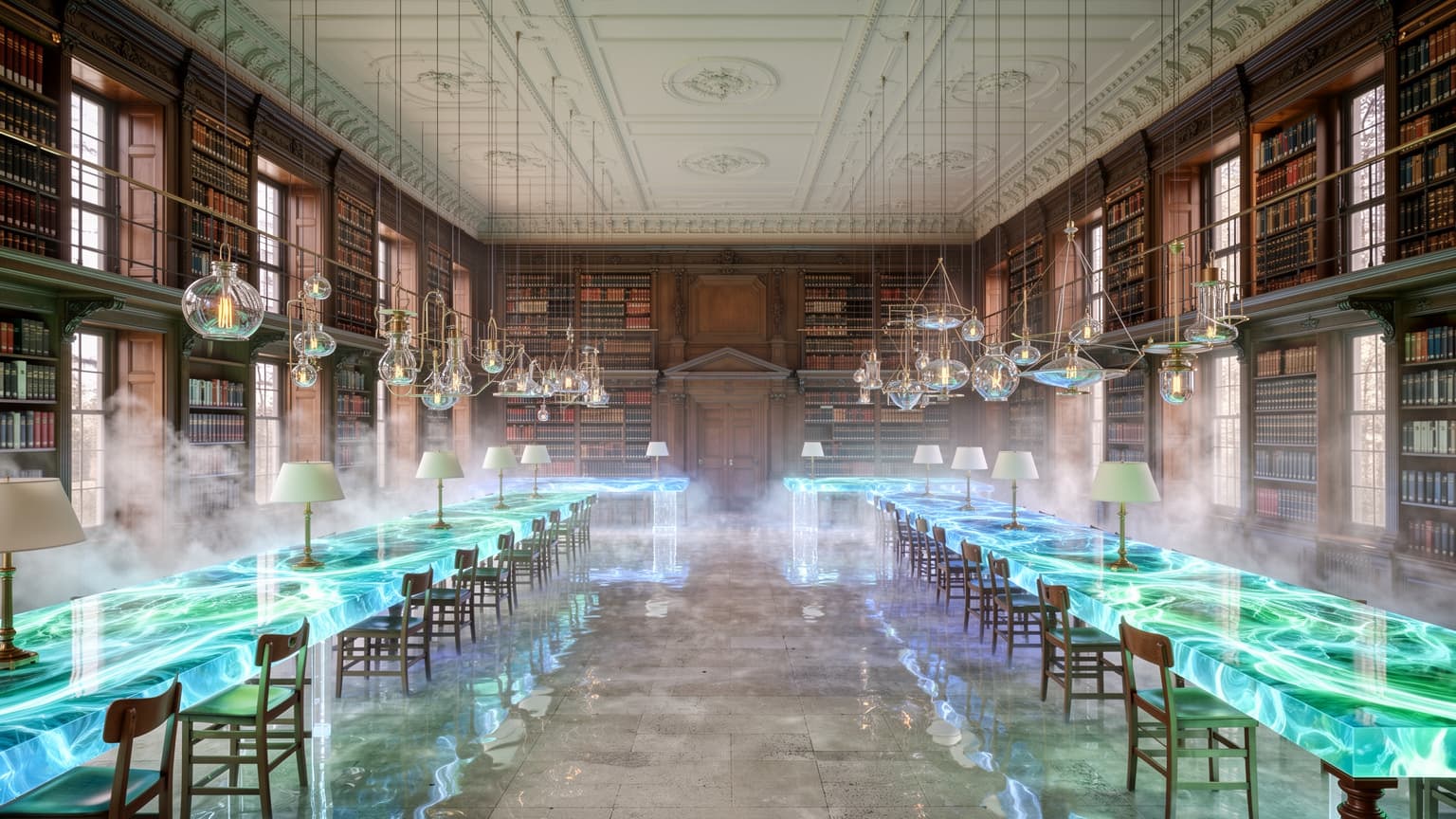
This real VidGen image-to-image example used FLUX.2 Flex with one reference and Auto sizing. The 1536×864 output preserves the original room, viewpoint, shelves, and windows while transforming the tables, lighting, materials, and atmosphere.
Source Image and Edit Prompt
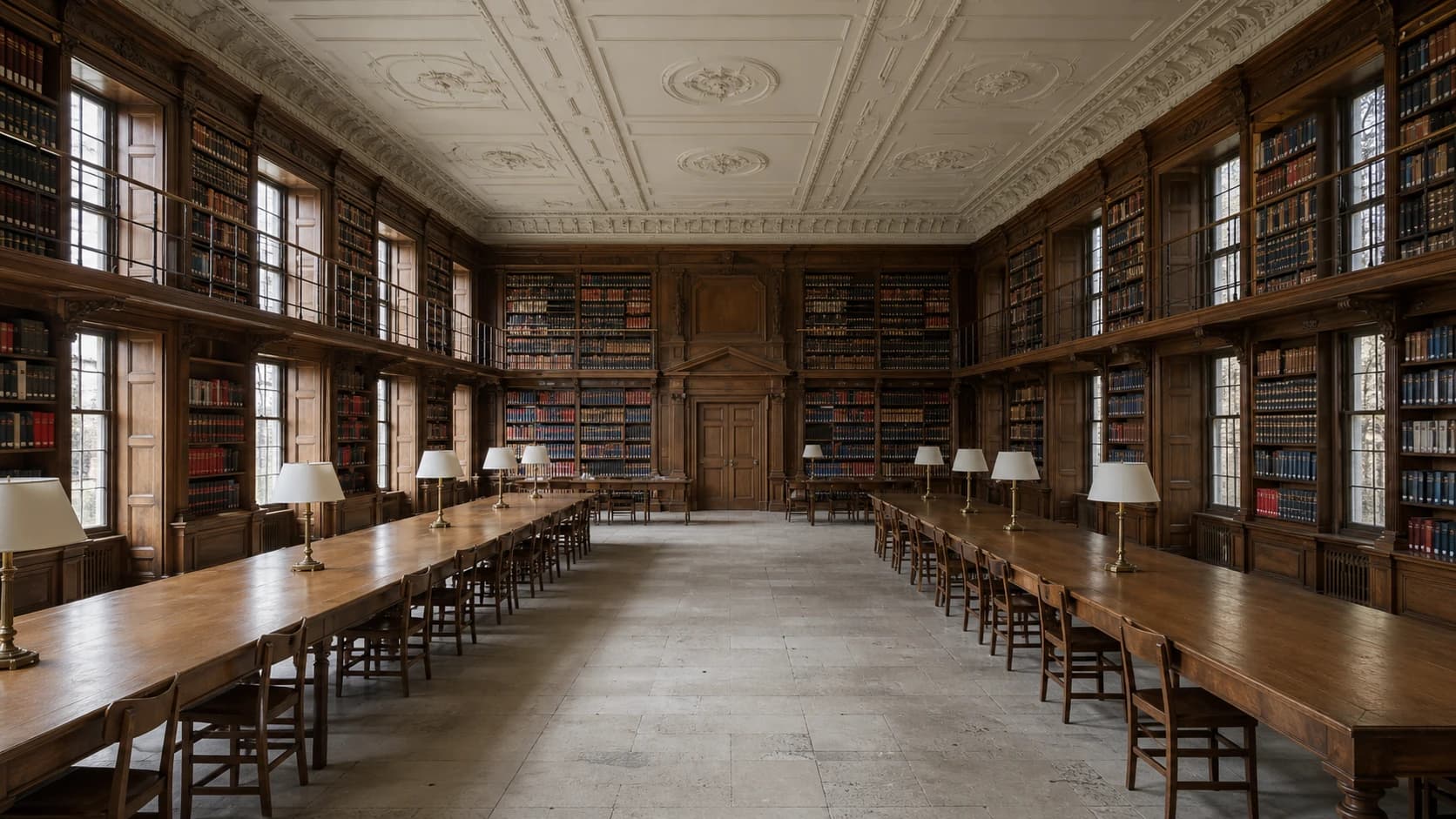
Preserve the room layout, camera position, shelves, windows, and original perspective from image 1. Reimagine the interior as an ocean-inspired research library with translucent resin panels, softly glowing glass tables, flowing blue-green light patterns, and delicate suspended instruments. Keep the architecture recognizable while introducing refined aquatic materials, subtle mist, layered reflections, and an imaginative but physically believable atmosphere.
Edited Image
What Makes FLUX.2 Flex Stand Out
Typography with Layout Direction
Describe exact copy, placement, hierarchy, and styling for posters, labels, menus, interfaces, and editorial compositions.
Small Details in Dense Designs
Use Flex when icons, controls, ornaments, textures, architectural cues, or other fine elements must remain legible inside a complex layout.
Structure-Preserving Transformations
Name the viewpoint, layout, objects, and perspective that must stay fixed before describing new materials, lighting, or atmosphere.
Fine-Control Model, Simplified Controls
BFL's native Flex service supports steps and guidance settings; VidGen currently keeps the workflow to prompts, up to 3 references, and aspect ratio.
Best Uses for FLUX.2 Flex
- Posters, advertisements, labels, menus, and social graphics with visible text
- Product mockups and packaging concepts that depend on small visual details
- Interior, architecture, and environment transformations that preserve the original layout
- Reference-guided compositions combining a subject, material, style, or setting
- UI concepts, infographics, editorial layouts, and other structured visuals
- Square, landscape, portrait, and social-first image variations
How to Use FLUX.2 Flex in VidGen
Step 1
Inventory the Elements to Protect
For a new design, list the text blocks and small elements that must be clear. For an edit, identify the camera, layout, perspective, objects, and architectural features that must not move.
Step 2
Layer New Materials, Text, or Effects
After the preservation list, describe the replacements in visual order. Quote exact copy, name its location and hierarchy, and assign a single clear role to each uploaded reference.
Step 3
Match the Canvas and Audit Fine Details
Use Auto when an edit should follow the source canvas, or choose a delivery ratio for a new layout. Inspect typography, icons, object count, perspective, edges, and repeated patterns before refining.
FLUX.2 Flex Questions Answered
What work is FLUX.2 Flex best suited to?
Flex is the precision-oriented FLUX.2 variant for typography and small-detail preservation. It is a strong fit for posters, packaging copy, menus, UI concepts, infographics, editorial layouts, and source-image transformations where fine objects or spatial structure must remain clear.
How should I write text and layout instructions?
Put required wording in quotation marks, then state capitalization, placement, visual hierarchy, style, and color. Describe each text block as part of the composition—for example, ‘large centered headline above a two-column menu’—and proofread the result before publishing.
How can I preserve small objects or the original structure?
Start the edit prompt with an inventory of what cannot change: camera position, room layout, windows, object count, controls, trim, or other fine elements. Describe replacements and new effects afterward. Auto sizing can follow the source image, but you should still inspect perspective and small details in the output.
How should I use reference images with Flex in VidGen?
Upload up to 3 references and give each one a job, such as ‘image 1 for layout, image 2 for material, image 3 for typography style.’ Avoid asking every reference to control the whole image; explicit roles make conflicts easier to diagnose and revise.
Can I adjust Flex steps or guidance in VidGen?
Not currently. Black Forest Labs documents adjustable steps and guidance for its native Flex endpoint, but VidGen exposes only the prompt, reference images, and aspect ratio. Use precise layout, preservation, and styling instructions instead of expecting a hidden parameter panel.
What is the difference between FLUX.2 Flex and FLUX.2 Pro?
Flex is specialized for typography, small-detail preservation, and fine-grained control. Pro is the broader production default for product imagery, campaigns, and photorealistic generation at scale. Choose Flex when text or fine structure drives the brief and Pro when you need an adaptable everyday production model.
What is the difference between FLUX.2 Flex and FLUX.2 Max?
Flex targets typography and fine structural control, while Max targets the family's highest final quality, editing consistency, prompt adherence, and style fidelity. Use Flex for a detail-sensitive design problem and Max for a critical final composite, retexture, or campaign hero.
Does FLUX.2 Flex support negative prompts?
FLUX.2 models do not use negative prompts. Describe the intended state positively: instead of ‘do not change the shelves,’ write ‘preserve the shelf positions, proportions, wood trim, and original perspective exactly.’
Explore Other AI Models on VidGen
Design Text and Detail-Sensitive Visuals with FLUX.2 Flex
Create typography-led layouts or transform existing scenes while directing the small objects, structure, and visual details that must remain clear.