
FLUX.2 Max
FLUX.2 Max is the quality ceiling of the FLUX.2 family, intended for final assets that demand strong prompt following, editing consistency, and faithful style representation. VidGen gives it a focused text-to-image and image-to-image workflow with up to 3 references and Auto or seven fixed ratios. Use Max for final product scenes, cinematic key art, retexturing, or multi-source composites where geometry, lighting, scale, and material transitions must hold together.
Combine Three References into a Polished Afternoon Tea Scene
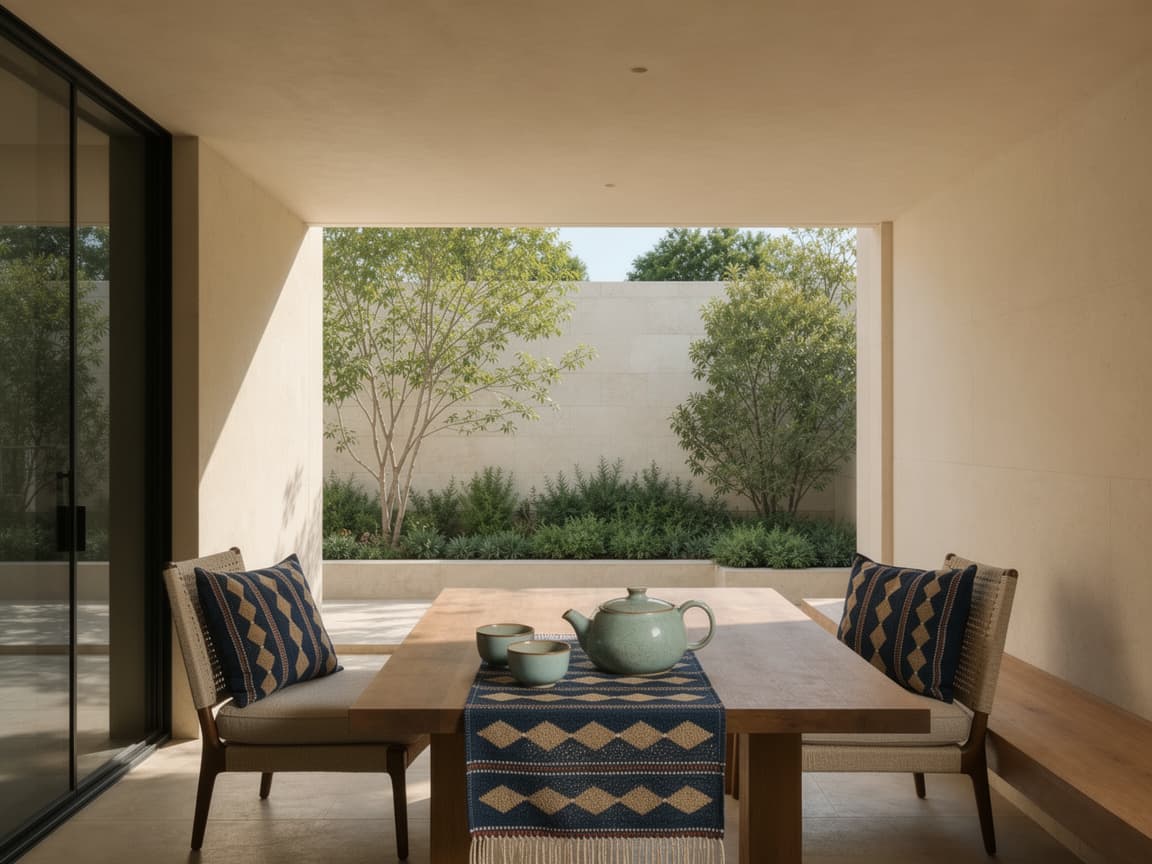
This real VidGen image-to-image example used FLUX.2 Max with 3 references and a 4:3 aspect ratio. The 1152×864 output combines the pale-green tea set, navy-and-tan woven pattern, and sunlit courtyard while preserving coherent scale, daylight direction, and material detail.
Three References and Edit Prompt
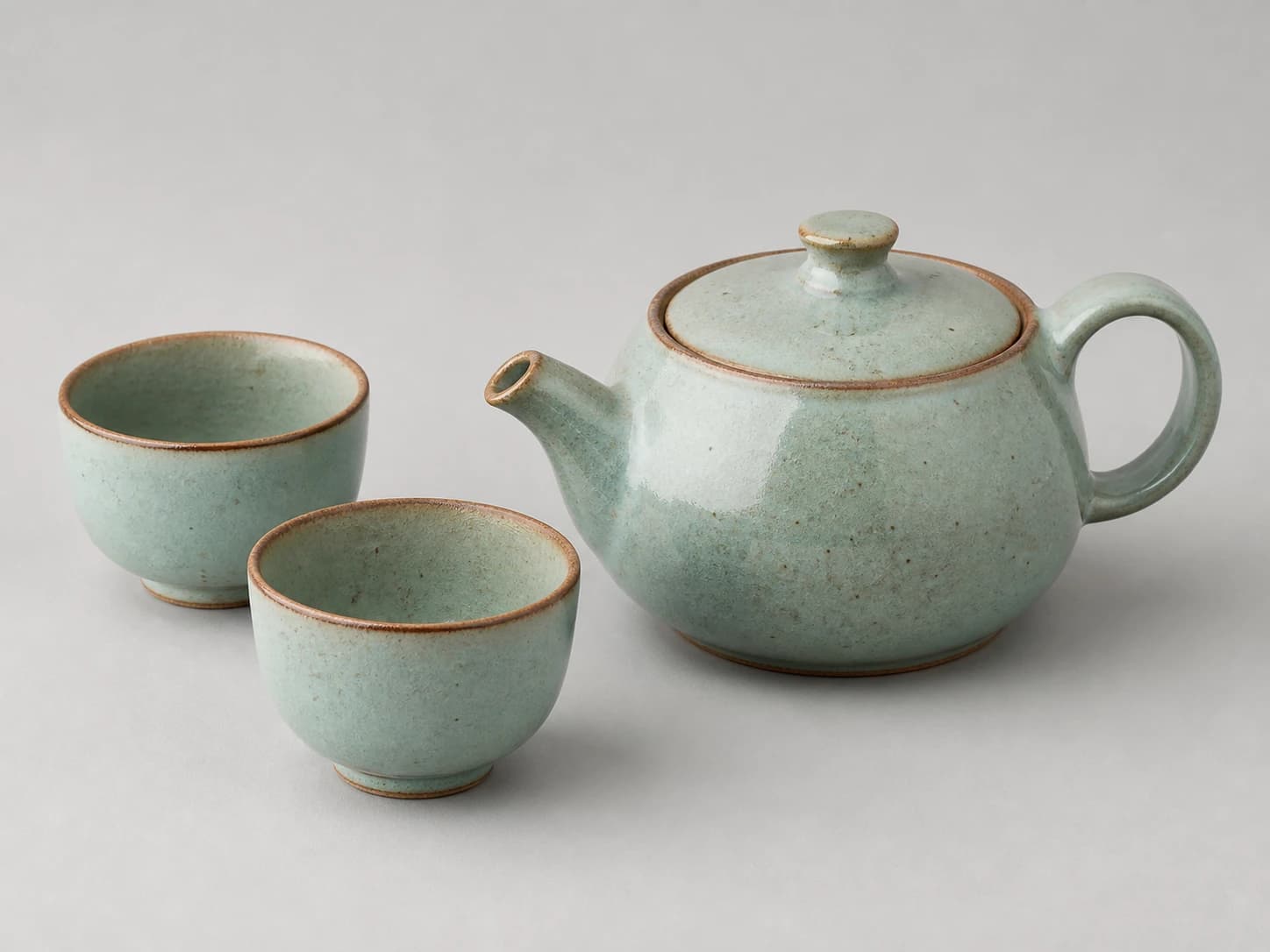
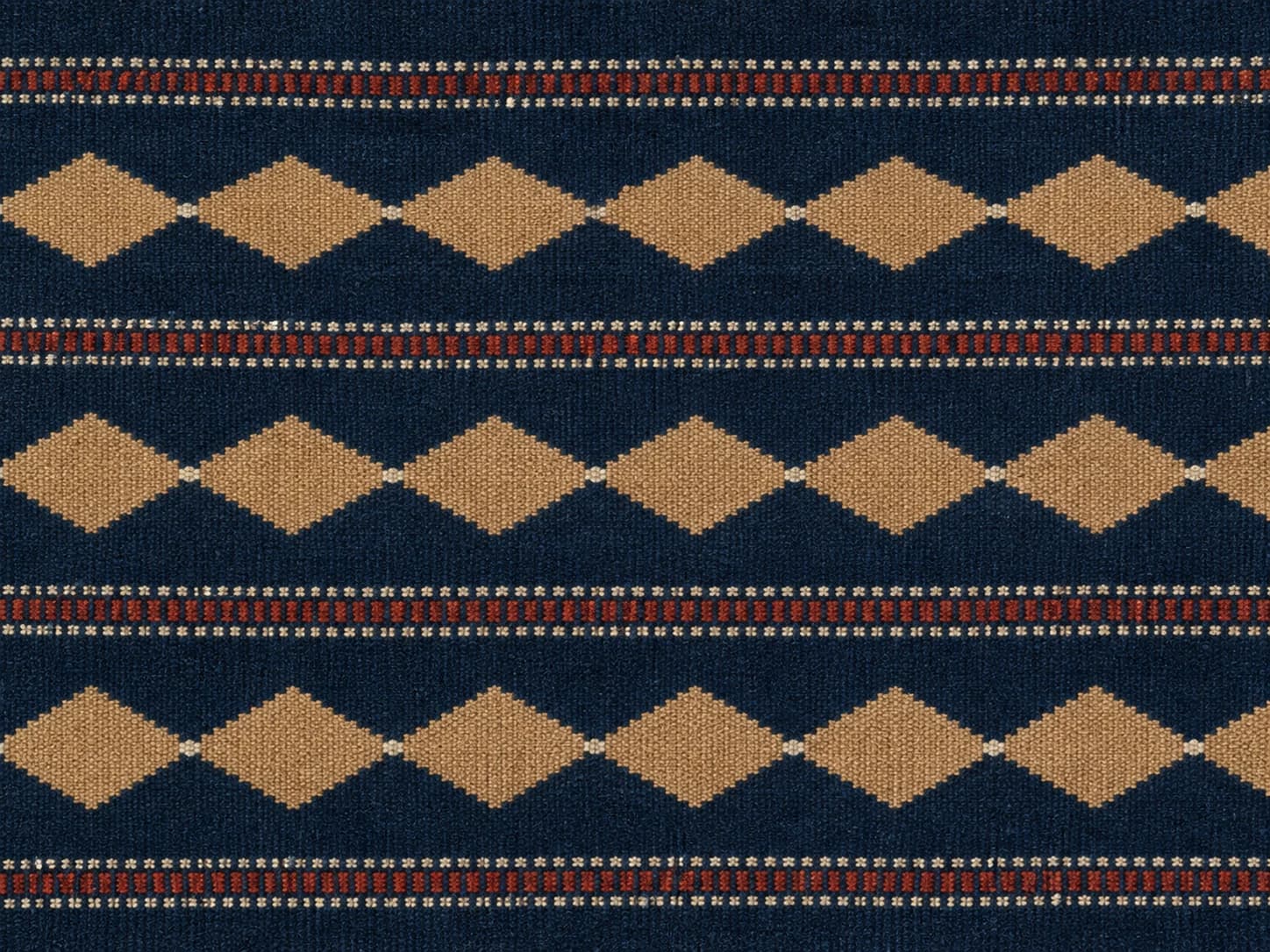
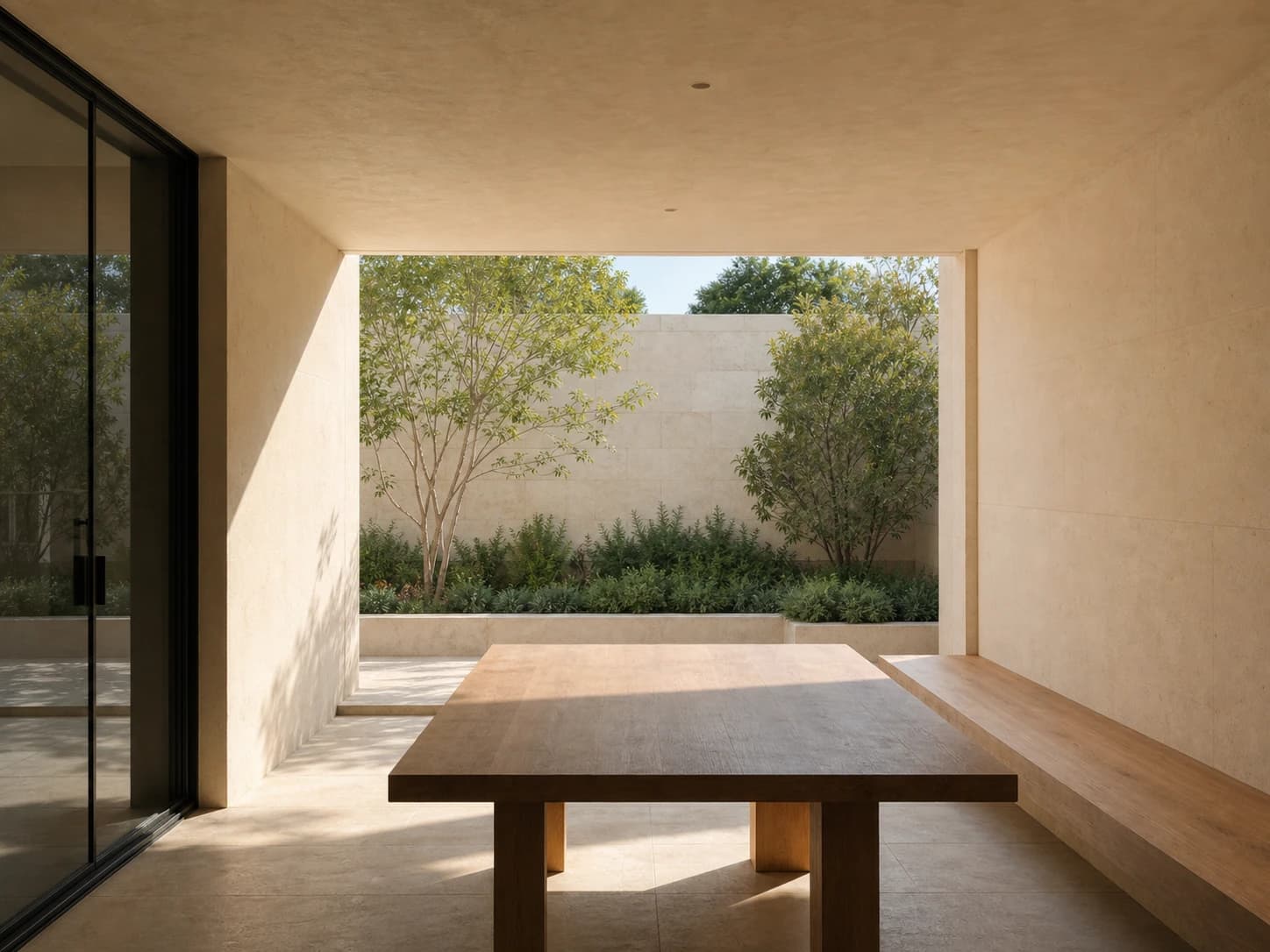
Build one cohesive lifestyle scene from the three references. Preserve the exact ceramic forms, glaze colors, and proportions from image 1. Apply the woven pattern and tactile qualities from image 2 to the table runner and cushions. Use the architecture, viewpoint, and daylight direction from image 3. Create a calm afternoon tea setting with accurate shadows, consistent scale, natural material transitions, and polished editorial realism.
Edited Image
What Makes FLUX.2 Max Stand Out
Final-Asset Quality Ceiling
Use the family's top tier for campaign heroes, key art, and polished deliverables where the final pass matters more than generation volume.
Consistency Through Complex Edits
Direct substantial material, environment, and styling changes while keeping identity, geometry, perspective, and lighting relationships coherent.
Three-Source Compositing in VidGen
Combine up to 3 inputs by assigning separate roles for subject, material or pattern, and environment instead of blending their instructions together.
Retexturing That Respects the Scene
Apply a new surface or material while explicitly preserving the object's form, proportions, viewpoint, light direction, and believable contact shadows.
Best Uses for FLUX.2 Max
- Marketplace-ready product photos and premium e-commerce lifestyle scenes
- Brand campaigns, hero images, key art, and final presentation visuals
- Multi-reference compositions combining products, materials, patterns, and locations
- Retexturing furniture, products, interiors, or environments while preserving geometry
- Photorealistic editorial and cinematic scenes with controlled light and spatial depth
- Final-quality image variations where consistency and finish outweigh generation volume
How to Use FLUX.2 Max in VidGen
Step 1
Assign a Role to Every Reference
Choose text generation or upload up to 3 images, then write one job for each input: subject form, material or pattern, and environment are a reliable starting split.
Step 2
Lock Geometry and Light Before Restyling
State the shapes, proportions, camera position, perspective, and light direction that must stay fixed before describing the new scene, material, or visual style.
Step 3
Choose the Delivery Ratio and Run Final QA
Generate at the intended placement ratio, then inspect identity, scale, geometry, material transitions, repeated patterns, reflections, contact points, shadows, and required text.
FLUX.2 Max Questions Answered
When should I choose FLUX.2 Max rather than Pro?
Choose Max when the output is a critical final asset and editing consistency, prompt adherence, material realism, or style fidelity outweigh throughput. Pro is the more practical production default for recurring product shots and campaign variants; Max is the finishing tier for the version that must hold up under close review.
How do I plan a three-reference composite?
Assign one non-overlapping role to every input before describing the final scene—for example, image 1 for the product form, image 2 for the textile pattern, and image 3 for the environment and daylight. Then state scale, placement, and the visual relationships that must connect them.
What should I inspect before using a result as a final asset?
Review subject identity, object proportions, perspective, repeated patterns, surface transitions, shadow direction, reflections, contact points, text, and the scale between combined references. Max improves consistency, but final-output quality still needs a human visual check.
Is FLUX.2 Max a good choice for retexturing?
Yes. Black Forest Labs specifically presents Max for retexturing while preserving geometry and lighting. In the prompt, name the surface to replace, the reference material to borrow, and the form, camera view, light direction, and shadows that must stay unchanged.
What is the difference between FLUX.2 Max and FLUX.2 Flex?
Max emphasizes the family's highest final quality, editing consistency, prompt following, and faithful style representation. Flex specializes in typography, small-detail preservation, and fine-grained control. Use Max for the final composite or retexture and Flex when readable text or intricate layout structure is the core problem.
Does FLUX.2 Max use real-time web grounding in VidGen?
Black Forest Labs' own FLUX.2 Max service includes grounding search, but VidGen's current integration does not expose a grounding control and sends only the prompt, reference images, size, and seed to the connected provider. Do not rely on VidGen output for current facts, live weather, scores, or breaking news.
How do VidGen's reference limits differ from Black Forest Labs' service?
VidGen currently accepts up to 3 reference images with FLUX.2 Max, matching the connected WaveSpeed edit endpoint. Black Forest Labs documents up to 8 references through its API and up to 10 in its playground, so instructions written for those services may need to be simplified for VidGen.
Which aspect ratios and image sizes are available?
VidGen offers Auto plus 1:1 (1024×1024), 16:9 (1344×768), 9:16 (768×1344), 4:3 (1152×864), 3:4 (864×1152), 3:2 (1200×800), and 2:3 (800×1200). Auto leaves sizing to the provider and can follow an uploaded image during editing.
Explore Other AI Models on VidGen
Create Final-Quality Images with FLUX.2 Max
Build final product scenes, retextures, and multi-source composites with up to 3 clearly assigned references using FLUX.2 Max in VidGen.