AI Aging Filter Online
Upload a portrait and see what you'll look like when you're older in one click. Free to try, no app needed.
AI Aging Filter Online
Upload a portrait and see what you'll look like when you're older in one click. Free to try, no app needed.

See your older self with an AI aging filter
Upload a portrait and explore how you might look about 30 years older. The filter adds wrinkles, gray hair, and other age-related details while aiming to keep your face recognizable. Use this creative AI age progression tool in your browser. It does not predict how you will actually age.
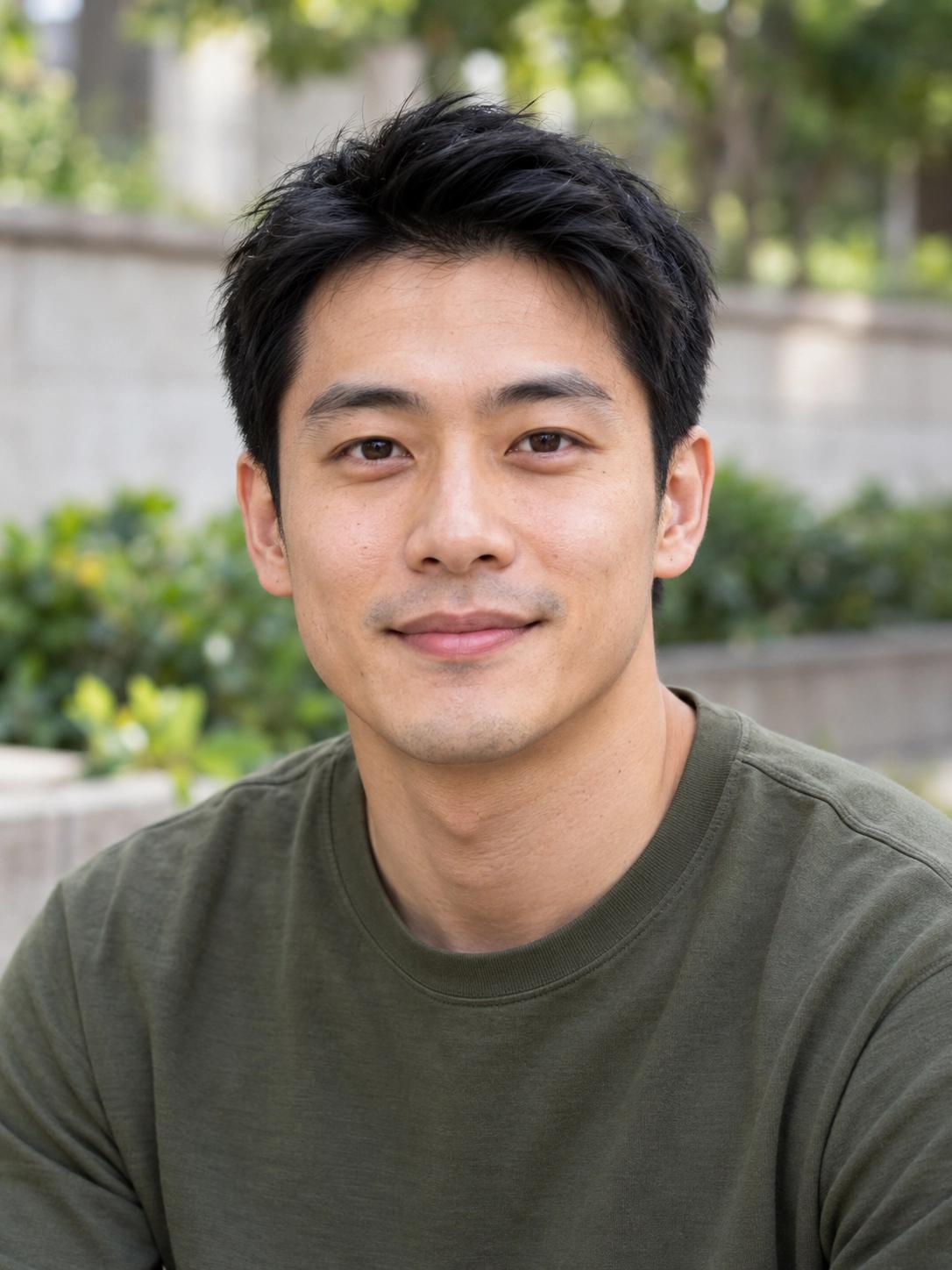
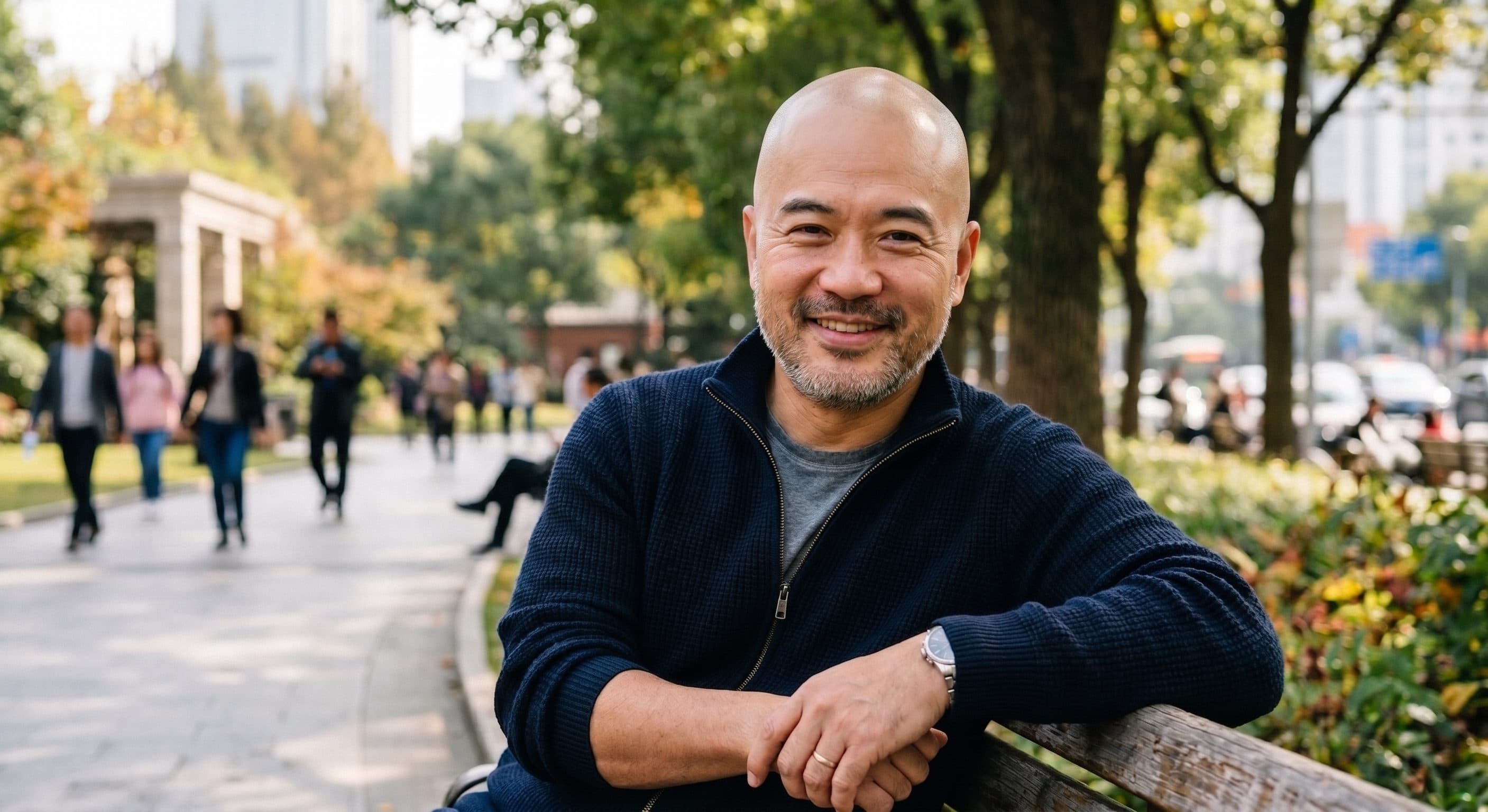
AI aging filter before and after
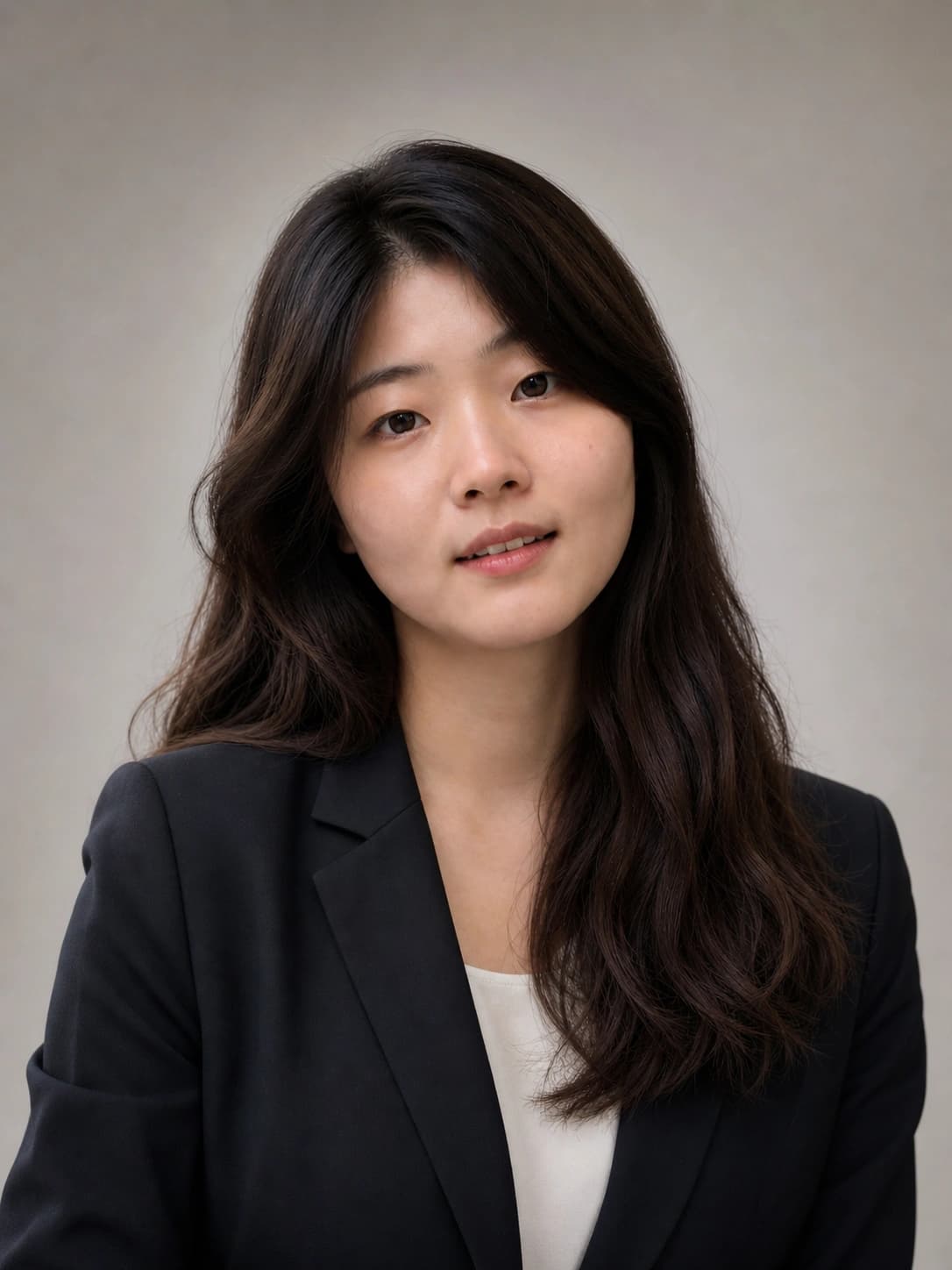
Compare an original portrait with an AI-generated older version. Wrinkles, gray hair, and skin texture can change, and facial details or the surrounding scene may also vary.
Before
After
Ideas for your older-self portrait
Explore ideas for personal portraits, side-by-side comparisons, and character references.
Imagine an older version of yourself
Turn a current portrait into a creative image of yourself about 30 years older. Use the result as a starting point for imagining a future look.
Imagine growing old together
Upload each partner's portrait separately, generate two aged images, then arrange them side by side for an anniversary card or slideshow.
Share an older-self portrait
Download your result and share a before-and-after image on TikTok, Instagram, or Snapchat. This tool edits an uploaded portrait rather than applying a live camera filter.
Create an older character reference
Create a reference for a story, storyboard, cosplay concept, or game. Start with a photo you own or have permission to edit.
How to age a photo with the AI aging filter
Upload a portrait, choose an output ratio, and generate an older-looking image in your browser.
Step 1 — Upload a clear portrait
Sign in, then add a JPG, PNG, or WebP photo up to 5 MB. Choose a sharp photo of one person with even lighting and an unobstructed face.
Step 2 — Choose a ratio and generate
Select an aspect ratio and click Create. The filter applies an approximate 30-year aging effect; there is no age slider to adjust.
Step 3 — View and download your PNG
Review the completed image in the results area or My Assets, then download the PNG. You can generate another version if you want a different result.
What to expect from the aging filter
Create an older-looking portrait online with a simple upload-and-generate workflow.
Works in your browser
Use this AI age filter on desktop or mobile without installing an app. Sign in to submit a generation and keep track of your results.
Age-related details
The effect is designed to add wrinkles, gray or silver hair, and skin changes. The strength and placement of these details depend on the input photo and generated result.
Designed to retain your likeness
The filter aims to preserve recognizable facial features, expression, and the original scene. AI edits can still change details, so review each result before sharing.
12 credits per image
Each generation costs 12 credits. Eligible new accounts may use available starter credits; check your balance before generating.
Explore more AI effects

Frequently Asked Questions
What is an AI aging filter?
An AI aging filter edits a portrait to make the person look older. It adds age-related details such as wrinkles, gray hair, and changes in skin texture to create an older-looking version of the photo.
What will I look like when I'm older?
Upload a clear portrait to explore a version of yourself that looks about 30 years older. The image is a creative simulation, not a prediction of your actual future appearance.
How accurate is AI age progression?
AI age progression can illustrate common signs of aging, but it cannot predict exactly how you will look. Genetics, health, and lifestyle affect real aging, and generated facial details can vary.
Can I use the aging filter for free?
Each generation costs 12 credits. Eligible new accounts may use available starter credits to try it. Check your credit balance after signing in; additional generations require enough credits.
Do I need an app or an account?
You do not need to download an age progression app. The tool runs in your browser on desktop or mobile, but you need to sign in before generating an image.
What format and resolution can I download?
Generated images use PNG format and the 1K resolution setting. Choose an aspect ratio before generating, then download the completed image from the results area or My Assets.
Can I age a photo of someone else?
Yes, if you have their permission to edit the photo. For a side-by-side couple comparison, generate each portrait separately and combine the downloaded images yourself.
Can I choose an age or make myself look younger?
The filter applies an approximate 30-year aging effect. It does not offer a target-age selector, an age slider, or a younger-face option.
Which photos work best?
Use a sharp, front-facing portrait of one person with even lighting. Avoid heavy filters, sunglasses, and anything covering the face. Upload a JPG, PNG, or WebP file up to 5 MB.