
Video Upscaler
Upscale videos with AI to sharpen detail and boost resolution
AI video upscaler for clearer 1080p and 4K video
VidGen provides an online AI video upscaler for improving video resolution, sharpening visible detail, reducing noise, and creating a cleaner version of low-resolution footage. Upload an MP4 or MOV video, then choose 1x, 2x, or 4x processing. Unlike a basic video scaler that only enlarges pixels, an AI video enhancer analyzes edges, textures, faces, objects, lighting, compression artifacts, and movement across frames before reconstructing additional visual information. This can help improve video quality when a source appears soft, compressed, pixelated, or too small for the intended display. Final quality depends on the original resolution, compression, motion, lighting, and selected upscale factor. AI video enhancement cannot perfectly recover details that were never captured, so start with the highest-quality source available.
See AI video upscaling before and after
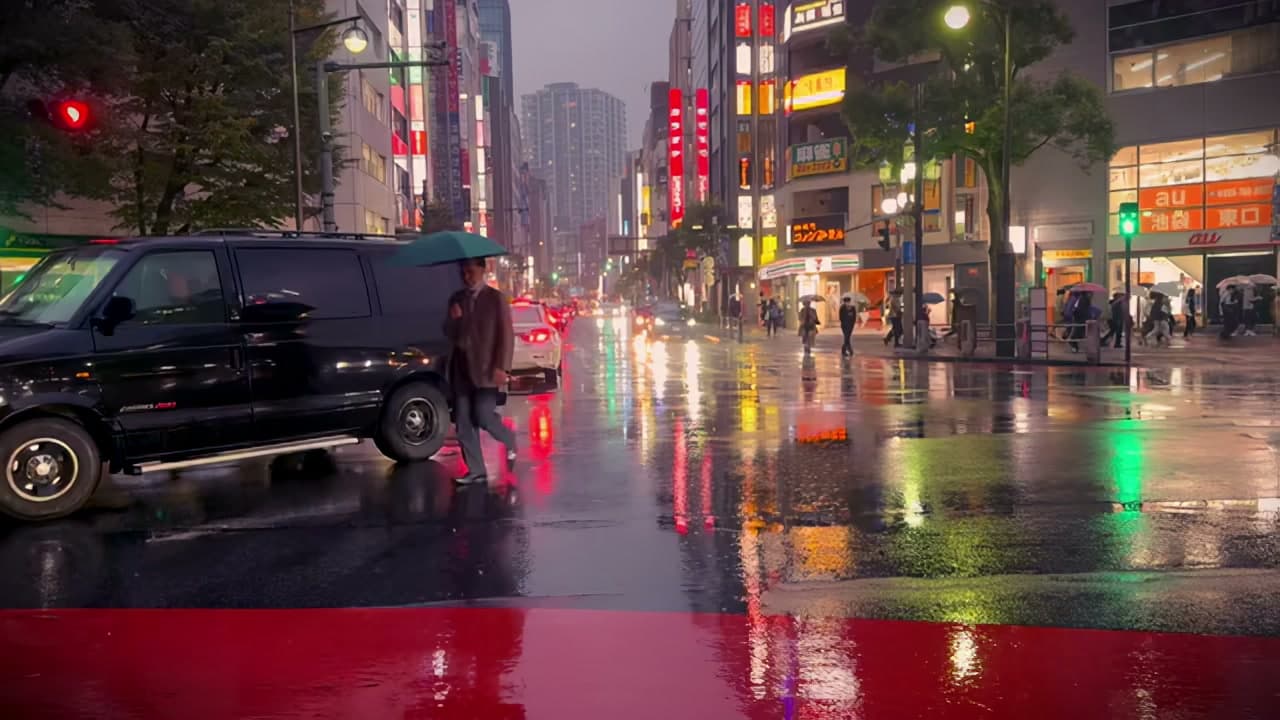
Compare an original video with the enhanced output to see how AI video upscaling affects resolution, edge clarity, texture, noise, and overall presentation. Look closely at faces, hair, clothing, product edges, text, buildings, and fine movement. The output should preserve the original framing, timing, and visual content while providing a larger, cleaner result. Moderately compressed footage with clearly visible subjects usually gives the AI more reliable information than extremely blurry, damaged, or repeatedly compressed video.
Before
Enhanced video
How to upscale a video online with AI
Improve video quality and increase resolution in three steps without installing desktop video enhancement software.
Step 1 — Upload your video
Upload one MP4 or QuickTime MOV video up to 10 MB. Use the original file whenever possible instead of a copy downloaded from social media or a video that has already been compressed several times. A cleaner source gives the AI video quality enhancer more reliable pixels, edges, colors, and motion information to analyze.
Step 2 — Choose an upscale factor
Choose 1x, 2x, or 4x processing according to the source video and the output you need. Use 1x for same-size enhancement, 2x for a balanced increase in resolution, or 4x when you need a substantially larger output. Final resolution depends on the dimensions of the uploaded video, and a higher factor may require more processing time.
Step 3 — Preview and download
Review the completed video before downloading it. Check faces, fine edges, repeated patterns, fast motion, text, and high-contrast areas for unwanted artifacts. Compare the result with the original at the same playback size and at full resolution, then download the enhanced version when it fits your project.
Explore more AI video and image tools
Frequently Asked Questions
What is an AI video upscaler?
An AI video upscaler increases video resolution while attempting to preserve or reconstruct useful visual detail. Instead of only stretching existing pixels, it analyzes edges, textures, objects, faces, and patterns across multiple frames. The same workflow can function as a video enhancer or video quality enhancer when the goal is to create a clearer and larger result.
How does AI video upscaling work?
AI analyzes the frames in an uploaded video and looks for visual relationships between nearby pixels and consecutive frames. It estimates how edges, textures, and objects should appear at a larger resolution, then generates an enhanced sequence while trying to keep motion and appearance consistent. Reconstruction quality depends heavily on the source footage.
How can I upscale a video to 1080p or 4K?
Upload the highest-quality source available and choose a suitable upscale factor. Final resolution is determined by the original video dimensions and the selected 1x, 2x, or 4x option. If you want to upscale video to 1080p or make video 4K, check the source dimensions first rather than assuming one factor will create the same resolution for every file.
Can AI improve a blurry or low-quality video?
AI may make a mildly blurry, compressed, or low-resolution video clearer by strengthening edges, reducing some noise, and reconstructing patterns. However, a video unblur workflow cannot perfectly restore information that was never captured. Severe focus blur, strong motion blur, or missing facial detail may remain imperfect after enhancement.
Does video upscaling create real new detail?
AI video upscaling generates plausible additional detail from patterns learned by the model and information still visible in the source. The reconstructed detail can make the output look cleaner, but it should not be treated as a perfect recovery of the original scene. Review important faces, text, labels, and technical information carefully.
Is VidGen a free video upscaler with no watermark?
New VidGen users can use available starter credits to try the Video Upscaler. Each task consumes credits according to the current workspace pricing and video processing requirements, so it is not an unlimited free video upscaler. The workflow is designed to return the processed video without adding a new VidGen watermark, but users must still respect ownership, licensing, and attribution requirements attached to the source.
Which video formats and file sizes are supported?
The current Video Upscaler accepts MP4 and QuickTime MOV videos up to 10 MB. Use the original file whenever possible. A video downloaded from a social network or repeatedly exported from an editor may contain additional compression that limits the enhanced result.
How long does it take to enhance a video?
Processing time depends on the video length, original resolution, selected upscale factor, file complexity, and current service availability. A short video processed at 2x will generally require less work than a longer video processed at 4x. Check the displayed task status for completion.
Is an online video upscaler better than video enhancement software?
An online video upscaler is convenient because it does not require installation, a local GPU, or manual AI configuration. Desktop video enhancement software may provide more advanced controls or suit larger offline projects. The better choice depends on file size, privacy requirements, hardware, technical experience, and the level of manual control you need.
What should I look for in the best video upscaler?
Choose a video upscaler with clear input limits, practical scale options, predictable processing costs, stable frame-to-frame results, natural-looking edges, and an easy way to preview and download the output. A reliable AI video upscaler should also explain its limitations instead of promising that every low-quality video can be perfectly restored.