
Lip Sync AI
Upload a video and an audio track to match the person's lip movements to your audio.
Lip Sync AI
Upload a video and an audio track to match the person's lip movements to your audio.
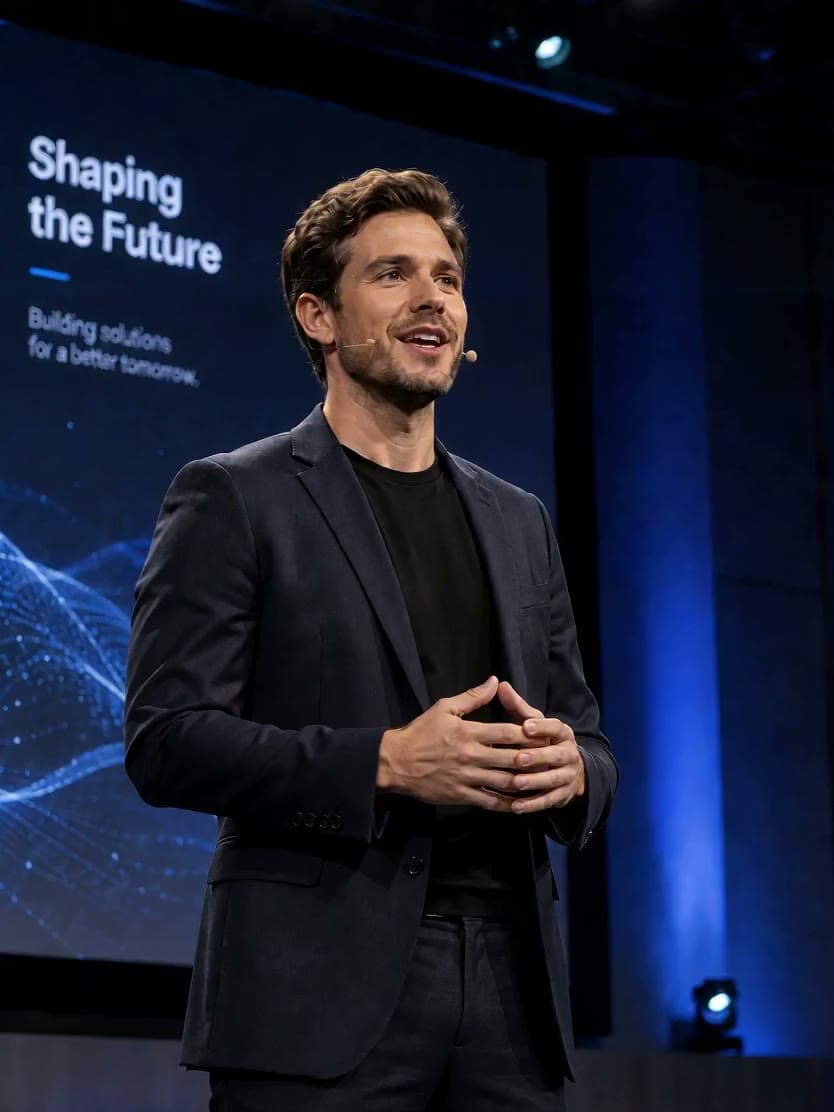
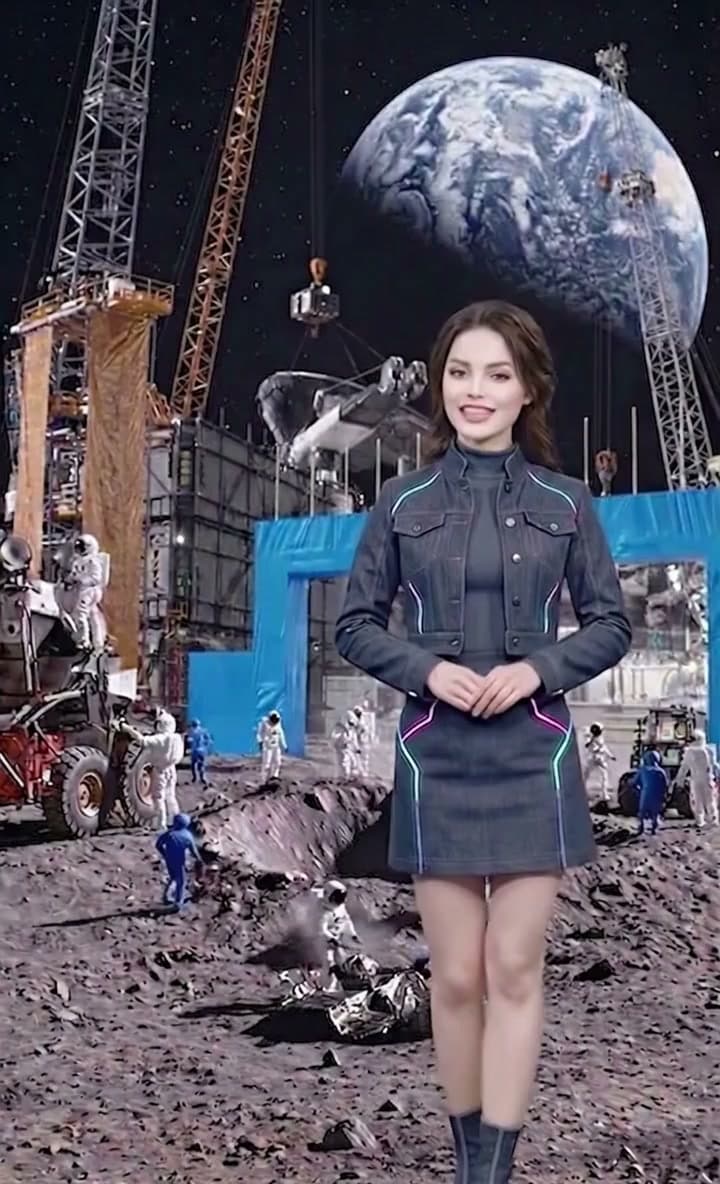
Choose a model for your video and audio
Use this AI lip sync generator to match the mouth movements in an existing video to a new audio track. Lip Sync Fast supports 480p or 720p and audio up to 10 minutes. Lip Sync Standard works with 2–120-second clips and follows the source video's resolution, frame rate and aspect ratio. Start with a short sample to compare the results.
Compare the lip sync result
Compare the original video, replacement audio and processed result. Listen to the words and pauses while watching the mouth, then check whether the face stays consistent throughout the clip.
Source video and replacement audio
Processed video
How to sync audio to video with AI lip sync
Prepare your video and audio, choose the model's settings, then review the generated clip.
Step 1: Choose a model and upload
Choose Fast or Standard, then upload a video and the audio track that should drive the lip movements. Use footage with a clearly visible face and audio with clear vocals. For Standard, prepare speech audio with background music and ambient noise removed. Check the model's file and duration limits below.
Step 2: Set the output options
With Fast, choose 480p or 720p. With Standard, enable Extend Video if you want to loop the footage to match a longer audio track. Review the required credits before submitting.
Step 3: Generate, review and download
Follow the task status and play the completed video from start to finish. Check the mouth movements, facial details and whether the audio ends where expected, then download the result you want to use.
Tools for preparing your next video
Lip sync questions and answers
Can I try AI lip sync for free, and do I need to sign in?
You need to sign in to generate a video. Available signup credits can be used to try the tool, but each task uses credits. Whether your balance covers a clip depends on the model, duration and output settings. Check the credit estimate before submitting.
How do I choose between Lip Sync Fast and Standard?
Choose Fast when you need 480p or 720p output or an audio track longer than two minutes, within its 10-minute limit. Standard is the default option for 2–120-second inputs, follows the source video's output specifications and can loop footage for longer audio. Compare the credit estimate and a short sample using your own material.
Which video and audio formats, sizes and durations are supported?
Fast accepts MP4/MOV video up to 100 MB and MP3/WAV audio up to 50 MB, with audio lasting 2 seconds to 10 minutes. Standard accepts MP4/MOV video up to 300 MB and MP3/WAV/AAC audio up to 30 MB; both video and audio must be between 2 and 120 seconds. Standard also requires video encoded with H.264 or H.265, 15–60 fps and frame width and height between 640 and 2048 pixels. Trim or convert files before uploading if needed.
How does Lip Sync Standard handle audio and video of different lengths?
With Standard, Extend Video is off by default, and the result uses the shorter of the video and audio durations. If the audio is longer, enabling Extend Video repeats the original footage in alternating reverse and forward playback to match it. This loops existing footage rather than creating new shots. Preparing matching lengths before upload makes the final cut easier to control.
Do I need to record my own voice? Can this tool translate or generate dubbing?
You can use a recording or audio made with a text-to-speech tool, provided you have permission to use it. Upload the finished audio here: this page matches lip movements but does not translate speech, generate narration from text or clone voices. For a translation and dubbing workflow, prepare the new audio first or use Video Translator.
Can I use a photo instead of a video?
This page requires an existing video and an audio file. If you only have a portrait photo, use AI Avatar to create a talking video from the photo and audio.
Can I lip sync singing or animated characters?
Lip Sync Fast can be tried with singing audio for music video lip sync. Use clear vocals and review how the mouth follows sustained notes and rapidly sung passages. Standard is intended for clear spoken voice. Animated or heavily stylized faces can be harder to detect, so test a short clip before using either model for a full sequence.
What about multiple people, side views or a covered mouth?
Use a clip with one clearly visible face, steady lighting and an unobstructed mouth where possible. Large head turns, side views and hands covering the face can make the result less consistent. This page has no manual person selector, so do not rely on it to sync several speakers independently.
Will the result keep the original resolution and image quality?
Fast uses the 480p or 720p output you choose. Standard follows the source video's resolution, frame rate and aspect ratio, but matching those specifications does not guarantee unchanged image quality. Mouth and facial details can change during processing. Inspect the result at its intended viewing size before using it.
How long does processing take, and what if the result looks unnatural?
Processing time depends on the model, clip length, resolution and service load; there is no fixed completion time. Follow the task status, then check for flicker, blurred facial details, mouth movement during pauses and missing audio at the end. Try clearer source material or a shorter sample if needed. Each new task uses credits, and another attempt does not guarantee a better result.